Sims 4 New Save Setup: Settings, Mods & Best Practices
If you're a moving-to-a-new-save enthusiast like me, this article will definitely come in handy! Everyone has their own reasons for starting fresh, but we all share one common desire: to make the new save last longer and keep the world in it beautiful and vibrant.
Let's figure out the settings in a new save and pay attention to the non-obvious nuances!
Step 1, which you absolutely must not skip.
Preparing the game
Before creating or downloading a new save, check your game version and mod status. Make sure all installed mods are compatible with the current game version. A new save is a fresh start, we don't need bugs and errors right off the bat, do we?
Clear the cache. The localthumbcache.package file needs to be deleted every time you make changes to your Mods folder (and certainly when switching to a new save). It's located in Documents > Electronic Arts > The Sims 4 (you can read more about clearing cache in the article at the link).
Back up your old save, unless it's broken and you've already said your goodbyes. Move all files from the Saves folder to a separate folder. The path is Documents > Electronic Arts > The Sims 4 > Saves
Step 2. Choosing a save
You can not only start the game from scratch in a save from the developers, but also move your sims into a save made by other players!
So how do you choose that perfect dream save?
It's important to understand:
– How powerful your computer is
(this factor will determine the size of the save, how many worlds will be built up. For example, weak laptops won't handle a save with a built-up in-between lot, the game will lag terribly)
– Do you want to pick lots and families yourself, or do you want a completely ready-made save?
(this will determine which save to choose. There are options with ready-made NPCs but no lots, and there are saves with interesting, well-developed worlds)
– Do you like playing with a storyline, or do you want freedom?
(here you can pick a save with a detective plot or passionate drama, or you can take a basic one and create!)
You can find saves through video reviews on various platforms or from different creators.
How to Add Downloaded Save Files to The Sims 4
Step 3. Setting up the game
If you play with mods, I highly recommend doing the first launch of a new save and game settings WITHOUT mods!
In a new save, it's important to check all game settings, since some of them are locked not to the entire game, but only to a specific save.
IMPORTANT! If you're moving to a new save with a family, first we set up the save without mods, then with mods, and only then do we move the family in
Season
If you're choosing an EA save, you'll be able to set the starting season.
If the save is downloaded, the season is already set in it. You can change it using cheats (for example, the UI Cheats mod), but you need to be prepared for the calendar and holidays to get messed up. But we have to set them up again anyway, so you might as well start with the season you need
Now we go to Menu > Game Options > Gameplay
— Check whether aging is enabled for played and unplayed households, and set the checkboxes you need.
— What lifespan is set? If it was long in your previous save and normal in the new one, there's a risk of losing characters!
In the Game Options > Seasons section, we set the season length (if you set up the calendar and add holidays before this step, then everything might get messed up and Christmas will be in summer).
In the Game Options > Pack Settings section, we set the checkboxes we need for managing characters and packs (each save has its own settings here, and you need to choose what works specifically for you).
If you play with mods, then in the Game Options > Other section, there should be checkboxes next to "Enable Custom Content and Mods" and "Script Mods Allowed".
After saving all settings, we restart the game. And move on!
The following steps can be done in any order that's convenient for you
Setting up the calendar
Only after setting the desired season and season length should you set up the calendar and add holidays.
Since holidays are a pleasant routine, I tackle this based on my mood. Sometimes I create holidays for the whole year at once, and sometimes just for the season.
There are tons of ideas online for different calendar holidays and mods to diversify them.
Setting up the MCCC mod
If you play with mods, you definitely have Command Center! It contains a lot of cool settings that will help with your save's life.
Restoring old settings
If you want to transfer Command Center settings from your previous save, it's easy to do. You just need to not delete the mc_settings.cfg file from the C:\Users\Username\Documents\Electronic Arts\The Sims 4\Mods folder, which is responsible for saving MCCC settings.
I keep it together with my save backups, because there's a risk of accidentally deleting the file when updating the mod.
This mod will help adjust life stages, autonomy, and restore family relationships if the family is large and you had to move them in parts.
A complete guide with a description of the mod's functions can be found here.
IMPORTANT about family relationships!
With the release of the "Royalty & Legacy" pack, adding family relationships has become more complicated. Now a brother and sister can only be created if their shared parent is alive. I had to resurrect some of my sims and say goodbye to them again, it was painful.
But at least now some family relationships are restored automatically. However, adding, for example, a cousin or aunt/uncle will now be harder than before even with the MCCC mod.
Enabling cheats
In the basic Command Center module in the "Cheats Console Settings" section, you can set up automatic enabling of cheats every time you enter the game. No more need to manually enter testingcheats, moveobjects, and so on.
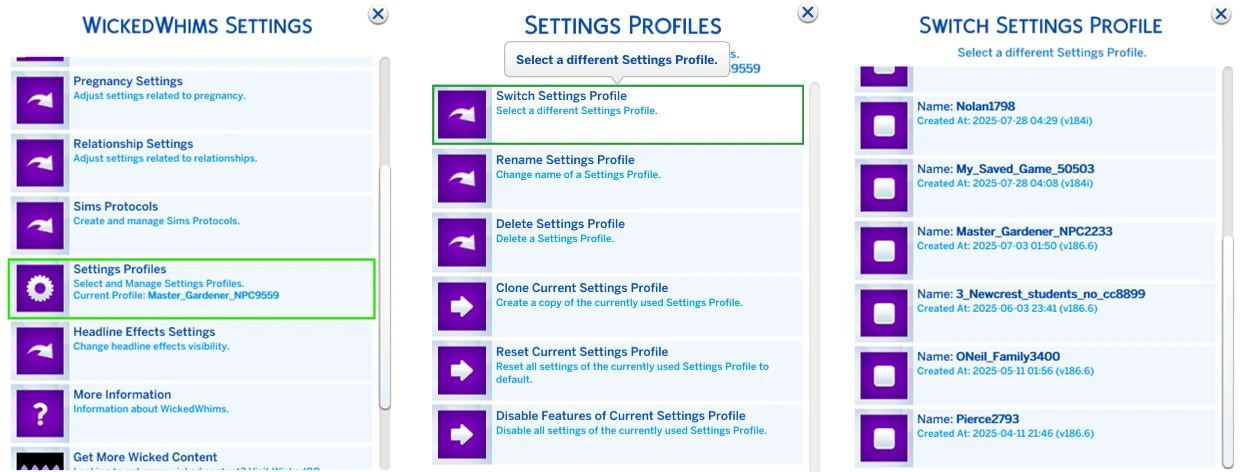
Restoring Wicked Whims settings (if you use it)
If the Wicked Whims mod is installed, upon first entering a new save, a data loading error notification will appear.
Fixing this is simple:
1. You need to open the mod settings
2. Go to Settings Profiles
3. Select Switch Profile
4. Activate the saved profile
All settings from the old save will return.
Moving in families
Phew! We've done the basic settings and now we can start moving in families.
If you're starting from scratch, you can find interesting characters for your save in the Gallery or from creators – they're making tons of beautiful content these days.
If you're moving to a new save with a family, you've probably already saved your family to your personal gallery. All that's left is to place them on a lot and restore family relationships if necessary.
When moving a family, sometimes skills, jobs, or traits get reset. After moving the family in, check all of the above.
Detailed instructions on how to move a legacy to a new save can be found at the link.
Players often run into problems when moving families into homes if the lot costs more than the family has in funds. The freerealestate on code will help you here, which lets you move any family onto any lot (more lesser-known useful cheats can be found in our article).
IMPORTANT! After moving in played and unplayed families, take time to set up neighborhood stories.
You can turn them off completely or leave only the parts you need. By clicking the button in the upper right part of the Manage Households menu, there's a general setting for all families.
To slow down neighborhood stories, I use the Slower Stories mod by lot51, since I like this mechanic.
Separately, you can configure how characters move between worlds. For example, restrict residents of Sulani from appearing in Willow Creek. There are separate mods for this to suit every taste (for example, Sim Spawn Overhaul or Keep Sims in Home Region)
Setting up NPC generation
If, like many people, you're not satisfied with the appearance of NPCs generated by the game, there are many ways to set up the generation of attractive non-playable characters. As an option, set NPC spawn rules through Command Center so that only characters you've personally added to the save appear around you. How to do this is described in detailed instructions.
And a huge collection of characters from creators will help you gather enough beautiful NPCs for your game.
Placing lots
Just like characters, you can find new interesting lots in the Gallery or from creators.
What's important to consider here?
— Very old lots (from before 2023) can damage your save or create bugs
— Before installing a lot from the Gallery, definitely save your game
— When using saves from creators, check all functional lots before starting active gameplay, so it doesn't happen that you arrive at the hospital to give birth and there's an empty lot (hospital, police station, school, auditorium, film studio, science lab)
What shouldn't you change in a save?
In general, in Sims you should be careful with certain changes to saves.
Here's a list of what you shouldn't change\delete or mess with unnecessarily:
— Rental housing in Tomarang (don't change the housing type, don't delete the landlord, I recommend moving tenants manually only)
— Don't change the type of career lots. Rebuilding them is perfectly safe, but without replacing the lot type
— I don't recommend deleting NPCs from Batuu, spellcasters, and important characters like the Grim Reaper, Father Winter, the Easter Bunny
— Also, the assigned NPCs in Henford are very fragile
— Don't delete absolutely all clubs or their members, as the game will start endlessly spawning new characters and there will be chaos
You can read more about save maintenance at the link.
I hope this article was helpful and you'll enjoy playing in your new sim world!