How to Move Your Legacy to a New Save in The Sims 4: Complete Guide
Critical bugs, frequent crashes, or persistent save file corruption in The Sims 4 – sometimes the only reliable solution is transferring your entire legacy to a new save file. Yes, this process takes time and patience, but ultimately you’ll enjoy a stable, bug-free gaming experience and protect your beloved sims from further game errors.

In this guide, we'll break down each stage of the move: from preparation and backing up important data to restoring relationships between sims. The key is to act step by step and not skip anything, then the process will go as smoothly as possible.
When Should You Transfer to a New Save in The Sims 4?
Before taking this step, remember that moving to a new save should only be your last resort in the face of game-breaking glitches or unrecoverable save data corruption. Don’t start this process simply because your game is lagging or you’re bored of your old builds. The main reasons for moving your legacy save include:
— Critical bugs: Your save won’t open or causes severe game errors.
— File size issues: If your Sims 4 save file exceeds 100 MB and cleaning doesn’t help, you may experience unfixable bugs or save file bloating.
If you’re just dealing with occasional lag, stutter, or slow loading times, try optimizing your existing save first. See our articles for help:
— How to Protect Your Sims 4 Saves: Essential Tips to Prevent Save File Corruption
— How to Make The Sims 4 Load Faster: Causes of Lag & Tips for Better Performance
Preparing Your Sims 4 Save for Moving: Essential Steps
1. Make a backup of your Sims 4 saves
Always create a backup before making any changes. You’ll find your saves here:
Documents → Electronic Arts → The Sims 4 → saves
2. Merge relatives into a single household (if feasible)
In your current save, open "Manage Households". Review all played households:
- Your main legacy household
- All relatives and family branches
- Sims’ neighbors and key friends
Determine who you want to take with you to the new save, and try to merge as many sims as possible into one household.
This is a critically important point! When moving, you lose absolutely all relationships between sims who aren't in the same household. Unfortunately, you can only add a maximum of 8 sims to one household. So think about how to most effectively arrange related sims.
3. Save all key characters to your Sims 4 Library
Enter Create-a-Sim (CAS). Save each “new” household to your Library with clear names such as “Michael and Family” or “The Johnson Branch”.
4. Document all vital details
When moving, everything can be lost: skills, career... Take screenshots of all important sim characteristics that matter for your story. This is easier than constantly switching between different saves (especially if the old one is critically laggy).
Also open the tab with family and friendship relationships and take screenshots. Record who is related to whom, what their relationship level is, if it's important for your legacy.
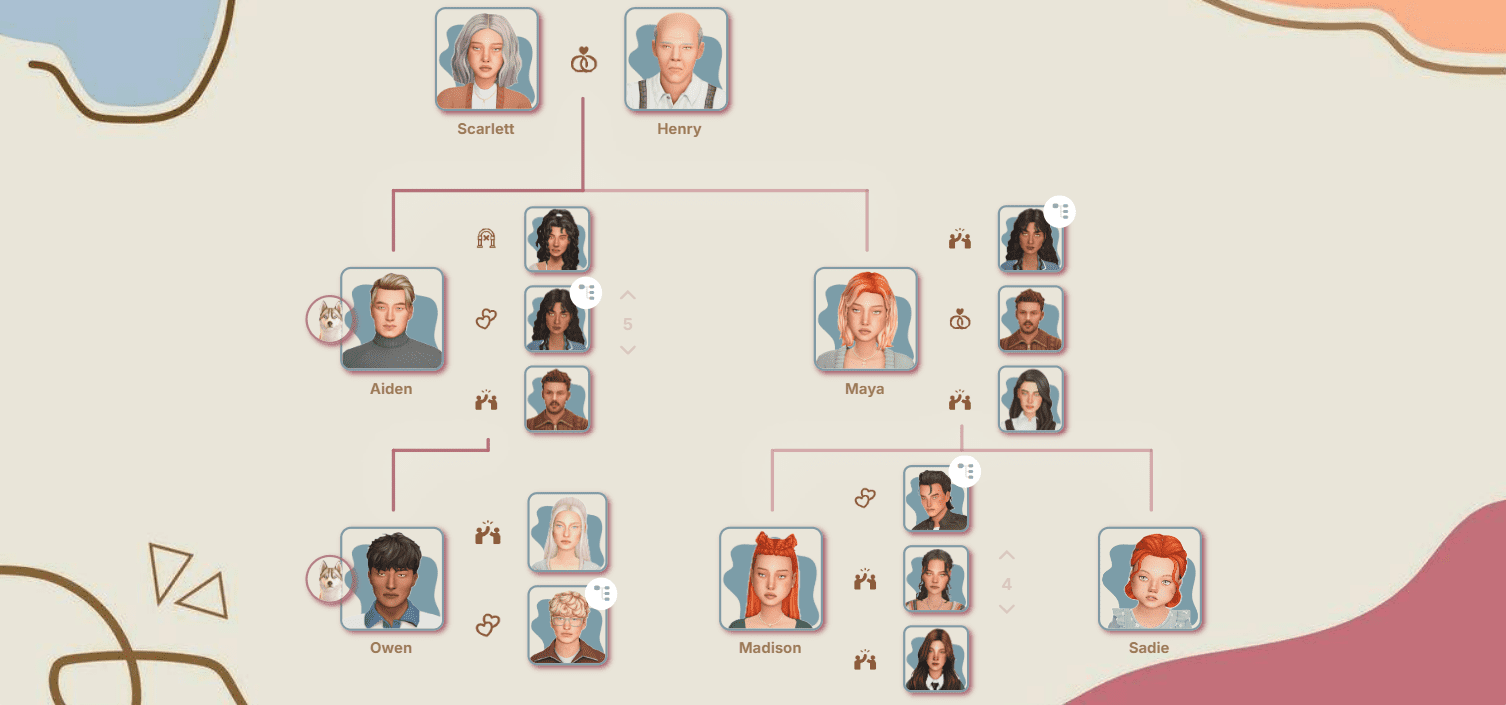
If you maintain a family tree on our website, all the information is already at your fingertips and you don't need to spend so much time on screenshots.
5. Back up the legacy cemetery and museum lots
If you have lots with ancestors' graves, photos, or collectible museums, save them to your Library in their current state.
6. Move valuable inventory items
Remember: sim inventories are lost in the move. Place valuable items/photos/collections onto the lot, then save the entire lot in the Library.
How to Move Your Sims 4 Legacy Save: Instructions
Step 1: Create your new Sims 4 save
You can:
- Create a fresh, empty save in The Sims 4.
- Download a pre-built or populated save file from the community.
- Make your own blank save (see our guide: Your sims world from scratch: How to create a blank save in The Sims 4).
Tip: Only populate/mainly build the 1–2 worlds where your legacy will continue. Add to others gradually for performance.
Step 2: Place your sims in the new save
Open the new save from the main menu. Move in all backed-up households from your Library.
Step 3: Restore family relationships and connections
Restoring family connections:
This is the most time-consuming part of the move. Be prepared to spend several hours restoring family ties if you have many sims. By the way, sometimes even sims who are in the same household lose their family relationships when moving. They need to be restored too.
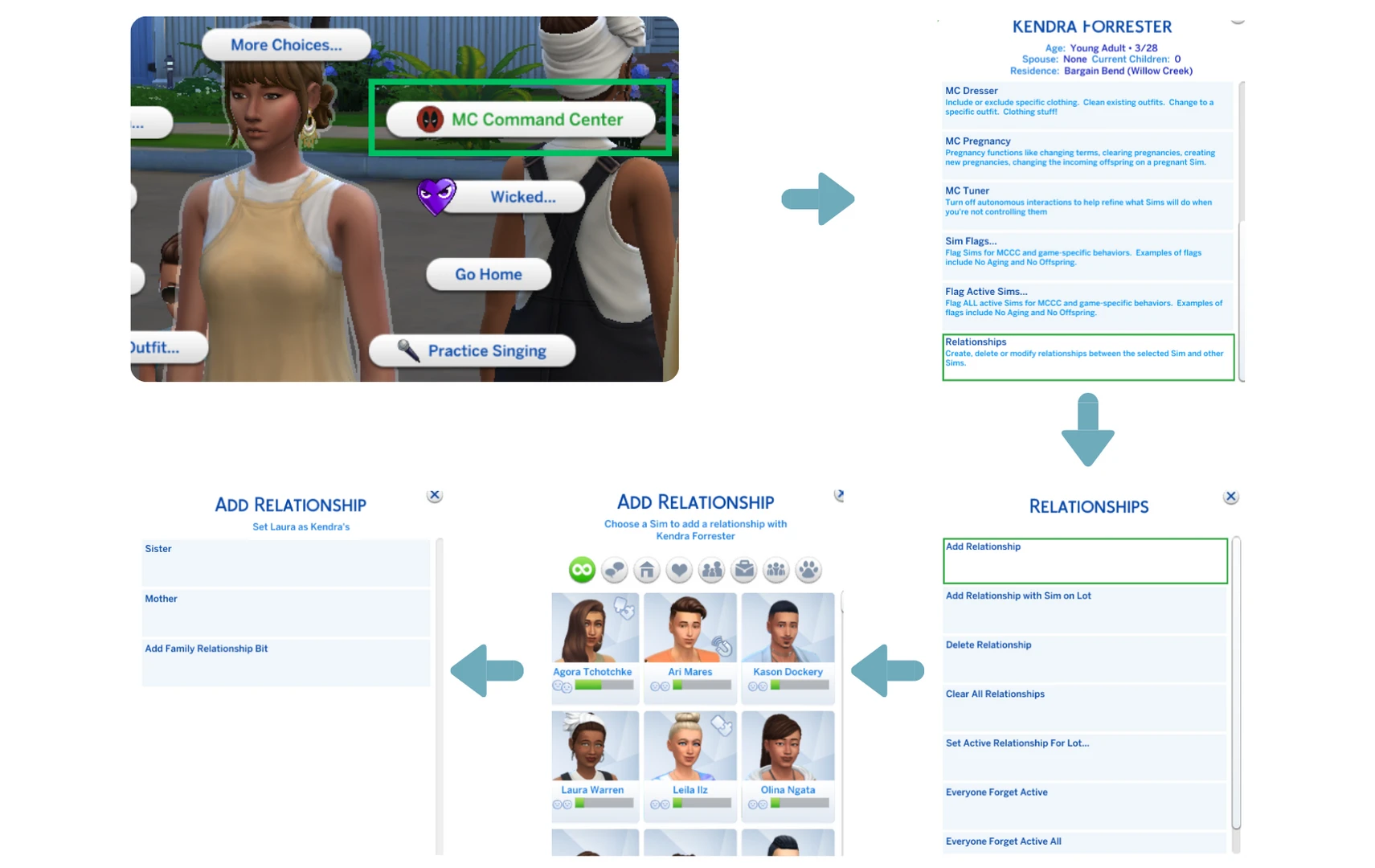
1. Click on the sim that needs a family relationship added
2. Go to MC Command Center > Relationships > Add Relationship
3. Select the other sim and define the relationship type (mother, father, sibling, spouse, etc.)
Recreating links to deceased sims:
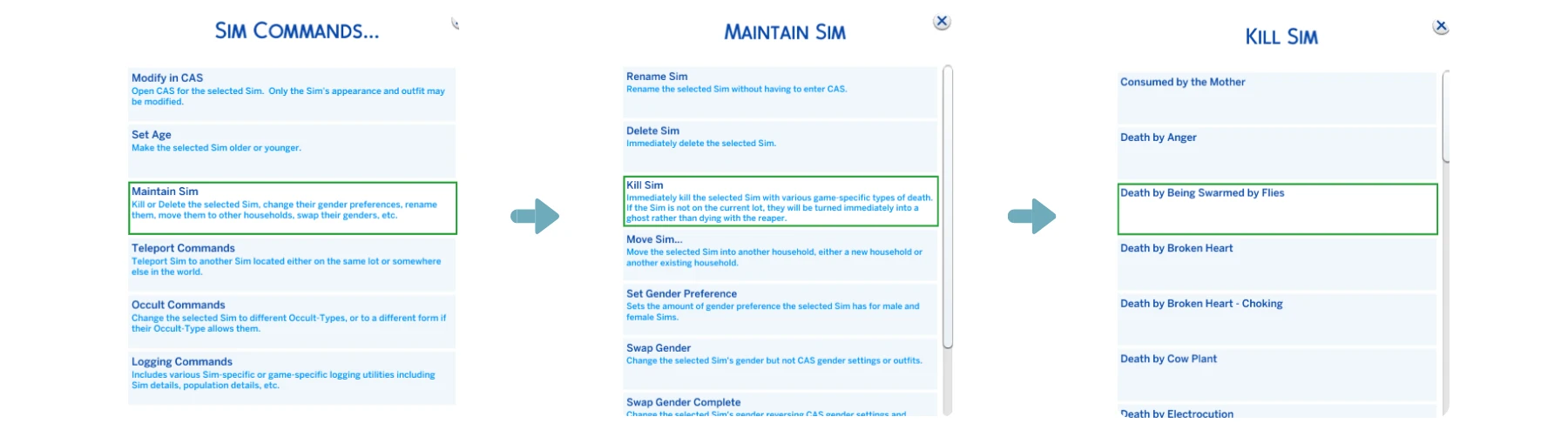
If you have saved versions of your sims' deceased relatives (parents, grandparents, etc.) in the library, you can recreate them so they appear in the in-game family tree:
1. Place this relative from the gallery on any lot
2. Set the needed family relationships through Command Center
3. Kill the sim (MC Command Center → Sim Commands → Maintain Sim → Kill Sim → Choose the appropriate death type)
Restoring friendships:
Unlike relatives, your sims will have to meet their friends anew. This will need to be done manually by meeting with everyone. The process will be much more interesting if you install a mod for first impressions when meeting.
After they've met, set the needed relationship levels using the UI Cheats Extension mod by Weerbesu (right-click on the relationship bar).
Step 4: Restore additional progress
Skills are easily restored using the same UI Cheats mod. Select the needed sim on the bottom panel and right-click on the skills section icon. A list of all available skills will open, click through all the ones you need, they will be added to your sim. Then, also with the right mouse button, you need to click on each skill in turn and select the needed level.
That's it. The main thing is – don't rush, make backups at each stage, and remember: it's better to prevent a move by properly taking care of your save than to restore everything from scratch later.