How to Add Downloaded Save Files to The Sims 4
Are you interested in trying a ready-made save file for The Sims 4? Downloading a custom Sims 4 save file allows you to enjoy beautifully decorated worlds, unique sims, and engaging storylines, enhancing your gameplay experience with creator-made content. In this comprehensive guide, we’ll walk you through how to correctly install a downloaded save file for The Sims 4 step by step, ensuring you do it safely and avoid losing your own progress.

Where Can You Download Sims 4 Save Files Safely?
Before installing any custom Sims 4 content, such as mods and save files, always make sure you download from reputable and trustworthy sources. Only use saves from verified creators you trust, ideally via the creator’s official Patreon, personal website, or an established sims community. For more Sims 4 safety tips, check out our guide on the best sources and websites for downloading safe Sims 4 content.
How to Install a Downloaded Sims 4 Save File
Let’s break down the step-by-step process of adding someone else’s Sims 4 save to your game, using an example save file from blogger Rosannatxt.
Step 1: Download the Sims 4 Save File from a Safe Source
Locate the downloaded file on your computer. Save files for The Sims 4 might come in a few different formats:
- Archive (.zip, .rar, .7z) – these require extraction before use
- Direct-use .save file – ready to install right away
Step 2: Extract the Archive if Necessary
If the save file is compressed (zipped), extract its contents. You may find multiple files or folders; creators often provide different versions: with NPCs, without NPCs, fully built worlds, or partially populated worlds. Choose the version that best fits your preference.
Step 3: Find and Select the Correct Save File
Look for the file with the .save extension – this is the Sims 4 save file that you need to install. Ignore extra files, like screenshots or .txt notes, as these are provided for reference and are not necessary for gameplay.

Step 4: Check and Rename the File (Critical!)
This is the most crucial step to protect your current Sims 4 saves from accidental overwriting.
Why does this matter?
Downloaded save files for The Sims 4 often use names like:
- Standard: Slot_00000001.save, Slot_00000002.save (these may conflict with your saves!)
- Unusual: Slot_00000695.save, Slot_99887766.save (less likely to conflict, but always check to be sure)
Check existing file names:
Open the saves folder (without closing the folder with the downloaded file) by navigating to Documents → Electronic Arts → The Sims 4 → saves.
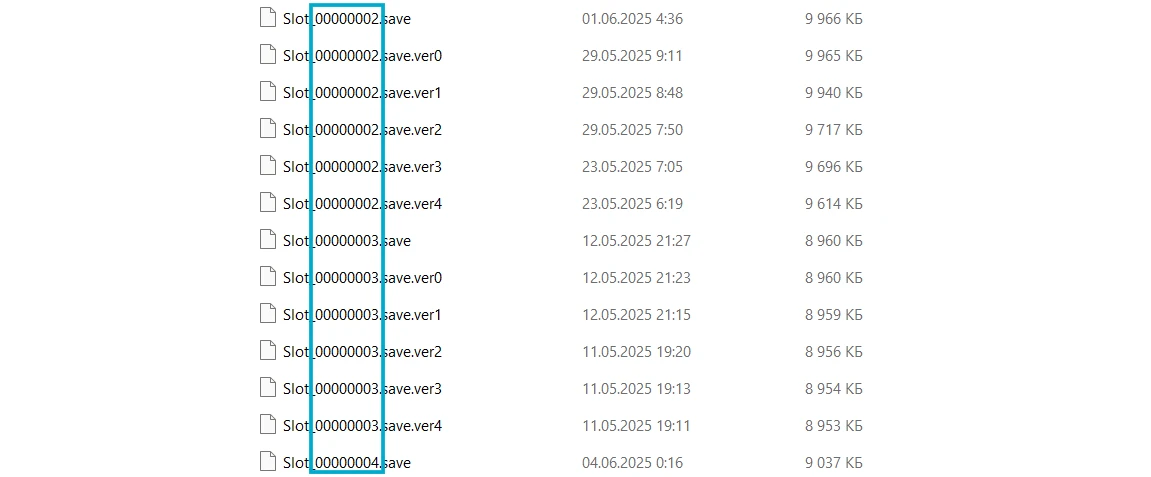
Look at the names of your current saves and make sure the downloaded file name doesn't match any of them. If there are no matches – you can install it. If there is a match – rename it.
Right-click on the .save file. Select "Rename". Change the numbers in the name to any unusual combination
Renaming rules:
— The name must consist of exactly 8 digits, we only change the last 4.
— Use unusual combinations that definitely don't exist in your game.
— Format: Slot_0000####.save.

Step 5: Move the Sims 4 Save File into the Correct Folder
Copy or drag the .save file into the “saves” folder mentioned above. Only move the actual .save file, do not move any archives or folders.
Step 6: Load the New Save in The Sims 4
1. Launch The Sims 4 game.
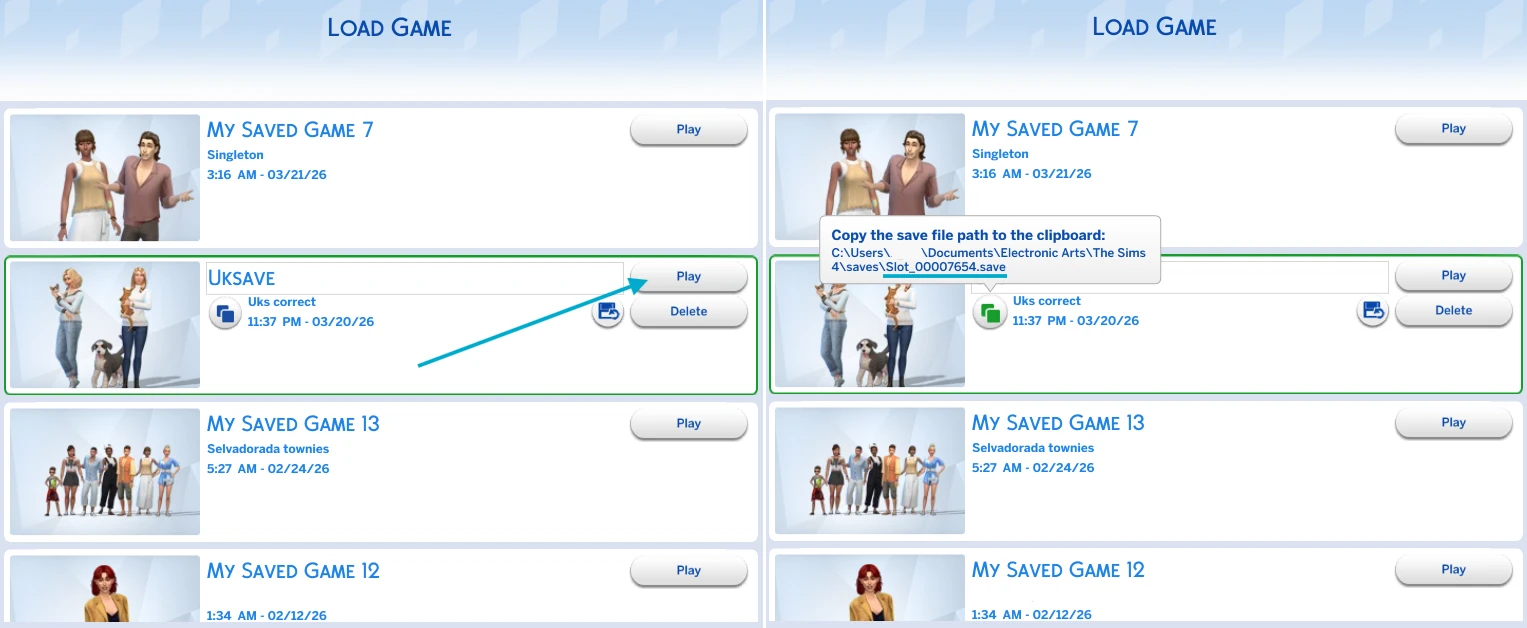
2. Select “Load Game” from the main menu (not “Resume”).

3. Your new save will appear in the list alongside your existing saves.
What Happens to Your Current Sims 4 Saves?
Good news! Your existing families, builds, and stories are safe. The Sims 4 lets you keep and play multiple save files at the same time. Each save functions as a unique world, so installing a new save file simply adds another game universe to your selection.
How to Move Your Sims to a New Save File
If you don't want to part with your favorite characters, you can move with them to the new beautiful save. We have a detailed article on how to properly transfer your sims to a new world.