Ultimate Sims 4 Game Update Checklist: Prevent Broken Mods & Saves
If your heart skips a beat every time a Sims 4 update rolls out, and you’re worried about broken Sims 4 mods or corrupted saves, this update guide is exactly what you need. Game patches can be stressful, especially with dozens of custom content and gameplay mods installed. In this article, we’ll walk you through the best practices to prevent automatic updates in Sims 4, how to back up your Sims 4 saves before updating, and step-by-step instructions for updating mods without risking your game progress or save files.
How to Prevent The Sims 4 from Auto-Updating
Not ready for the latest Sims 4 patch? The best way to stop automatic updates is to set the EA App, or Steam to offline mode. Whether you play via the EA App or Steam, always launch Sims 4 in offline mode to prevent forced game updates. Here’s how to disable auto-updates for Sims 4.

In the EA App:
1. Open the EA App launcher.
2. Go to Settings > Download tab.
3. Scroll to find “Update games automatically” and “Continue updates when app is closed”.
4.Disable both options to prevent unwanted Sims 4 updates.
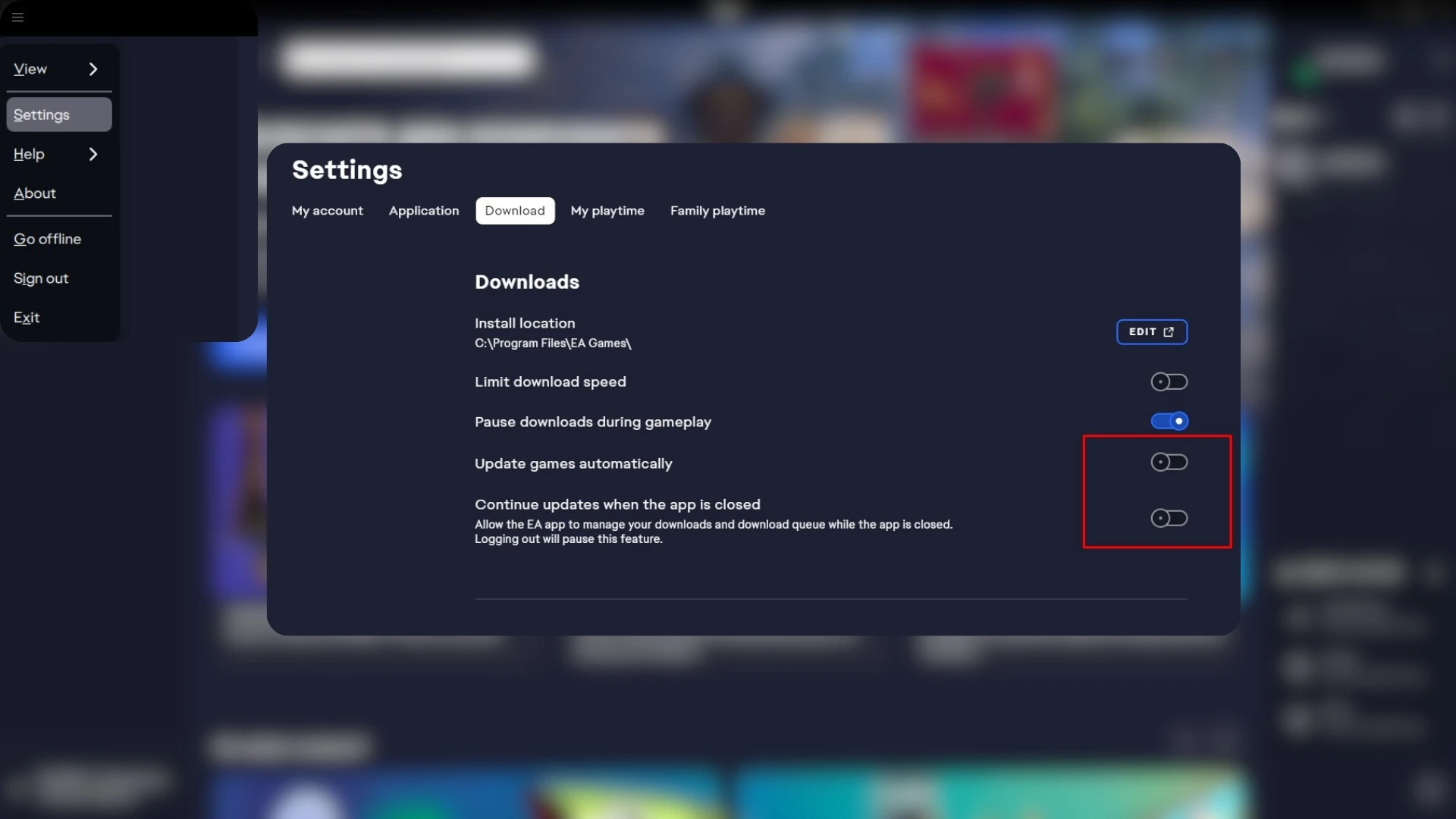
Once updates are turned off, switch to offline mode. Click the three horizontal lines (menu) in the upper-left, select “Go offline”, and the application will no longer try to update Sims 4.
Note: Sims 4 Gallery and online features may be limited in offline mode, but it’s a small price to pay for keeping your modded game stable.
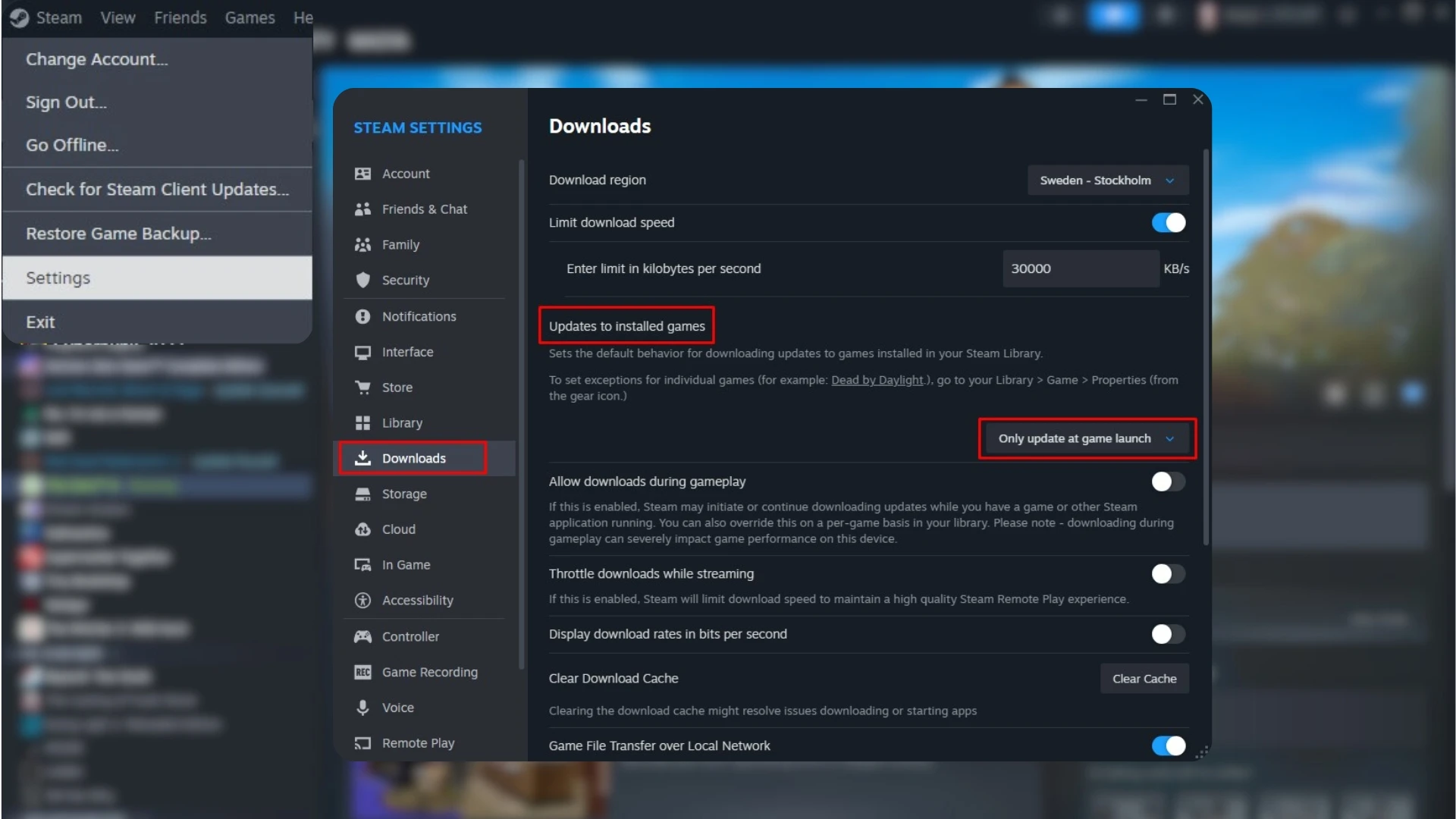
For Steam users: The same instructions apply because launching Sims 4 always activates the EA launcher. Additionally, in Steam:
1. Go to Settings > Downloads.
2. Set game updates to only occur when launching.
If you need to or are ready to update, follow the instructions below.
What to Do Before Updating Sims 4
Before you update Sims 4, it’s crucial to back up your Sims 4 saves and Tray files to protect against data loss or corruption due to broken EA patches. Historically, Sims 4 updates have been unpredictable, sometimes breaking character photos (“Sims 4 Black/White Photo Bug: How to Fix and Prevent Photo Corruption”) or corrupting entire save files.
Sims 4 Saves:
Documents\Electronic Arts\The Sims 4\Saves
Sims 4 Gallery/Tray:
Documents\Electronic Arts\The Sims 4\Tray
If there are important files in the Mods folder, you can save those to a separate location too:
Documents\Electronic Arts\The Sims 4\Mods
Pro tip: Organize your Sims 4 mods in a spreadsheet, including mod names, version numbers, download/source links, and authors. This document is invaluable for checking which mods are outdated or compatible with the newest Sims 4 patch.
Updating Sims 4 Safely: Essential Steps
After updating Sims 4, don’t rush to play with mods enabled. Here’s how to avoid broken saves and fix Sims 4 mod issues after an update:
1. First, launch Sims 4 with mods disabled (the game will usually turn them off after major updates).
Check if your saves load and the game works on the new version.
2. Exit the game without saving.
This is important if you play with mods. If you save the game, all mod settings will disappear, and your characters will be left bald and without clothes.
3. Delete Sims 4 cache:
Remove the localthumbcache.package file from Documents\Electronic Arts\The Sims 4 before enabling mods again (See our guide: “Clear Sims 4 Cache: Fix Lags & Slow Loading (Windows & macOS)”).
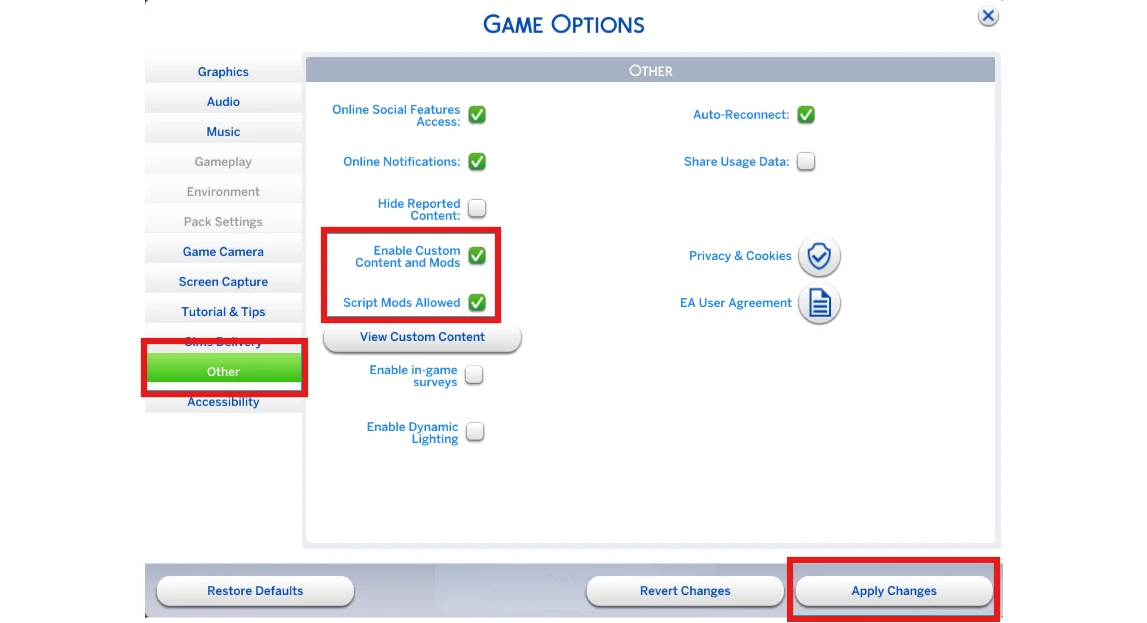
4. Re-enable Sims 4 mods and custom content:
Open Game Options > Other, then check “Enable Custom Content and Mods” and “Allow Script Mods”. Restart Sims 4.
Why Regularly Update and Organize Your Sims 4 Mods?
Keeping your Sims 4 Mods folder up to date is essential for game performance and stability. Outdated mods can cause Sims 4 to lag, stutter, or crash (“How to Make The Sims 4 Load Faster: Causes of Lag & Tips for Better Performance”).
How to update mods?
This is where your mod spreadsheet comes to the rescue, if you have one. If you don't, you'll have to navigate through the folder itself and search for the link to each mod manually. There are also various resources that report updates for most mods. For example, Discord servers: Command Center, Sims After Dark. Or the Mod List Checker by Scarlet (we wrote about how to use it in a separate article: “Finding Broken Sims Mods: The Mod List Checker”).
First and foremost, add to your folder mods whose authors have already given information about their functionality. Popular mods are usually updated within the first hours after a new patch comes out.
Don't forget that some mods depend on others, which may take longer to update. In that case, even an updated mod might not work correctly if the supporting files aren't updated.
Add a couple or a few mods at a time, then launch the game and test if everything is working fine. If there are no errors or issues, add the next ones.
Give priority when checking to mods related to gameplay and user interface. They're most likely to work incorrectly after patches are installed – check them first. These could be mods for CAS columns, UI Cheats, and others.
What to do if you have many mods and it's unclear what exactly is breaking the game?
First of all, you need to determine what the problem is: some mod or the game itself. So first, remove the entire Mods folder from the game and launch your save. If the error remains, then the issue is with the game. You can create a new save and see if the same error occurs there.
If the error remains in the new save too, it's most likely a game bug. If the error disappeared – the issue is with the old save, it might be broken. We wrote about what to do in that case in this article.
But if without mods the problem goes away and the game's performance normalizes, the culprit is one of the mods. This is where the 50/50 method comes to the rescue.
How to Identify a mod breaking your Sims game: the 50/50 methodCommon Signs of Sims 4 Mod Issues:
— Script/gameplay errors: interactions don't complete, menus won't open, sims freeze.
— User interface glitches: menus are the wrong color or distorted, icons are scrambled.
— CC malfunctions: missing meshes, distorted clothing and faces, floating accessories.
Sims 4 patches and game updates aren’t as scary if you know how to protect your saves and mods. With regular backups, proper mod organization, and step-by-step troubleshooting, you can prevent almost any Sims 4 error and keep your game running smoothly.