How to Sort Sims 4 Mods Using Sims 4 Mod Manager: Step-by-Step Guide
If you've already mastered the essentials of proper Sims 4 Mods folder organization for improving game performance, it's time to discover a highly efficient tool for content management – Sims 4 Mod Manager.
Why Use Sims 4 Mod Manager for Sorting Mods and CC?
Visual Content Navigation
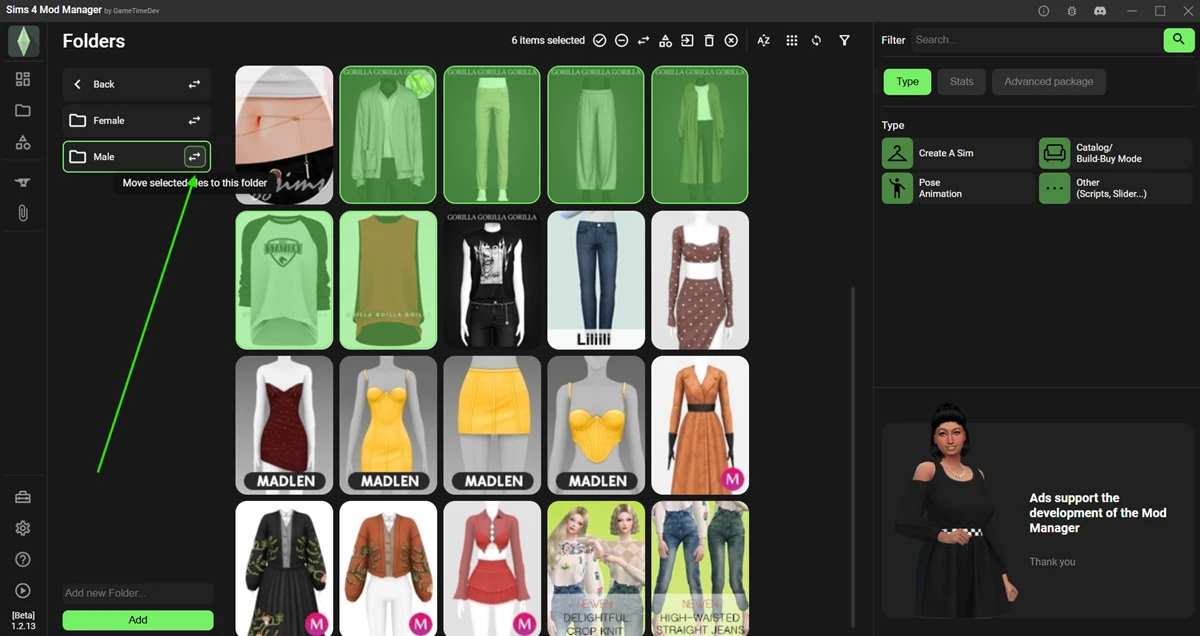
One of the main advantages of using Sims 4 Mod Manager is its ability to display all downloaded Sims 4 custom content (CC) as visual thumbnails. This feature allows you to accurately preview each CC item, making it easy to identify the category it belongs to, eliminating the guesswork from confusing file names. This is particularly valuable since many mod creators may not always label their creations clearly, sometimes leaving out important details in file names.

Ideal for Detailed Categorization
Sims 4 Mod Manager is perfect for players who prefer in-depth content sorting and CC organization. If you like to divide your custom content into multiple subcategories – such as separating clothing by gender, and then further into dresses, tops, pants, outerwear, and more – this tool will greatly streamline your workflow and help keep your Sims 4 Mods folder organized for faster loading and fewer conflicts.
Bulk Management Operations
With Sims 4 Mod Manager, you can quickly locate and select all files within a specific category, then move them to the appropriate subfolder with just one click. This bulk management capability saves significant time and effort, especially for large CC collections.
Sims 4 Mod Sorting Instructions
Step 1: Creating an Optimal Folder Structure
Before you begin sorting your mods and CC, it’s essential to set up a well-organized folder structure inside your main Sims 4 Mods folder. There are two primary ways to do this:
— Traditional Method: Use Windows Explorer as usual.
— Mod Manager Method: Create new folders directly within the Sims 4 Mod Manager interface.
How to Create Folders in Sims 4 Mod Manager:
1. Open the "Folders" section in the program's left menu.
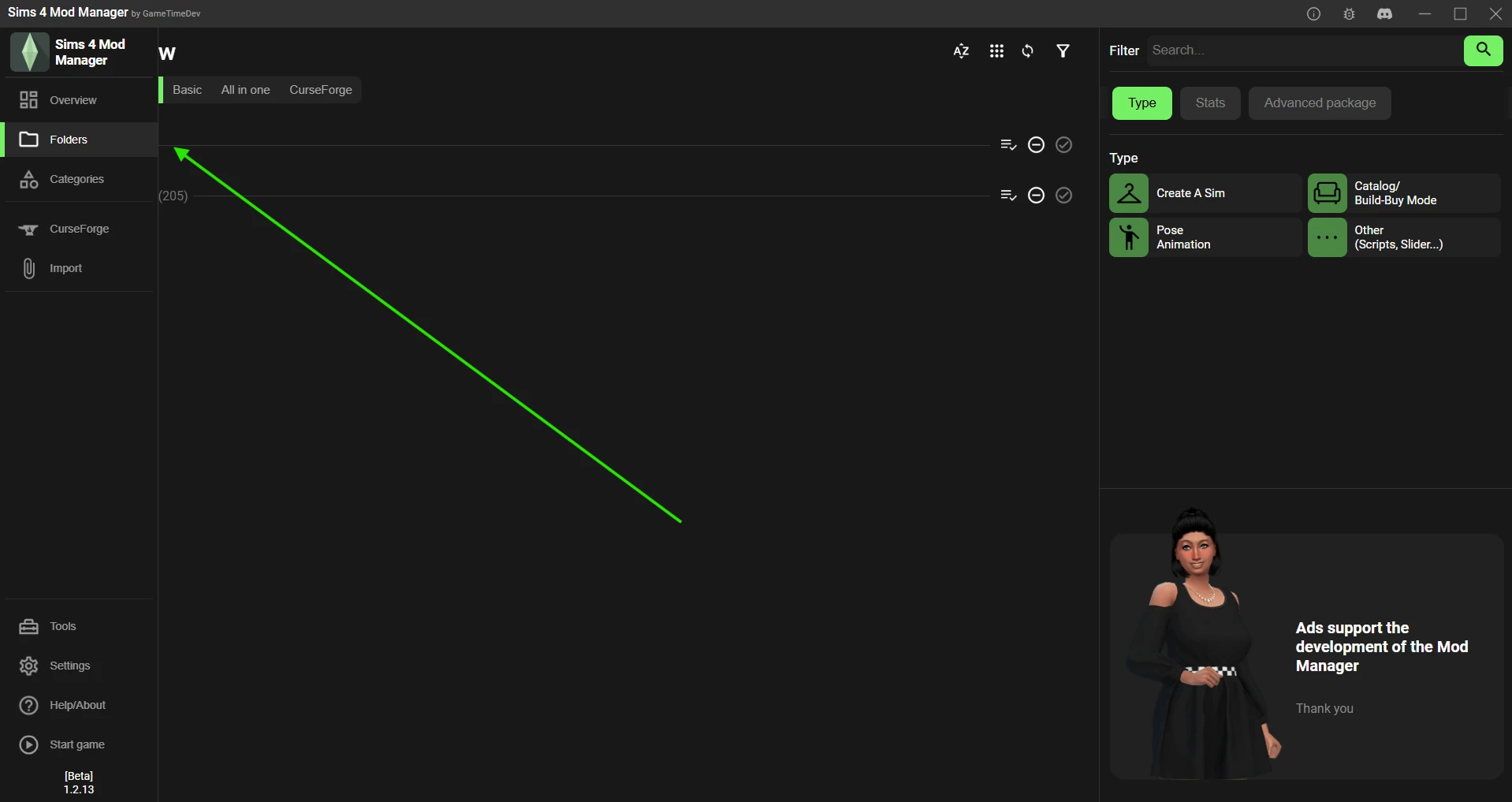
2. In the bottom left corner, enter the folder name in the "Add new folder" field and click the green "Add" button.
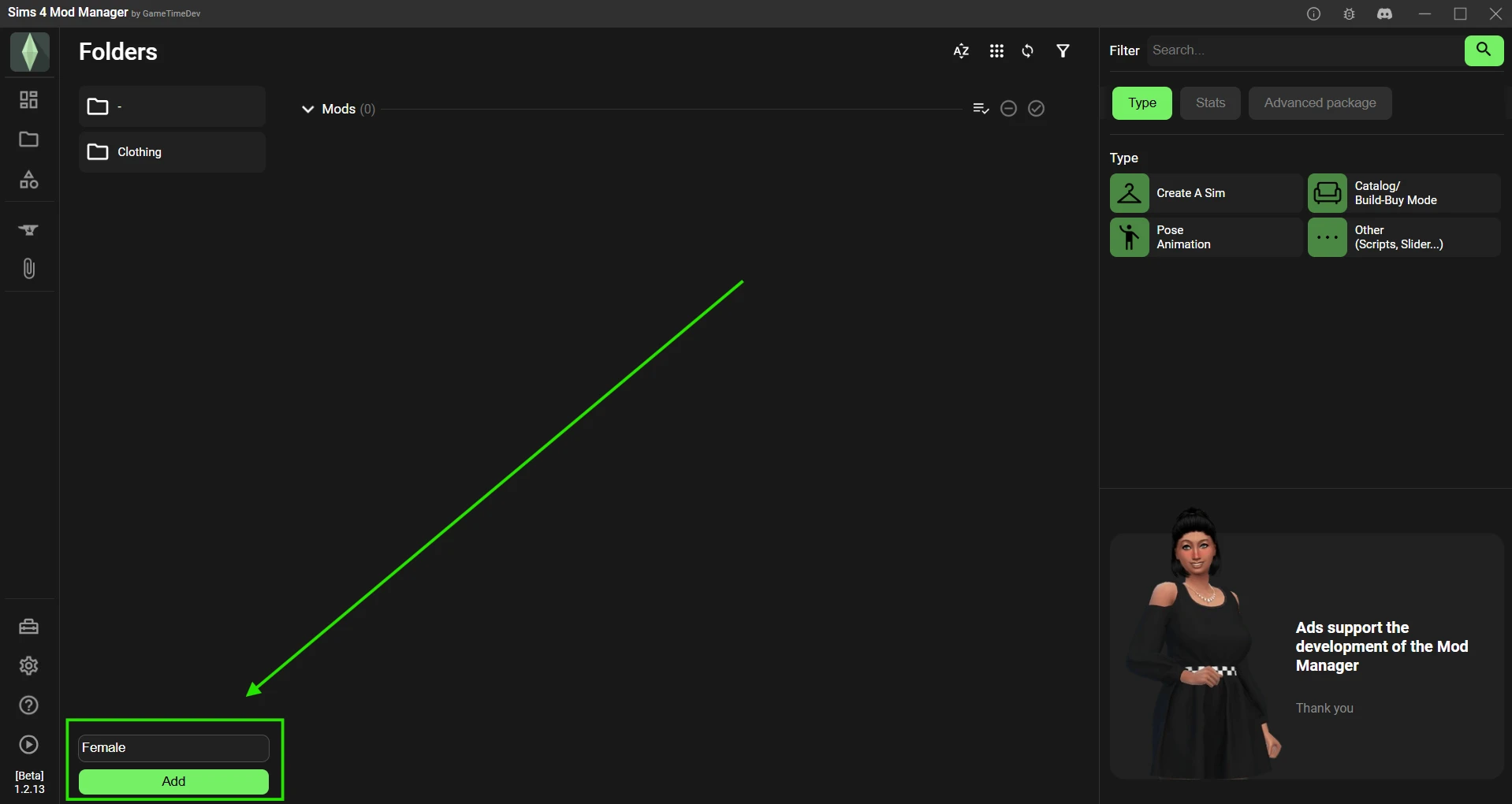
For further advice on effective folder organization to boost Sims 4 loading speed and minimize mod conflicts, check out our article “How to Organize Your Sims 4 Mods Folder for Faster Loading and Fewer Conflicts”.
Step 2: Sorting Mods and Custom Content
Important: The Sims 4 Mod Manager only detects files located inside your Mods folder. Ensure all custom content you want to sort is already moved to this directory.
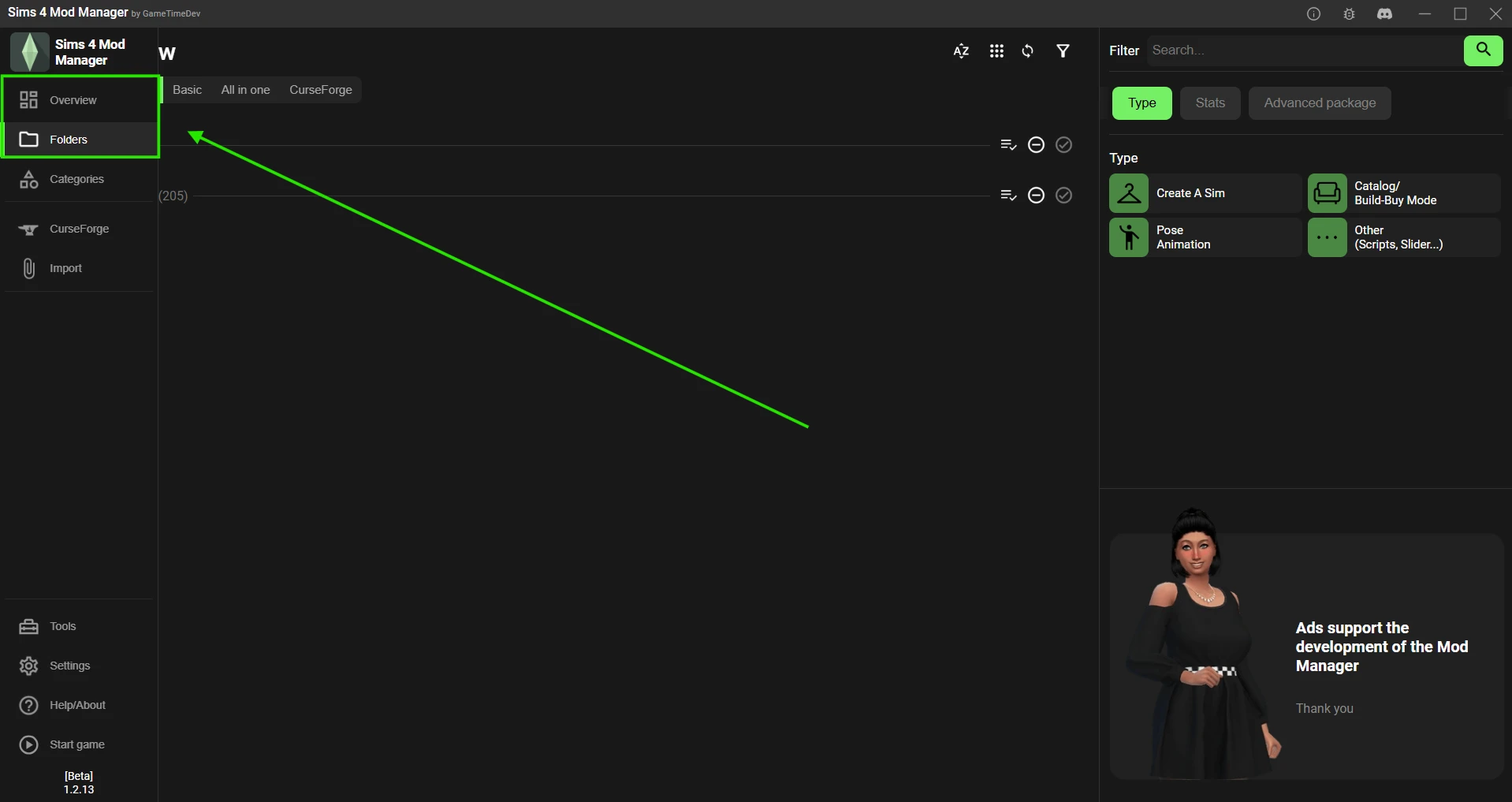
1. Open your content list for sorting: either click on "Overview" or "Folders" in the left sidebar.
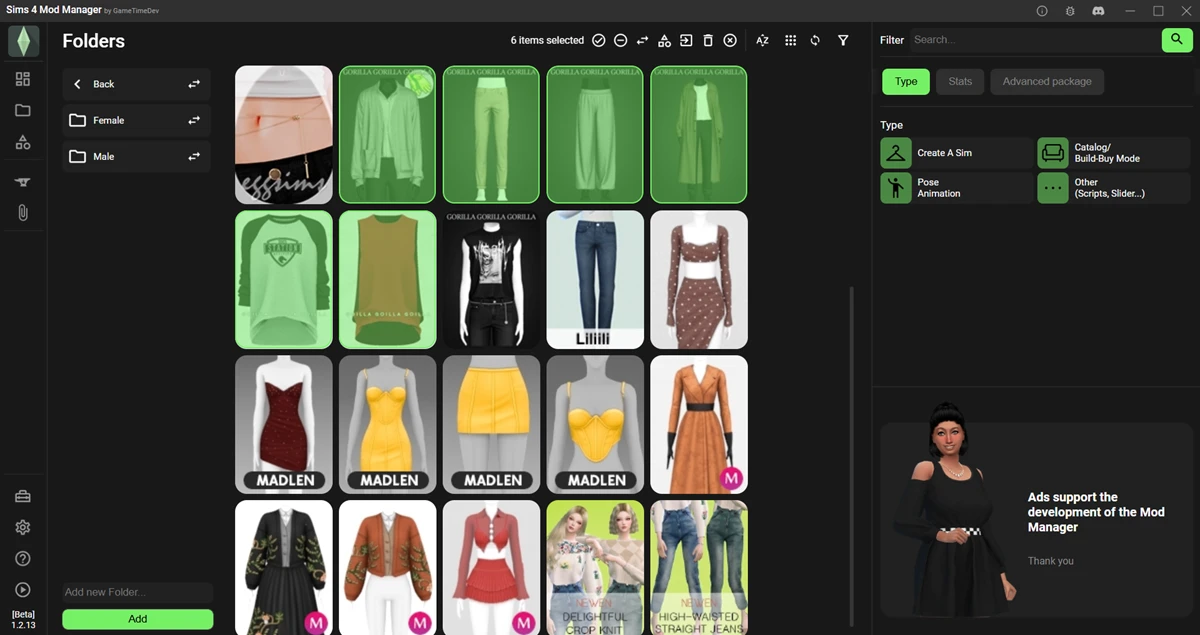
2. Select all files you wish to move by left-clicking them in sequence.
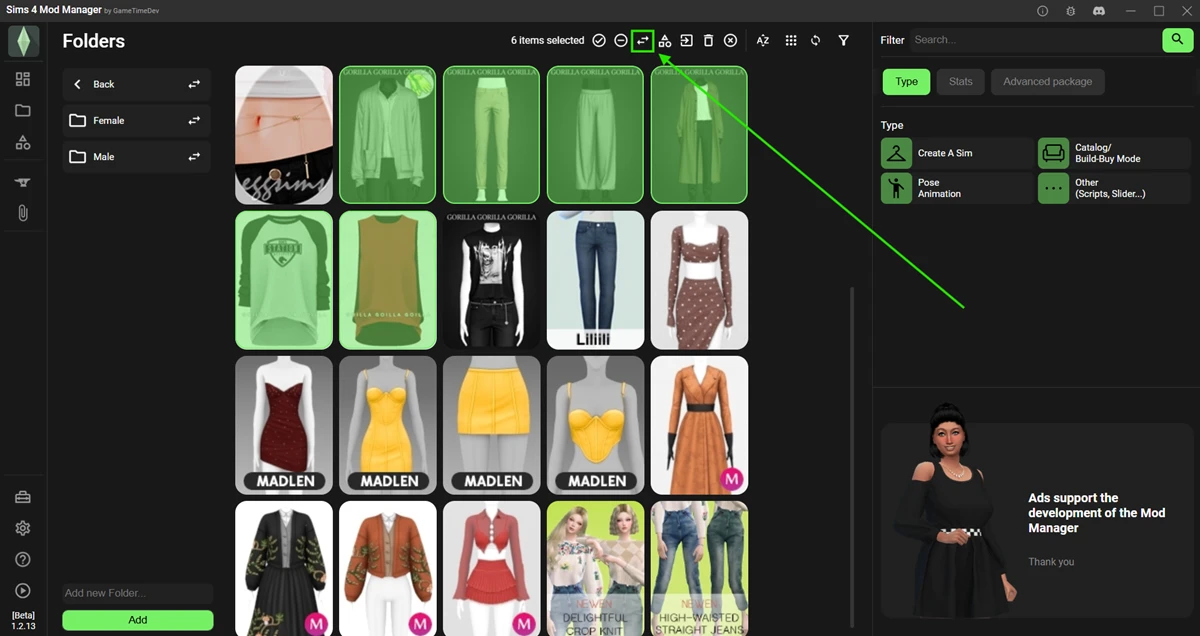
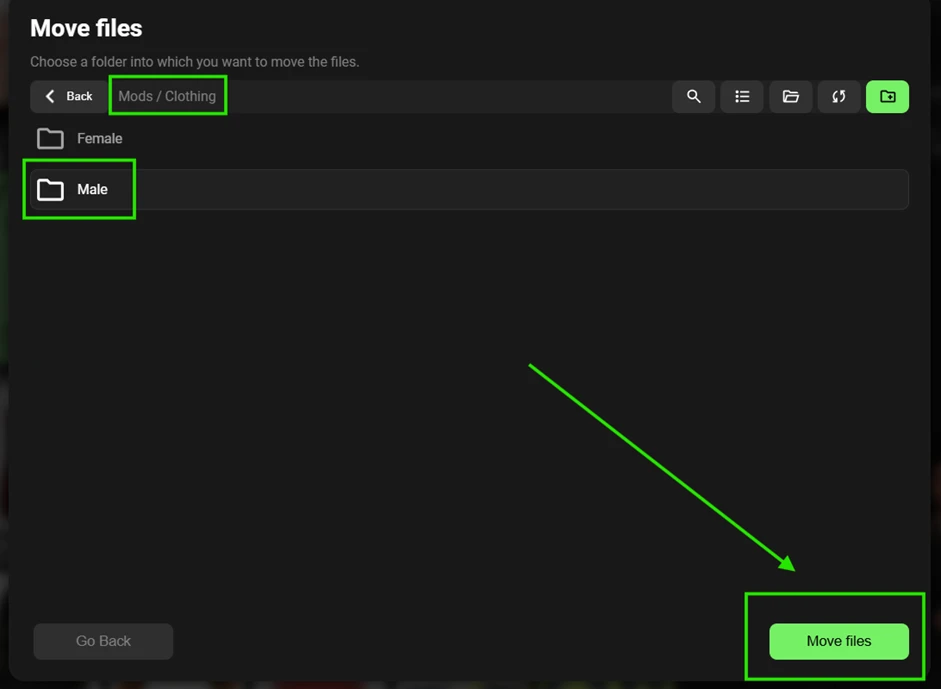
3. Use the "Move selected files" button, choose the destination folder, and confirm by clicking the green "Move files" button.
As an alternative, if your files and chosen destination folder are already within the same directory, you can use the quick move feature in the left menu for instant sorting.