TheSimsTree December UPDATE
New features are now live on TheSimsTree!
We’re continuing to improve the platform, and today you can enjoy:
— Linked Tree (free)
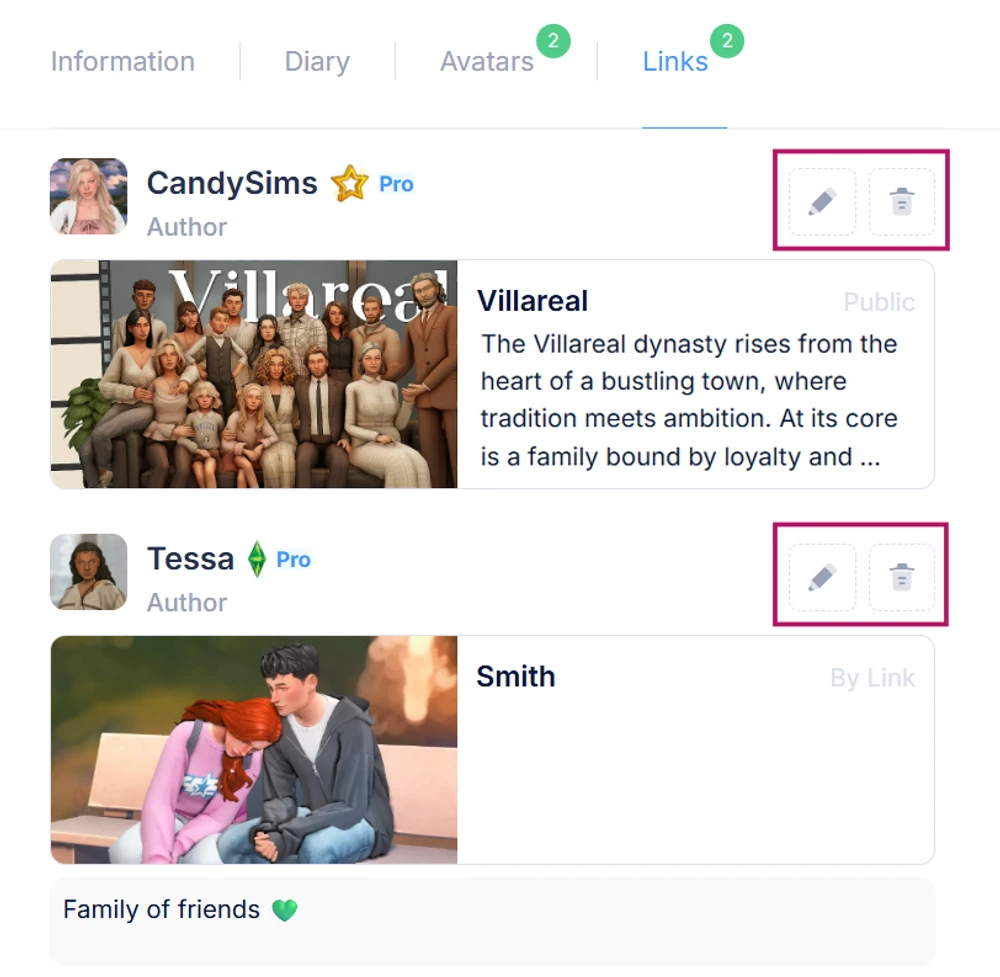
This feature lets you attach a link to a family tree directly in the sim’s card. A new tab appears inside the sim card where you can add a tree from the gallery or link one of your own legacies. This is especially helpful when collaborating with other creators: if you exchange characters, you can easily reference the original legacy they come from.
— Large Image Uploads
The previous 2 MB limit for diary images is gone. Now you can upload photos of any size – no cropping, compressing, or extra preparation needed.
Small improvements:
— All diary previews now display correctly in the gallery
— Now you can copy a legacy tree link directly from the gallery using a button on the tree card
— Other small fixes and polish
Links to other trees with the character
In the "Links" section of a sim's card, a list of trees that include this character is displayed. The number of linked trees is indicated in a green circle in the upper right corner. The list is curated by the sim's owner.
1. To add a tree to the "Links" section, open the sim's card, navigate to the "Links" section to the right of the "Avatars" section.
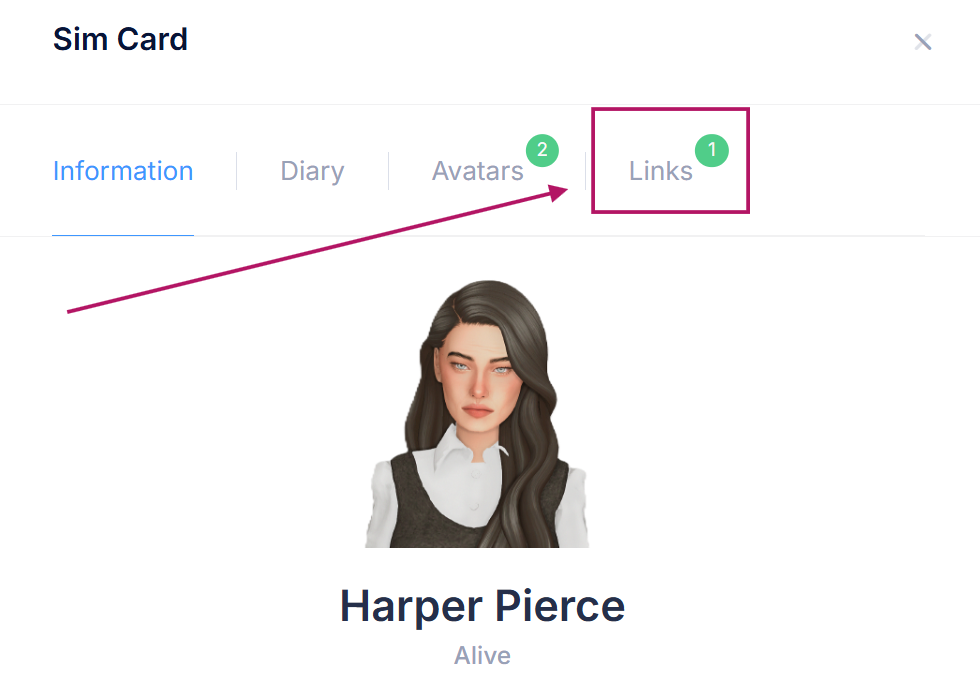
2. Click "Add Link".

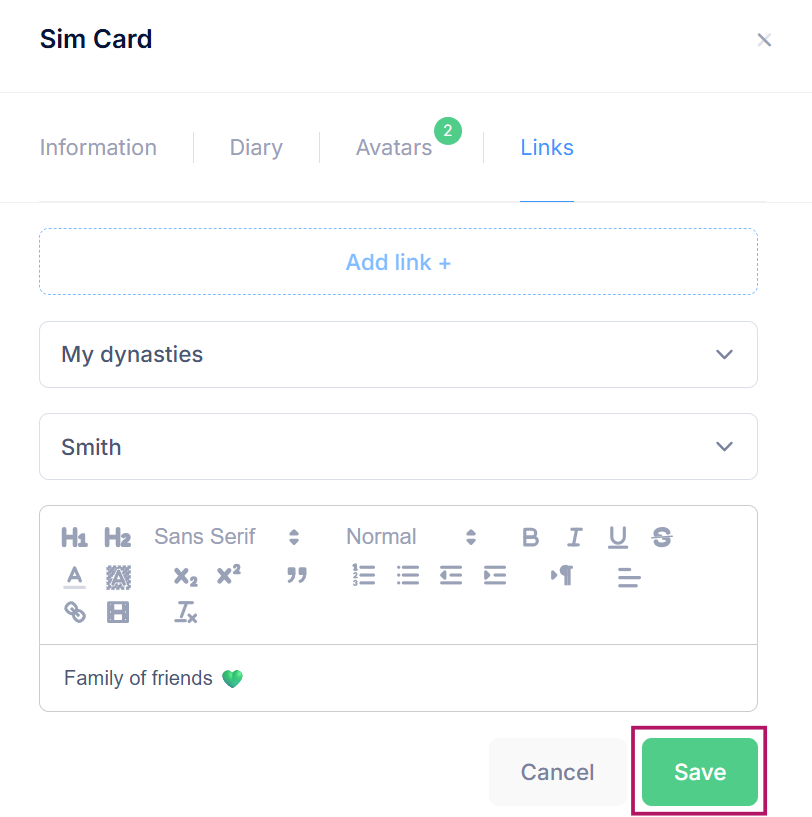
3. Fill in the fields that appear. You can add a tree from your own dynasty list or someone else's tree to this section.
1) To add a tree from your own list, select "My Dynasties" in the first field, then choose the desired dynasty from the list in the second field. You can optionally add a description. Click "Save".
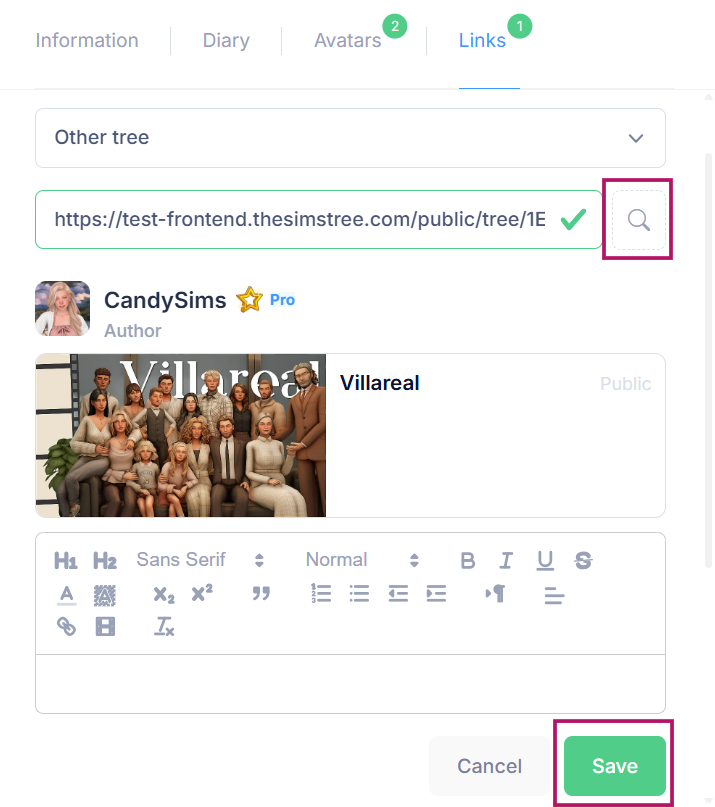
2) To add another author's tree, select "Other Tree" in the first field, paste the link to that tree in the second field, then click the magnifying glass icon on the right. You can optionally add a description. Click "Save".
The tree's card displays its public status (private, accessible via link, or published in the gallery).
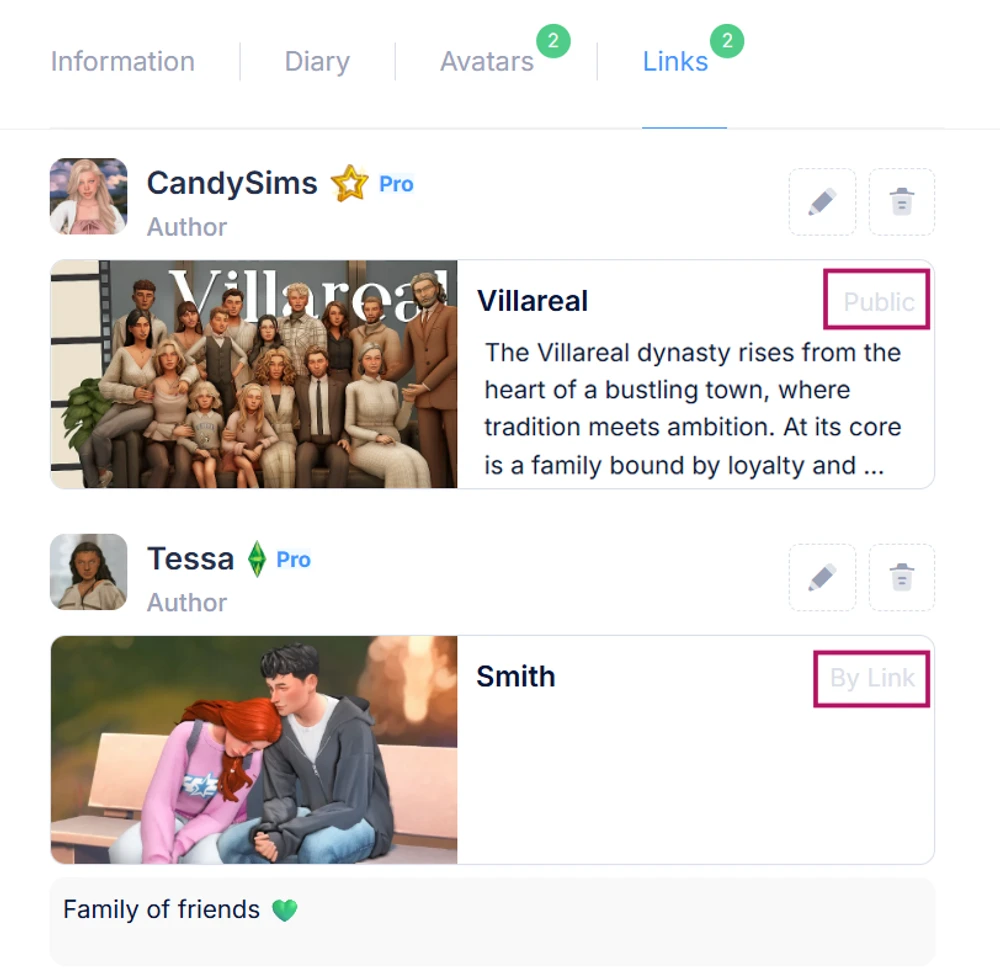
You can edit or delete entries in the "Links" section. To do so, click the corresponding icon in the upper right corner of the tree's card: the pencil icon to edit, or the trash bin icon to delete.