TheSimsTree April 2026 UPDATE
New features are now live on TheSimsTree!
We’ve seriously upgraded tree styling on the platform:
— The “Tree Styling” tab got a fresh redesign and new tools to work with
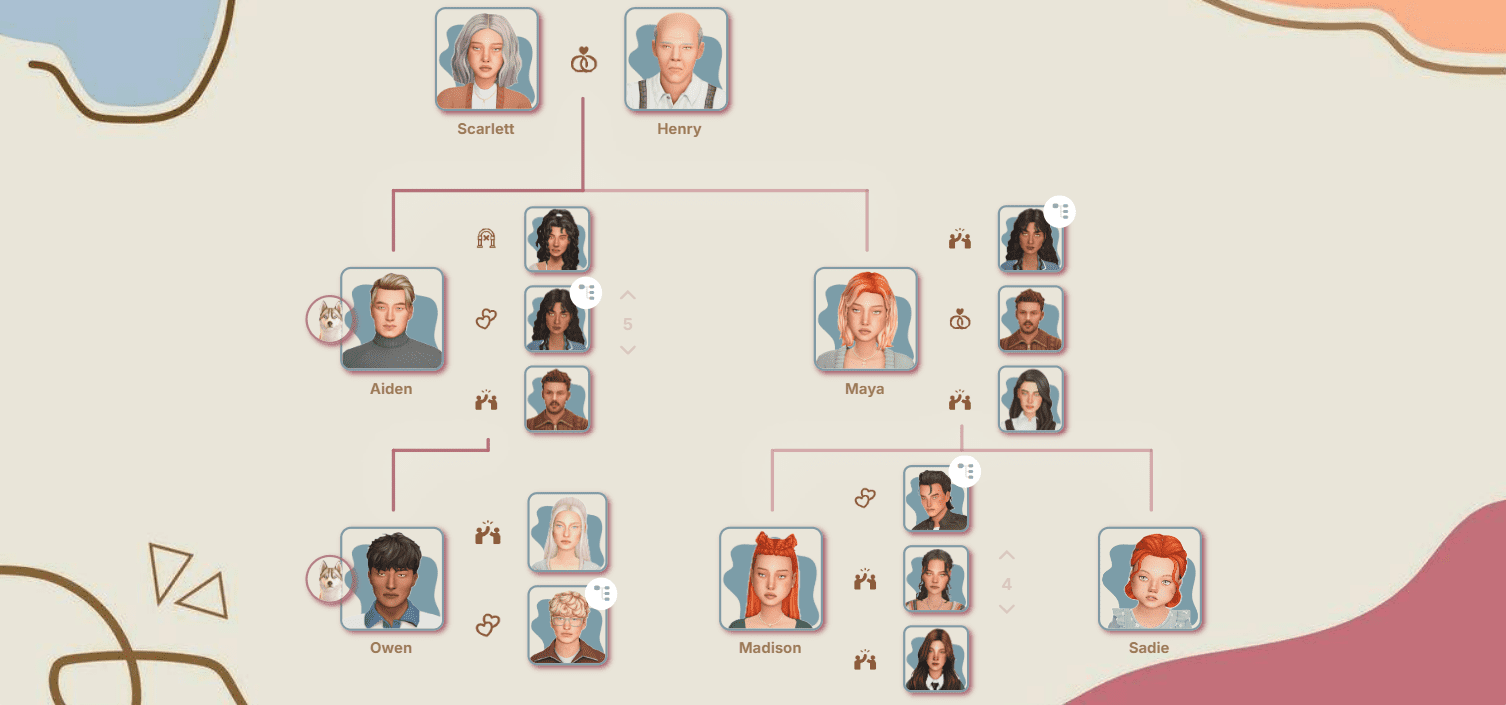
— All your changes now update in real time! Frame thickness, styles, connection lines, colors, even the background, no more hitting “Save” just to see the result
— The Eyedropper tool lets you pick any color directly from your screen. No need to copy and paste color codes anymore
— The color palette is now cleaner and easier to use, and we’ve added a smooth transparency slider
And, as always, we’ve included some small improvements and bug fixes to make everything run smoother:
— The author's profile photo no longer appears in the list when opening sims' avatars.
— The user's dynasties order is no longer reset when refreshing the page or relogging in.
Tree Styling
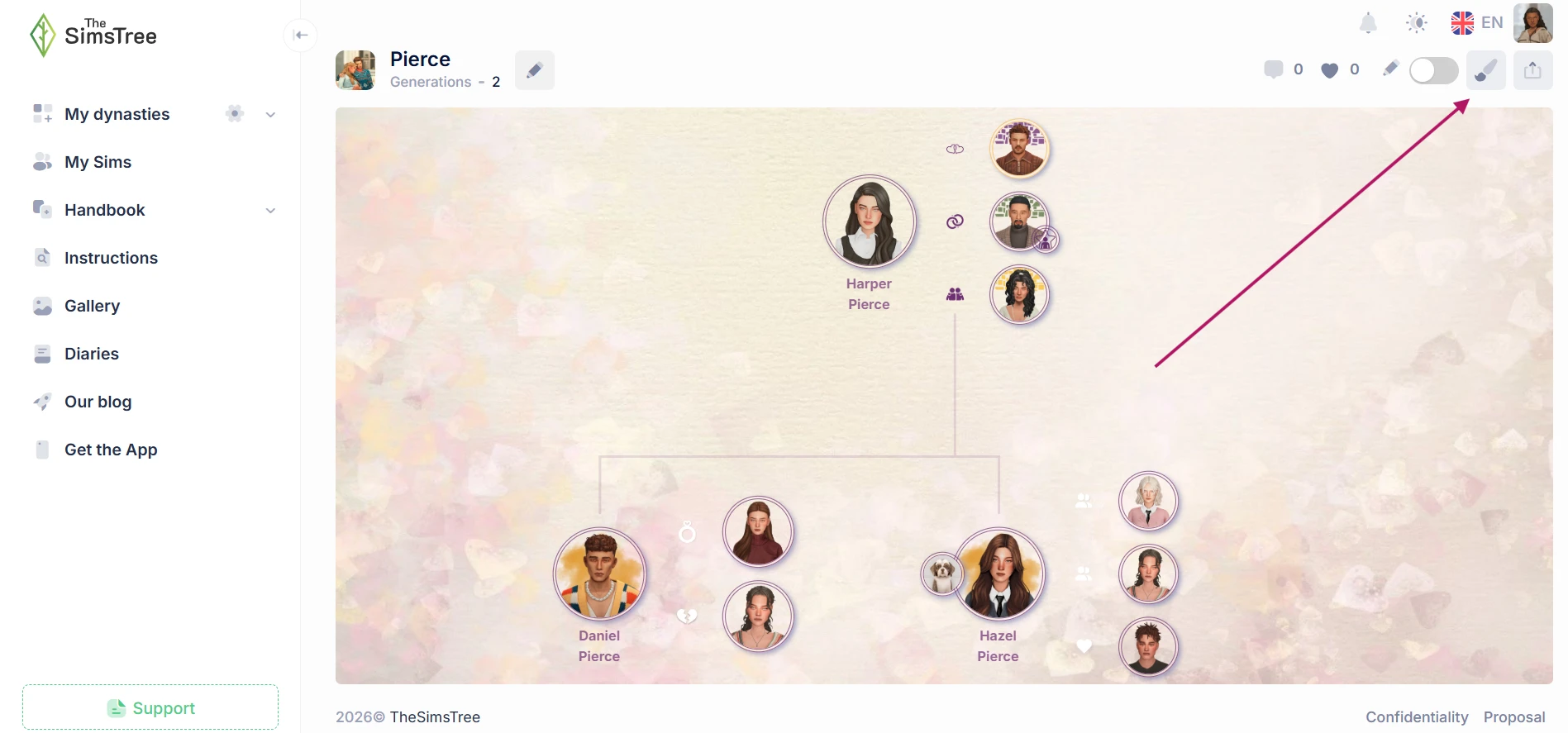
The "Tree Styling" section allows you to change the appearance of your tree: background, colors, etc. To access it, click on the brush icon in the top right corner, it's located between the tree editing and publishing icons.
Background
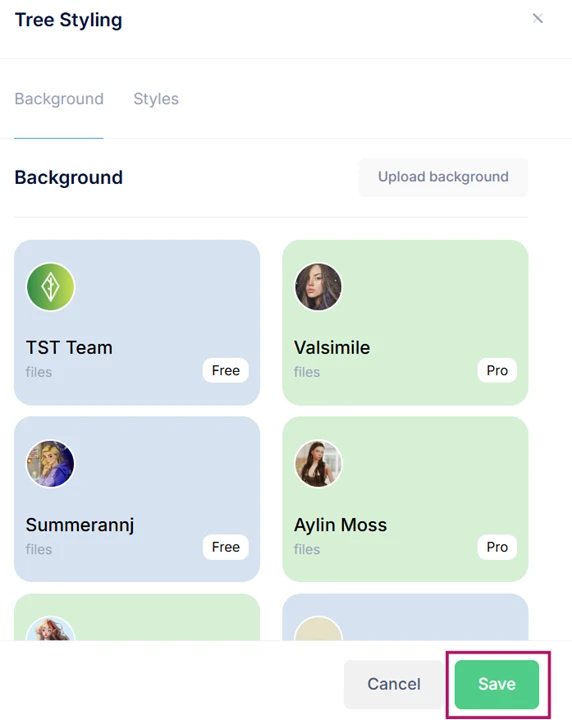
After opening the "Tree Styling" section, you'll land in the "Background" subsection. Here you can choose a background from a variety of pre-made backgrounds created by creators, or upload your own.
To select a creator's background, click on the creator's card and click on the background you like. You can try out multiple backgrounds, then click "Save". If you want to exit styling mode without changing the background, click "Cancel".
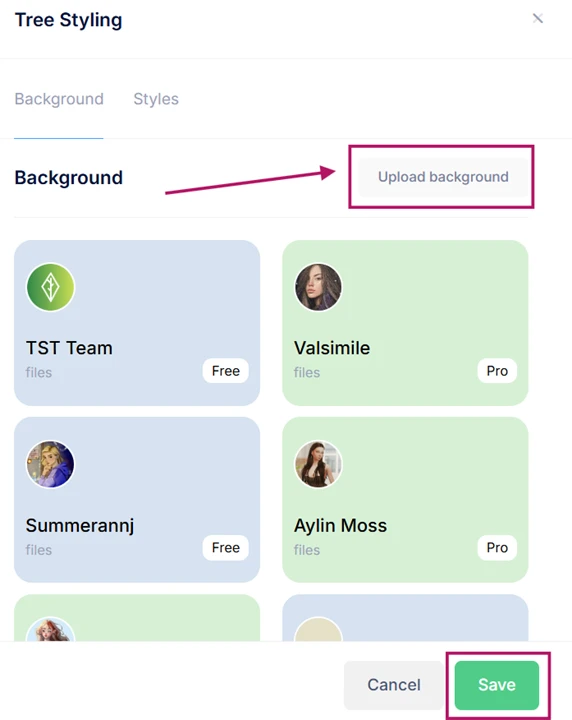
To upload a custom background, click on the "Upload Background" button in the top right corner of the "Background" subsection. Select an image from your device and wait for it to load on the tree. After that, also click "Save" or exit without changes using the "Cancel" button. If you cancel, the uploaded background will be reset.
Styles
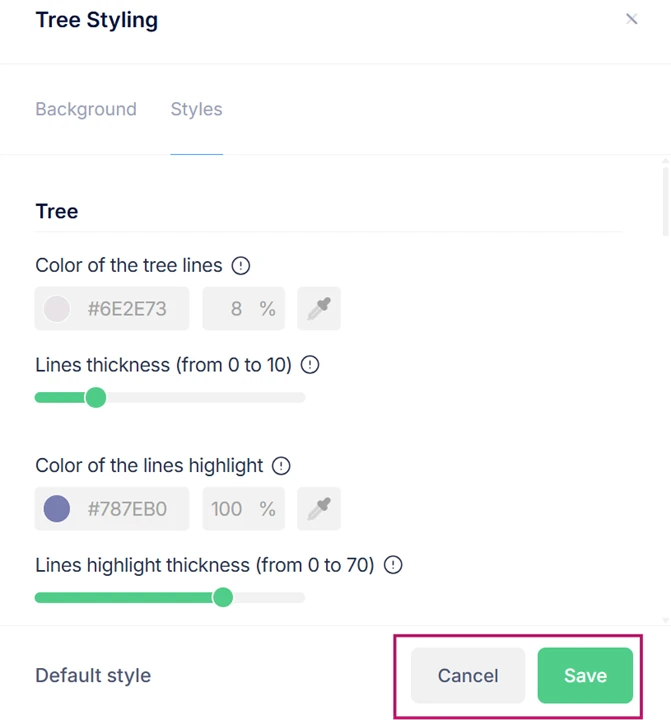
The second component of Tree Styling is the "Styles" subsection. All parameters presented in it are divided into thematic blocks for convenience: Tree, Sims, Pets, and Occults.
All color selection parameters come with:
— A palette where you can manually select a color;
— A field where you can enter the desired numerical color combination;
— A field for selecting transparency percentage;
— An eyedropper tool that allows you to copy a color from any point on the screen.
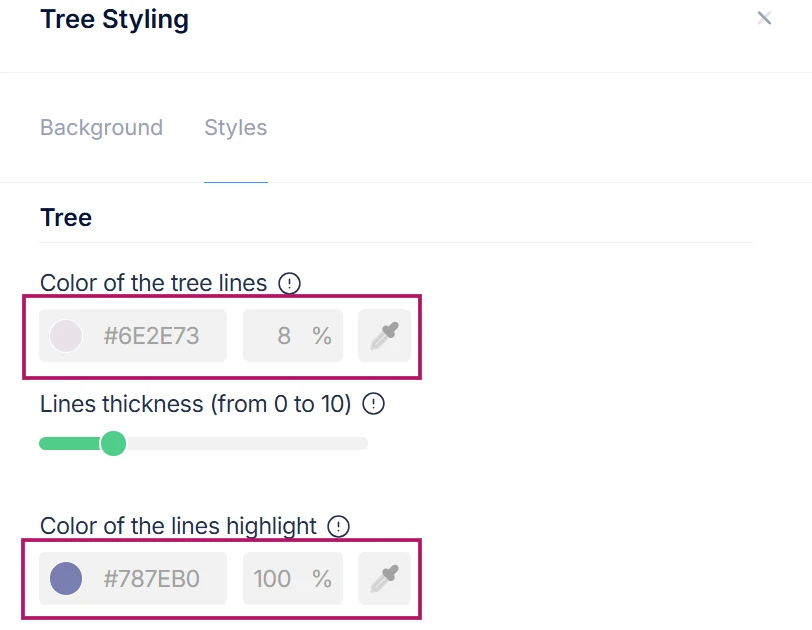
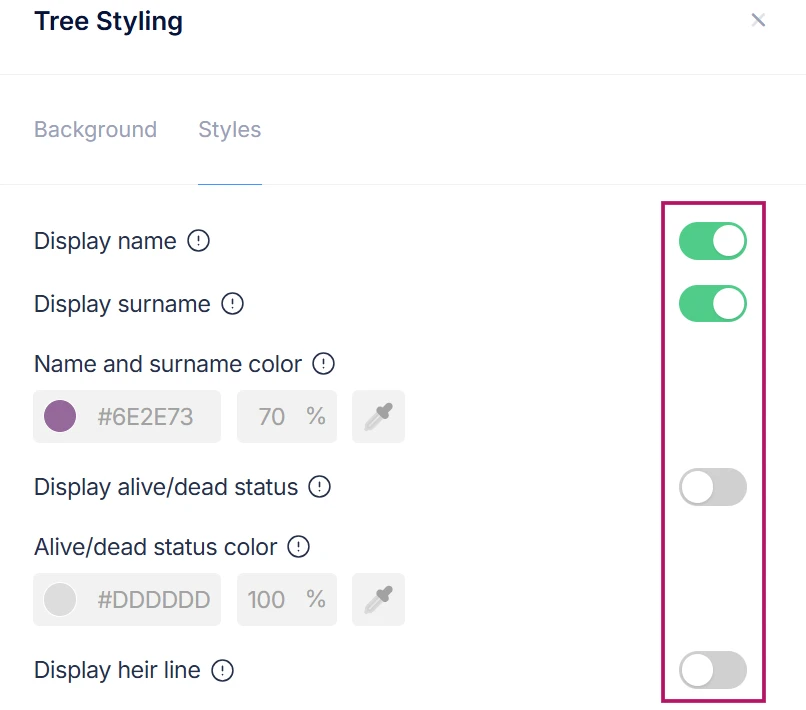
To enable or disable the display of something, click on the toggle icon to the right of the parameter.
TREE
- Color of the tree lines
On the color palette, select the color of the lines connecting Sims or enter the desired color values in the fields below the palette.
- Lines thickness (from 0 to 10)
You can completely remove the lines by setting the value to 0, or make them as wide as possible by setting the value to 10.
- Color of the lines highlight
On the color palette, select the color of the semi-transparent shadow from the lines or enter the desired color values in the fields below the palette.
- Lines highlight thickness (from 0 to 70)
You can remove the shadow by setting the value to 0 or make it as wide as possible by increasing it to 70. The higher the value, the more transparent the shadow becomes.
- Display name
Toggles the display of the character's name under their photo. You can choose to hide or show both the first and last name, display only the first name, or only the last name.
- Display surname
Toggles the display of the character's last name under their photo. You can choose to hide or show both the first and last name, display only the first name, or only the last name.
- Name and surname color
On the color palette, select the color of the first and last name or enter the desired color values in the fields below the palette.
- Display alive/dead status
Toggles the display of the character’s life status (alive or deceased) under the Sim’s avatar.
- Alive/dead status color
On the color palette, select the color of the alive/deceased status or enter the desired color values in the fields below the palette.
- Display heir line
When enabled, the heir line on the tree is highlighted with a different color. In the tree editing mode mark the heir of the last generation, and the line will be built automatically.
- Heir line color
On the color palette, select the color for highlighting heirs or enter the desired color values in the fields below the palette.
- Display pets
Toggles the display of the pet icon to the left of the Sim’s avatar.
SIMS
- Avatar border color
On the color palette, select the border color of the avatar or enter the desired color values in the fields below the palette.
- Avatar border thickness (from 0 to 10)
You can completely remove the photo border by setting the value to 0, or make it as wide as possible by setting the value to 10.
- Avatar corner rounding (from 0 to 100)
You can adjust the roundness of the avatar corners by selecting any value from 0 (square avatar) to 100 (circular avatar).
- Avatar border type
Choose from the available options to customize the outline of Sims avatars. Solid, dotted, dashed and double lines are available.
- Display the avatars' shadow
Toggles the display of shadows from Sims' avatars.
- The color of avatars' shadow
On the color palette, select a shadow color for the avatars or enter the desired color values in the fields below the palette.
PETS
- Pet icon border color
On the color palette, select the border color of the pet icon or enter the desired color values in the fields below the palette.
- Pet icon border thickness (from 0 to 10)
You can completely remove the icon border by setting the value to 0, or make it as wide as possible by setting the value to 10.
- Pet icon corner rounding (from 0 to 100)
You can adjust the roundness of the icon corners by selecting any value from 0 (square icon) to 50 (circular icon).
- Pet icon border type
Choose from the available options to customize the outline of pet icons. Solid, dotted, dashed and double lines are available.
- Display the pet icon's shadow
Toggles the display of shadows from pet icons.
- The color of icon's shadow
On the color palette, select a shadow color for the icons or enter the desired color values in the fields below the palette.
OCCULTS
- Occult icon border color
On the color palette, select the border color of the occult icon or enter the desired color values in the fields below the palette.
- Occult icon border thickness (from 0 to 10)
You can completely remove the icon border by setting the value to 0, or make it as wide as possible by setting the value to 10.
- Occult icon corner rounding (from 0 to 100)
You can adjust the roundness of the icon corners by selecting any value from 0 (square icon) to 50 (circular icon).
- Occult icon border type
Choose from the available options to customize the outline of occult icons. Solid, dotted, dashed and double lines are available.
- Display the occult icon's shadow
Toggles the display of shadows from occult icons.
- The color of icon's shadow
On the color palette, select a shadow color for the icons or enter the desired color values in the fields below the palette.
If you're not satisfied with the result and want to style your tree from scratch, click on the "Default Style" button in the bottom left corner.
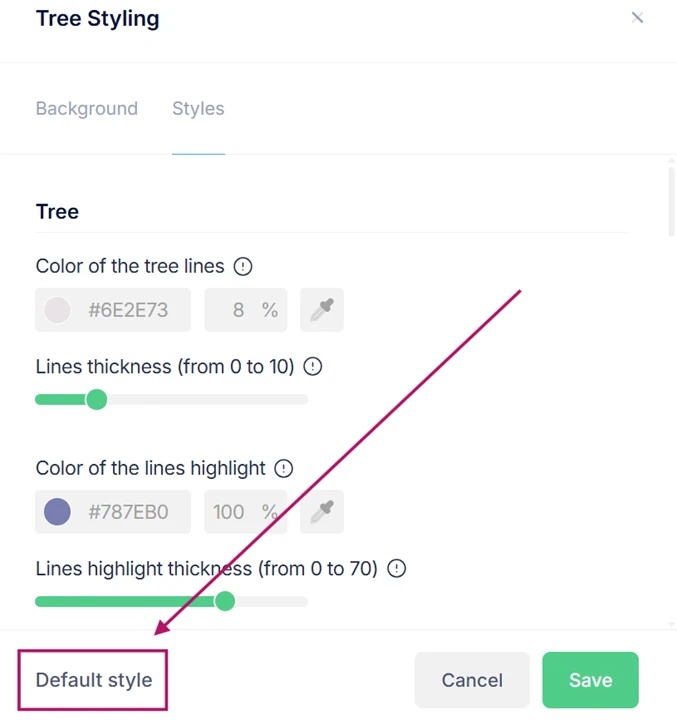
All changes to the tree are displayed in real time. To save them, click on the "Save" button in the bottom right corner. To exit without saving changes, click on the "Cancel" button.