How to Import Your Sims 4 Family Tree to TheSimsTree Using MCCC
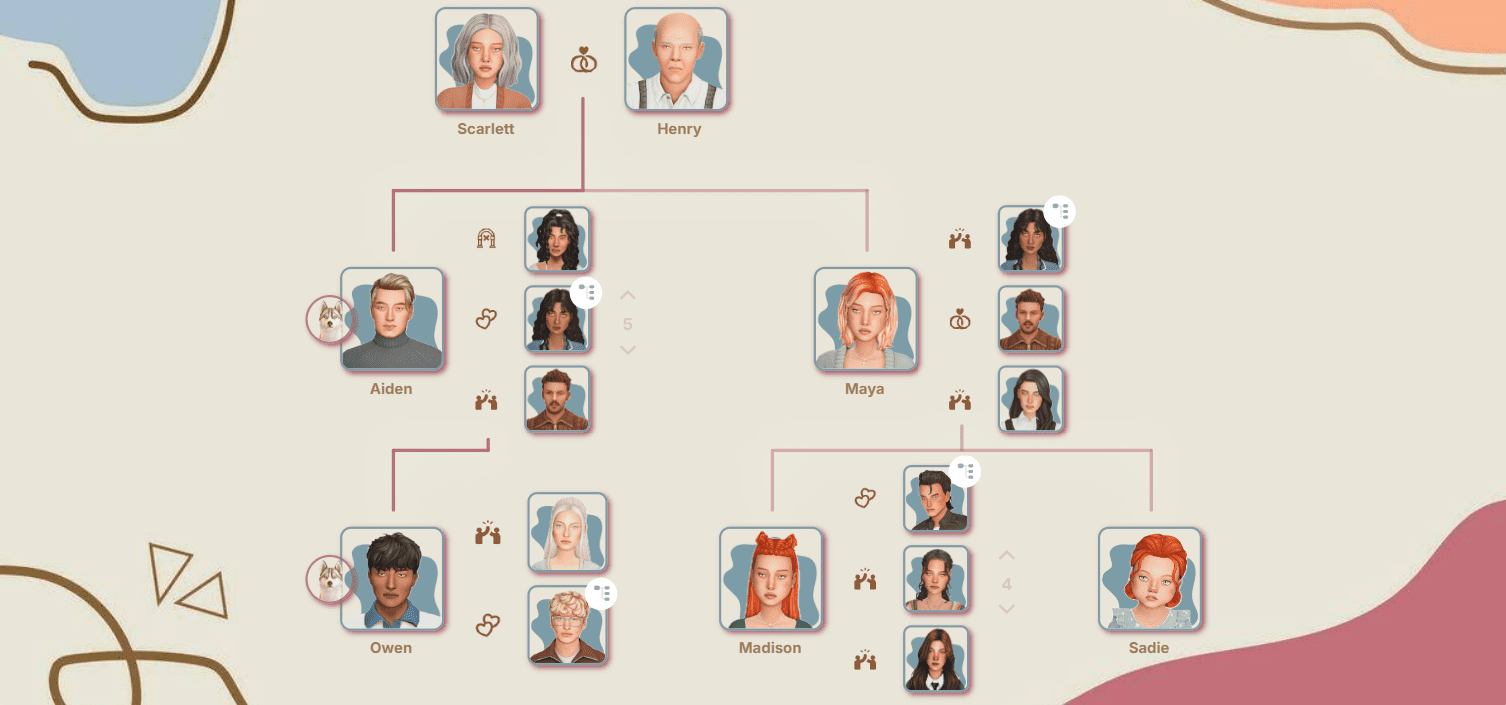
You can import your Sims 4 family tree to TheSimsTree straight from your game! To do this, simply use the MC Command Center (MCCC) mod: export your Sims 4 genealogy into a GEDCOM file, and then upload it directly to TST. Your characters will automatically pop up on the site with their first and last names, while all family ties, relationships, and bloodlines stay intact. This feature is a massive time-saver for Sims 4 legacy challenges players and large families – you can transfer multiple generations at once instead of creating every single sim from scratch. All that's left for you to do is add profile pictures and fill out your characters' bio cards.

Of course, you'll need to have MC Command Center installed. You can download the mod from the creator's website.
How to import a family tree from The Sims 4 to TheSimsTree using MC Command Center:
1. Launch the game and load the household of the sim whose tree you want to export.
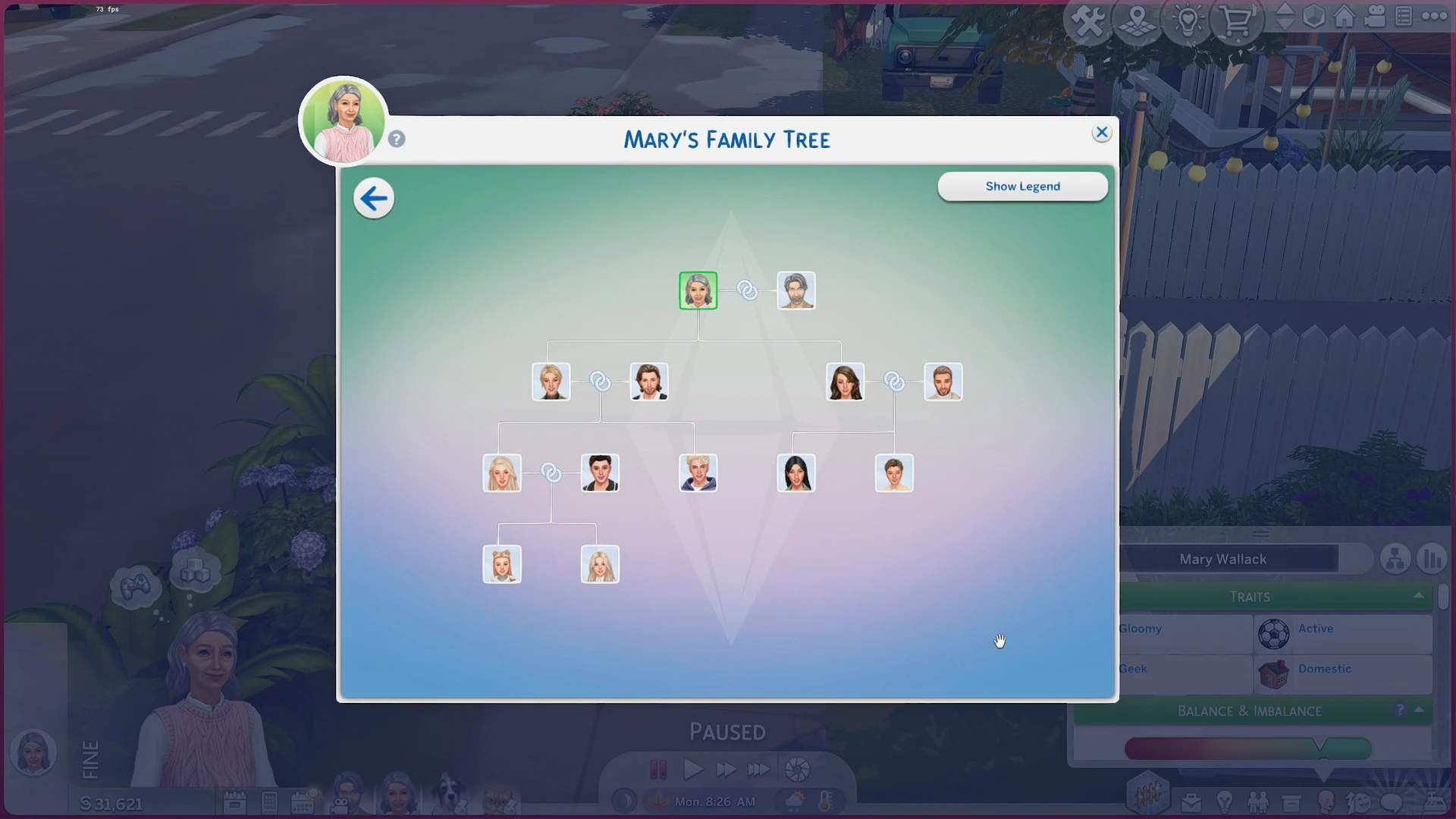
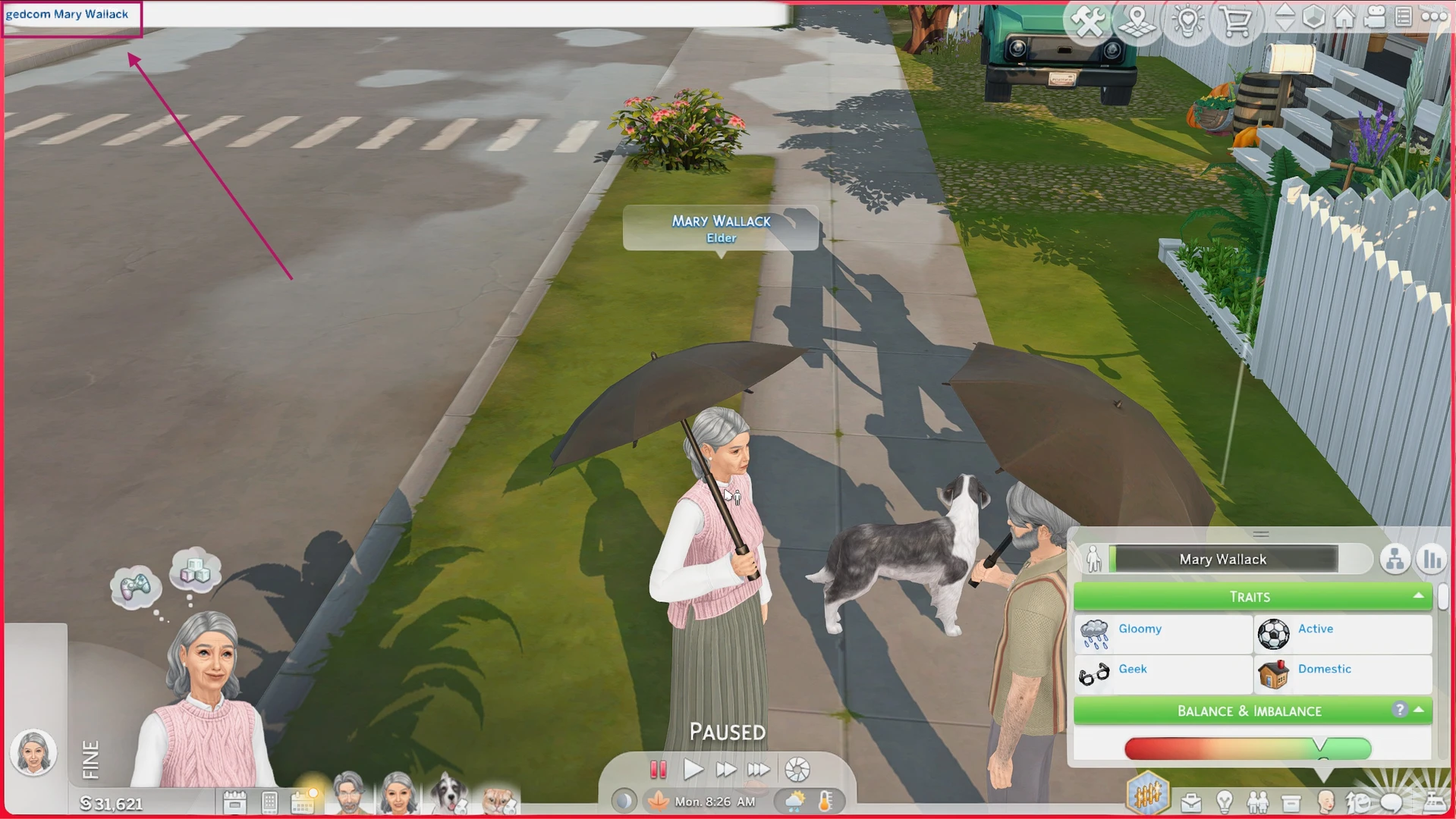
2. Select that sim in the bottom menu. Open the cheat console using Ctrl+Shift+C and enter the command.
Type gedcom followed by a space and your sim's first and last name just as it appears in-game, for example, gedcom Marry Wallack:
3. Hit Enter, and a notification will pop up letting you know your tree file has been generated.
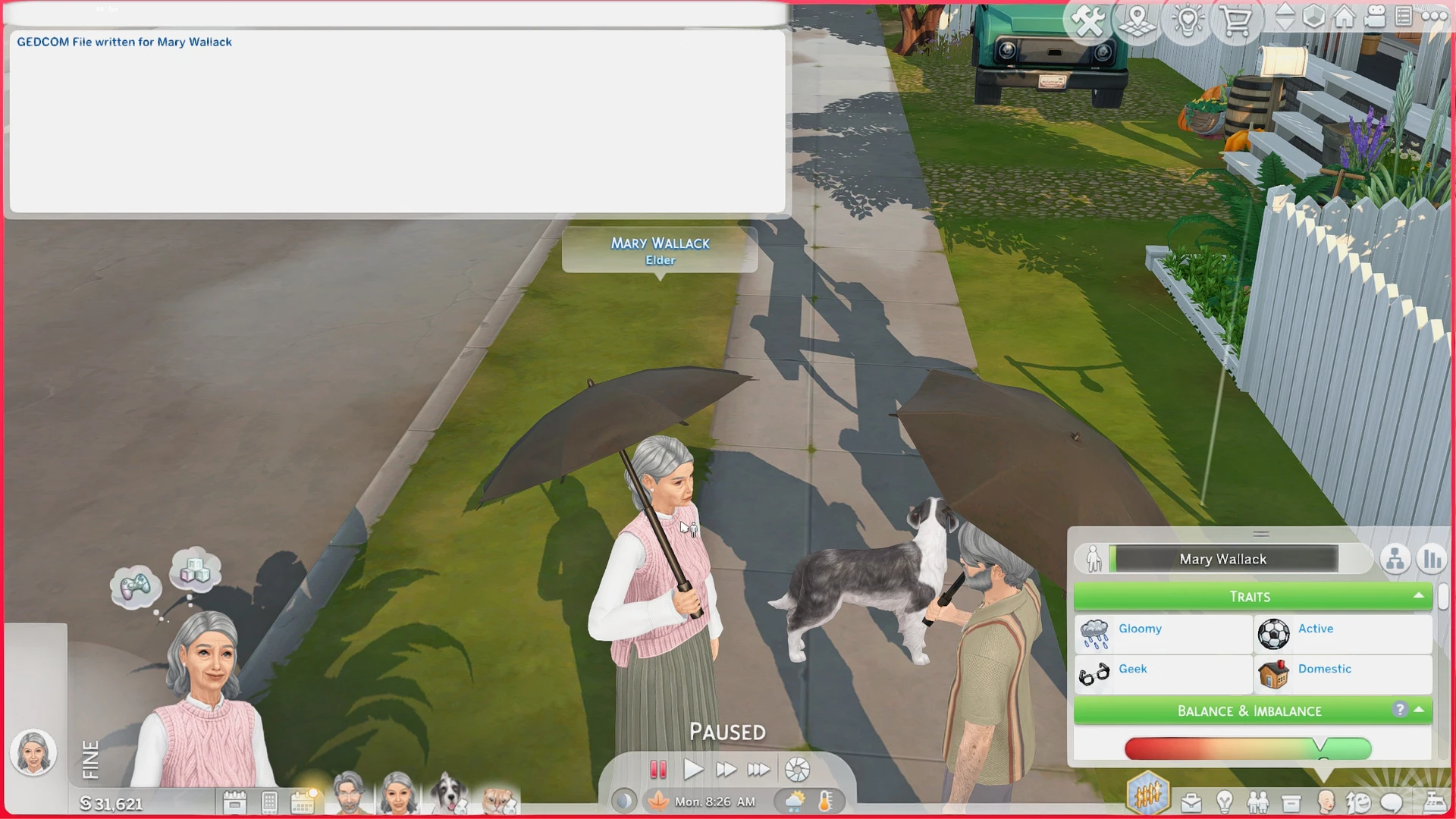
You'll find it in your Mods folder, right alongside your MC Command Center files (for example, under Electronic Arts > The Sims 4 > Mods > McCmdCenter_AllModules_2026_6_RC1).

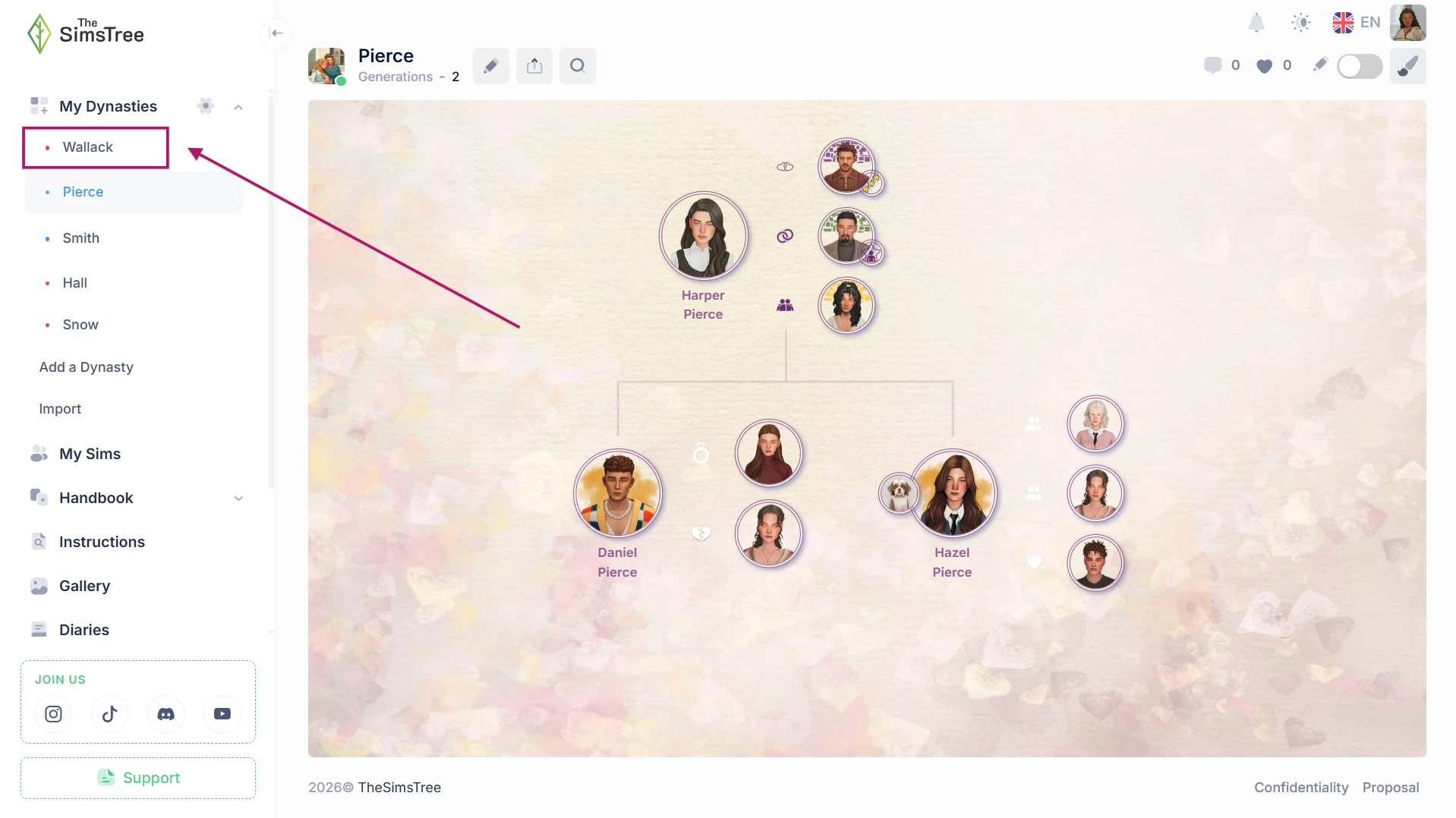
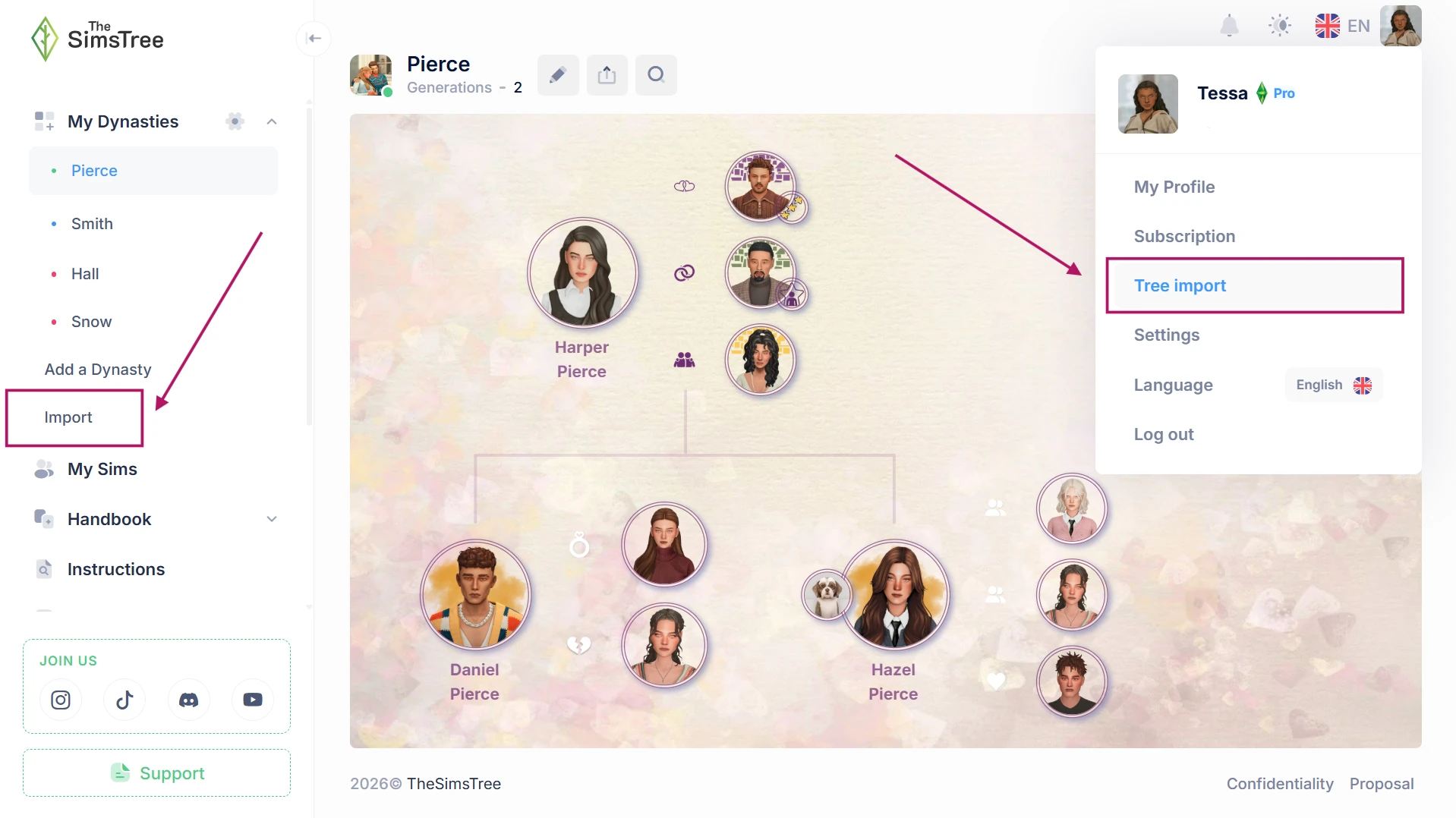
4. On TheSimsTree, click your profile picture in the top right corner to open the menu, then select "Tree Import."
Alternatively, click "Import" under your dynasties list in the left-hand menu.
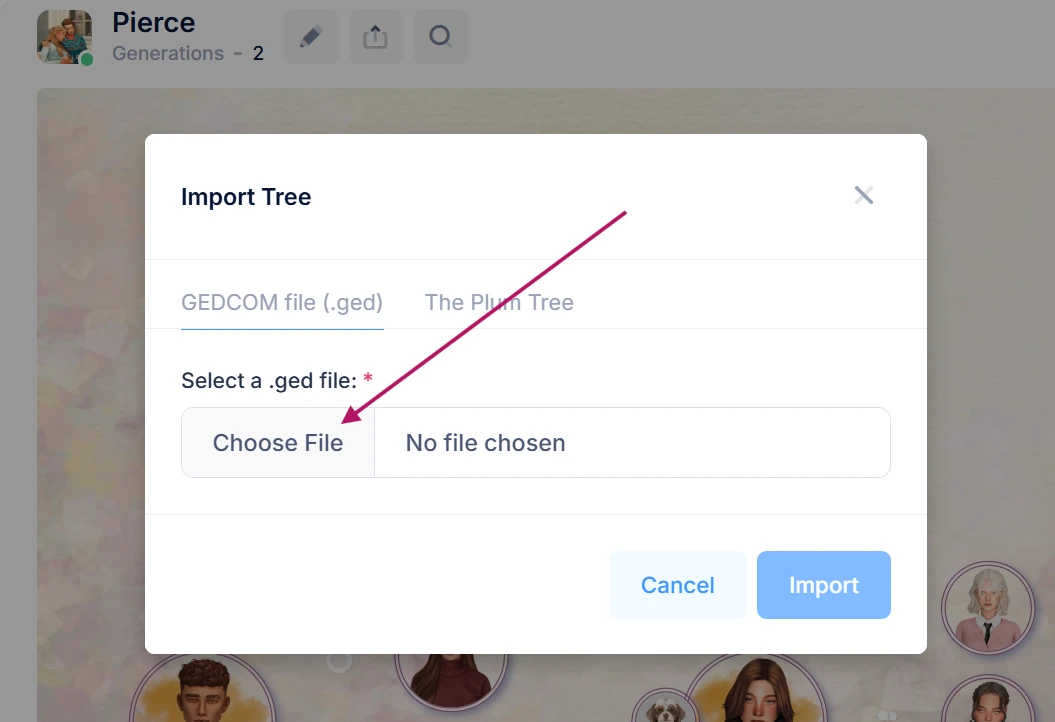
5. In the pop-up window, click the "Choose File" field and select the file from your computer.
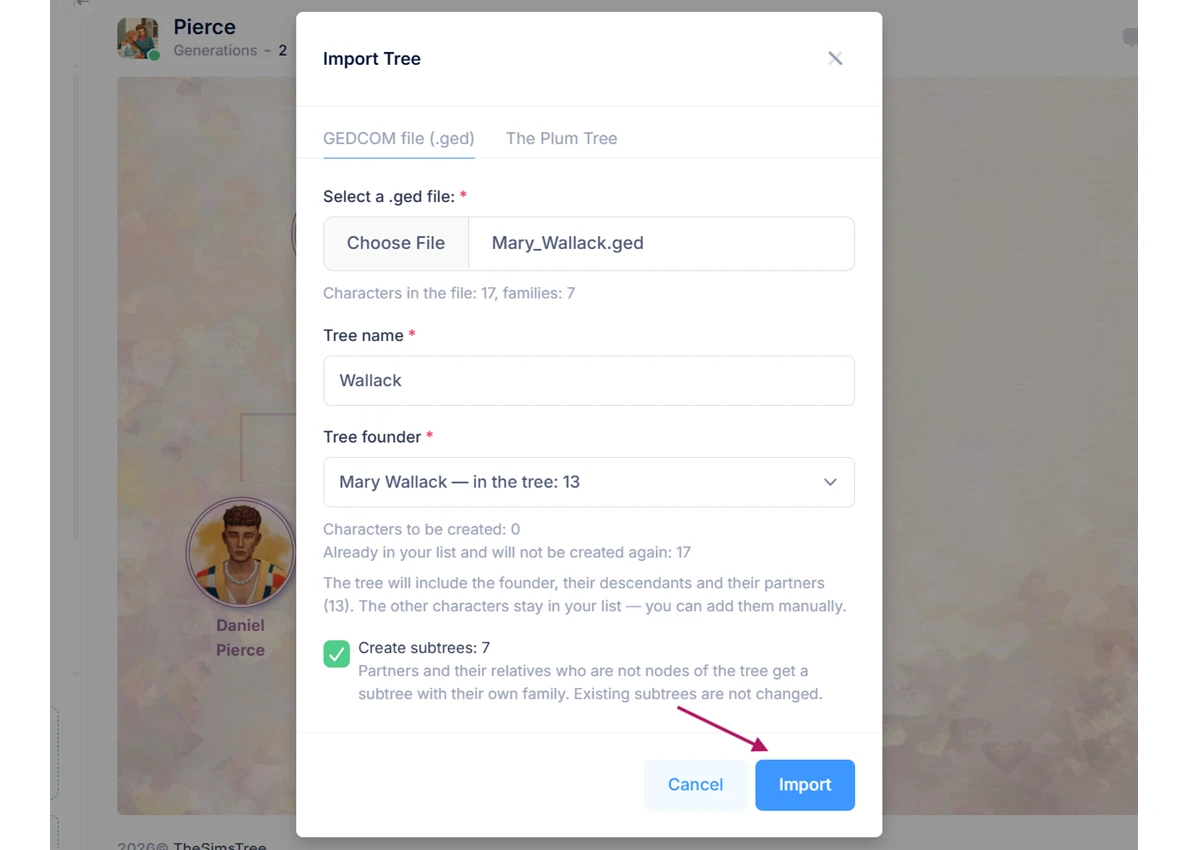
6. Import Settings.
Once the file uploads, you'll see how many characters are included in the tree you exported from the game – meaning how many sims will be created in your "My Sims" section.
1) Be sure to enter a name for your tree.
By default, it uses the file name (your sim's name), though you can come up with any custom tree name you like (such as your dynasty name).
2) Choose a founder from the drop-down list.
By default, the founder is set to the sim whose tree you exported, but you can pick any available sim from the list instead.
3) Decide whether you want to create sub-trees.
These will be generated for non-main sims in the tree, such as partners and their relatives.
7. Click the "Import" button.
Your new tree will now show up in your dynasties list.