The Sims 4 T.O.O.L. Mod by TwistedMexi: How to Use, Install & Build Without Limits
Out of the hundreds of mods available for The Sims 4, some have become so essential to the building experience that it's hard to imagine playing without them, and T.O.O.L. by TwistedMexi is absolutely one of them. This mod completely redefines how you approach building and storytelling in The Sims 4, giving you total control over the position, rotation, and scale of any object – both on your lot and well beyond its boundaries. The grid no longer calls the shots, "invisible" walls are a thing of the past, and placement precision gets down to the millimeter. Versatile, flexible, and flat-out indispensable, T.O.O.L. has long been the go-to tool in any serious builder's arsenal.
What Is T.O.O.L. and Why Do You Need It in Sims 4?
T.O.O.L. stands for Take Objects Off Lot. In the base game, you can only place items within the grid and within the boundaries of your lot. T.O.O.L. throws all of those restrictions out the window. With it, you can:
- Move objects off the lot entirely.
- Rotate them at any angle – not just in grid-locked increments.
- Scale them – make items bigger or smaller.
- Adjust elevation — raise or lower objects with pinpoint precision.
This mod is especially valuable for detailed builds and landscaping, letting you create realistic, one-of-a-kind homes.
Examples of builds made with this mod:

Author: CokiCreative

Author: Kate Emerald

Author: Kate Emerald
How to Install T.O.O.L. by TwistedMexi in The Sims 4
Installation is straightforward, but it does require a bit of attention to detail.
1. Download the mod. You can grab the latest version of T.O.O.L. from TwistedMexi's official website, their Patreon page, or CurseForge.
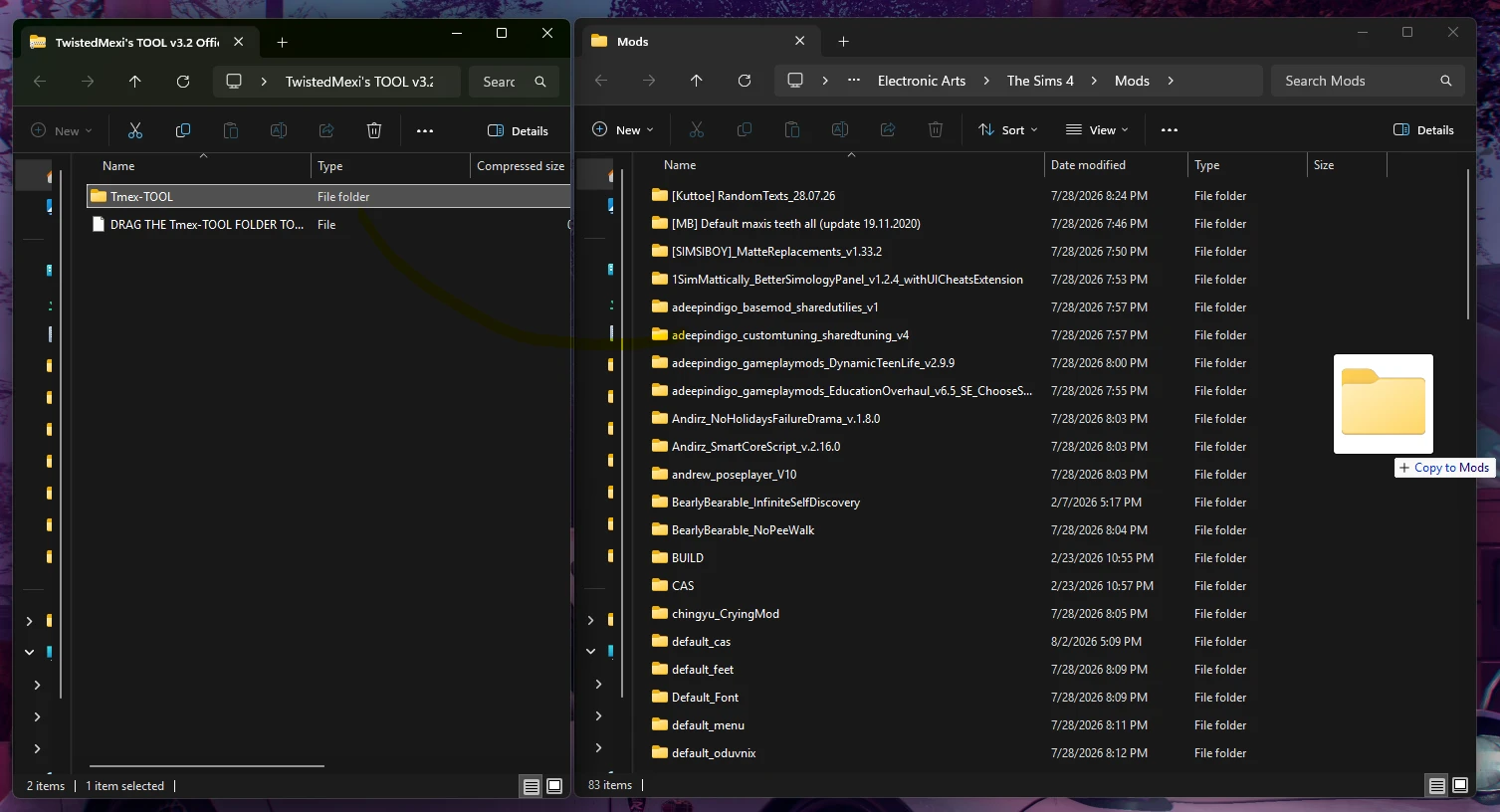
2. Extract the files. Inside the downloaded ZIP archive, you'll find a folder called Tmex-TOOL.
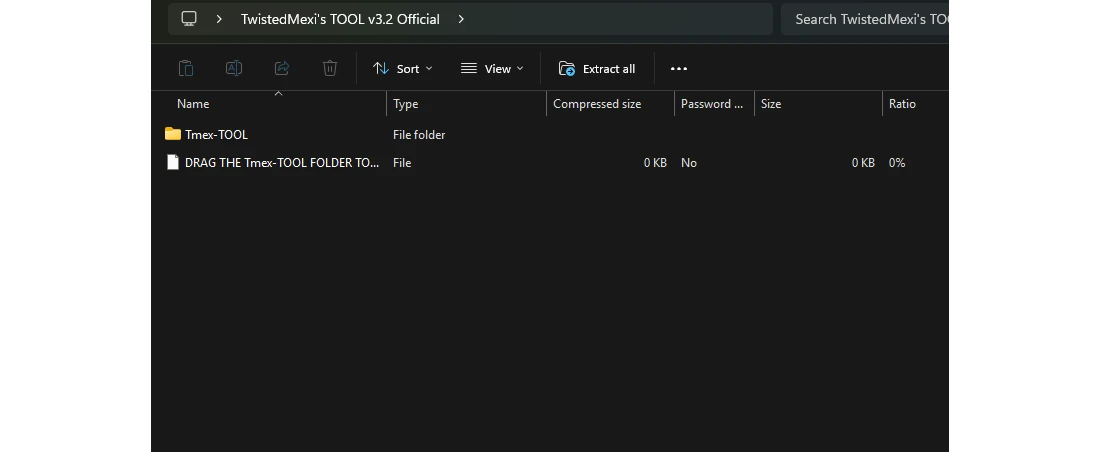
3. Move it to your Mods folder. Copy the Tmex-TOOL folder into your main Sims 4 Mods folder. You'll typically find it at: Documents > Electronic Arts > The Sims 4 > Mods. Just make sure the mod's script file isn't buried more than one subfolder deep.
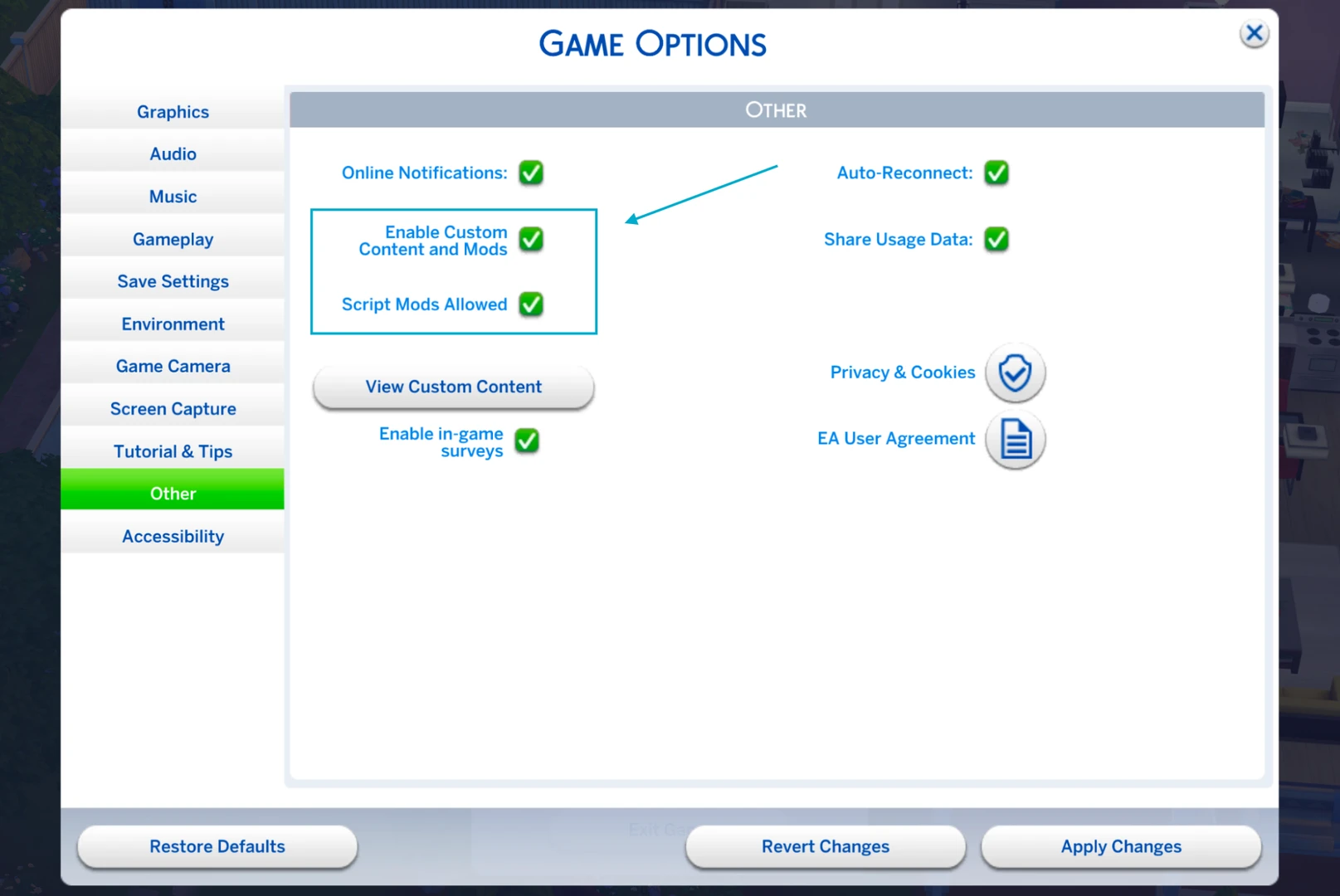
4. Enable mods in-game. Launch the game, head to Settings → Other, and make sure both "Enable Custom Content and Mods" and "Script Mods Allowed" are checked.
5. Restart the game. After enabling mods, you'll need to restart The Sims 4. If mods were already enabled beforehand, you can skip this step.
Heads up: The mod may also require cheats to be active. Open the console (Ctrl + Shift + C) and type testingcheats true.
How to Use T.O.O.L.: A Step-by-Step Breakdown
T.O.O.L. works in both Live Mode and Build Mode. One important note: the mod's creator warns that using it in Build Mode requires Better BuildBuy – another mod by the same author that streamlines the build experience.
Opening the T.O.O.L. Menu
While in Build Mode, hold Shift + T to bring up the mod's main menu.
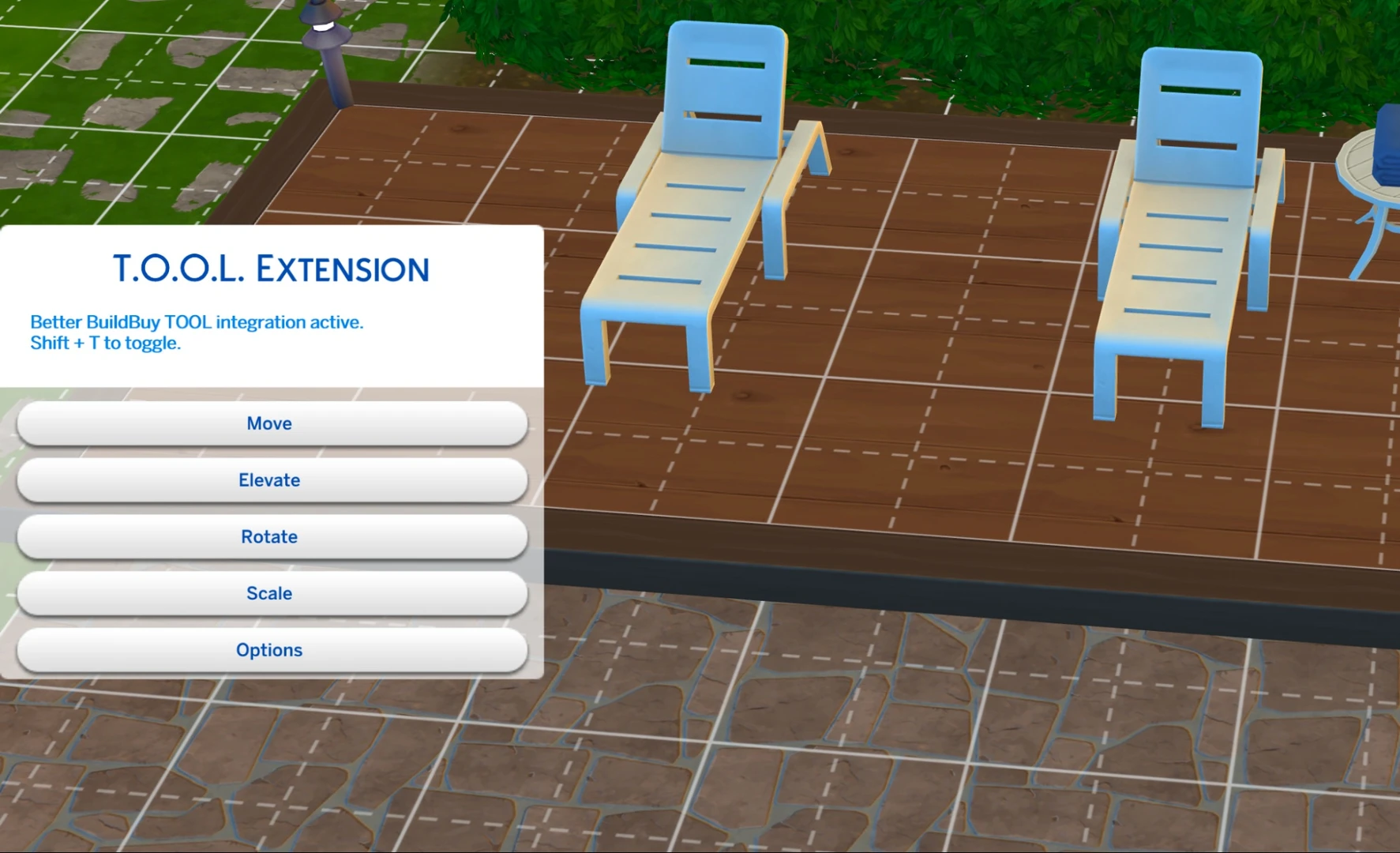
This is where all the core features live. You can also open the mod in Live Mode by Shift-clicking any object and selecting T.O.O.L. from the pie menu. This lets you move objects – and even Sims – directly in Live Mode.
The mod menu also includes additional settings where you can change the grid color, reposition the menu on your screen, and tweak a few other minor things:
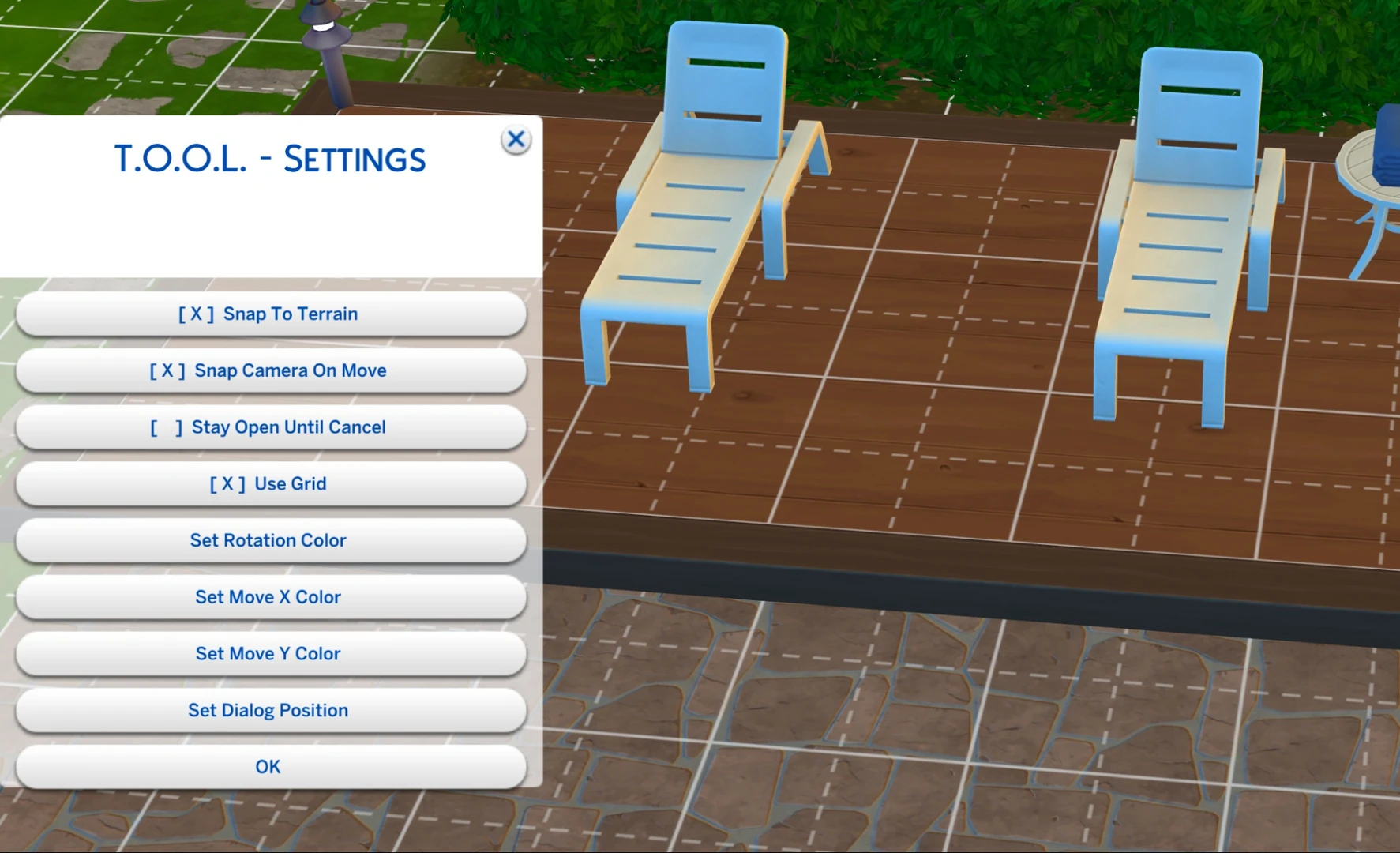
Keep in mind that while the menu is open in Build Mode, you won't be able to move objects the normal way. To get back to regular build controls, just close the menu with Shift + T again.
With the mod menu active, you can select any object and drag it wherever you like by simply clicking the destination. You can also move objects using the Alt key and clicking in the direction you want to shift the item.
Core T.O.O.L. Commands
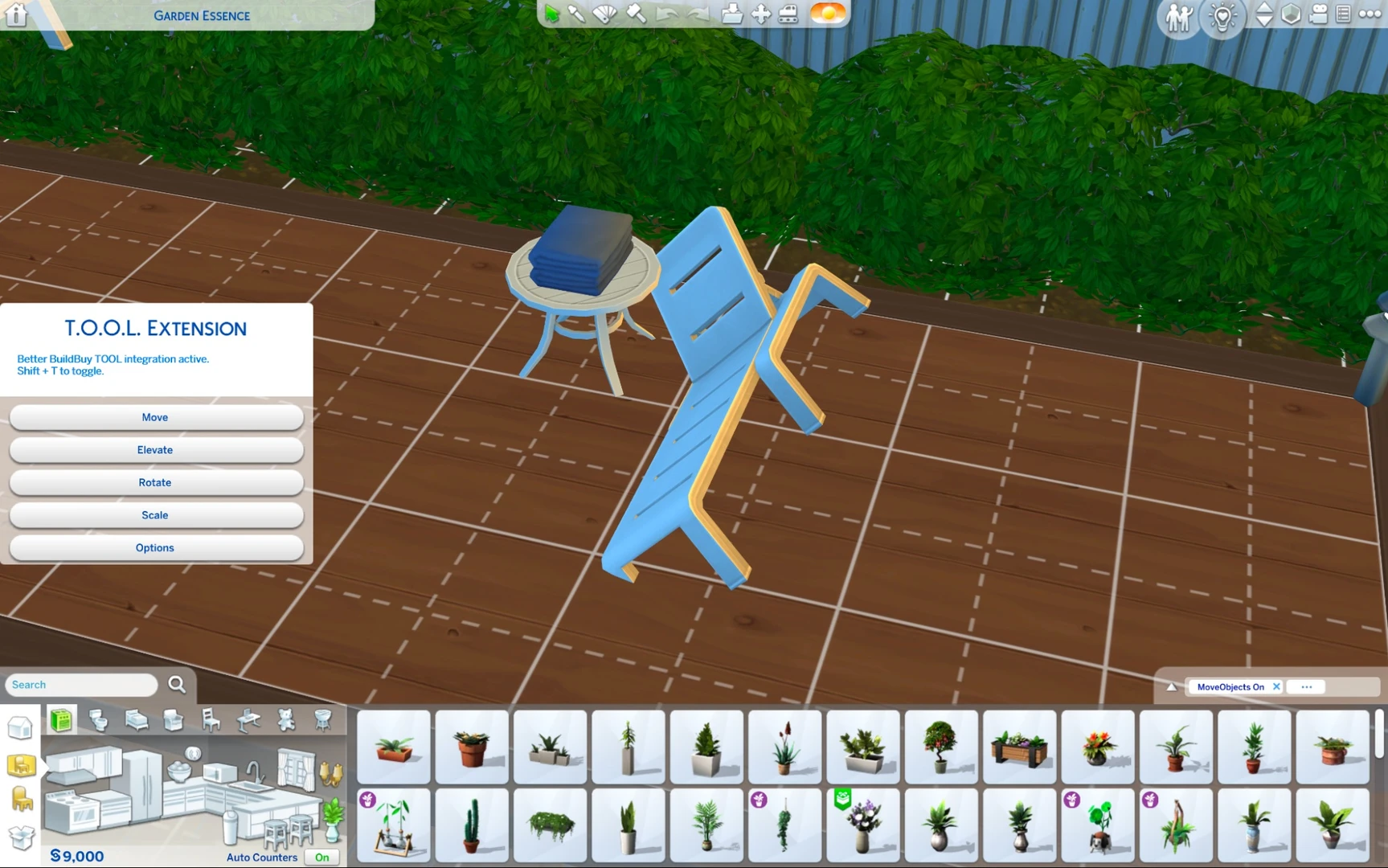
The T.O.O.L. menu offers five key options:
Move: Lets you precisely reposition an object. After selecting this option, click the object you want to move – a grid with an X axis (green) and Y axis (red) will appear.
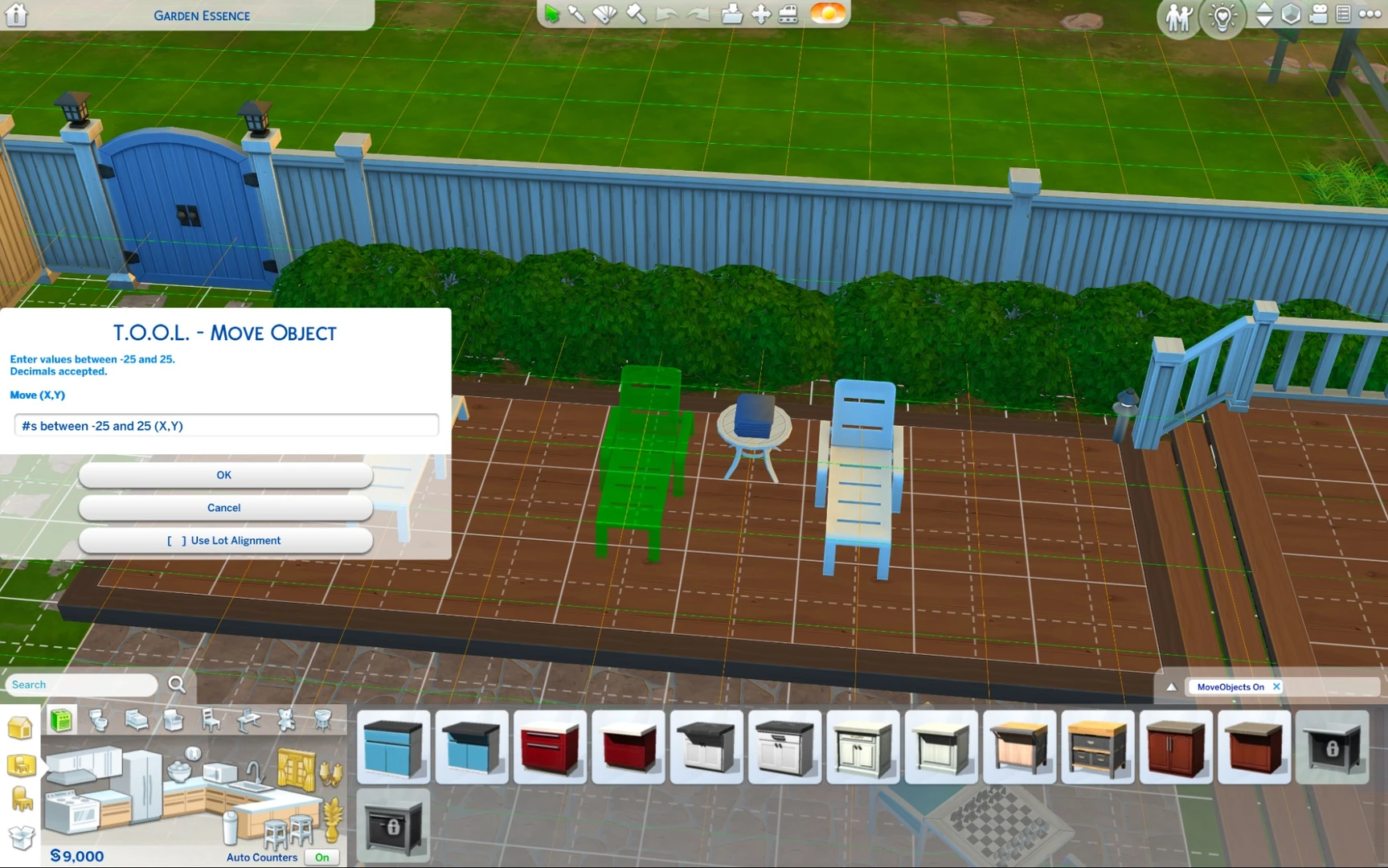
Enter the coordinates separated by a comma, and the object will snap to the specified values.
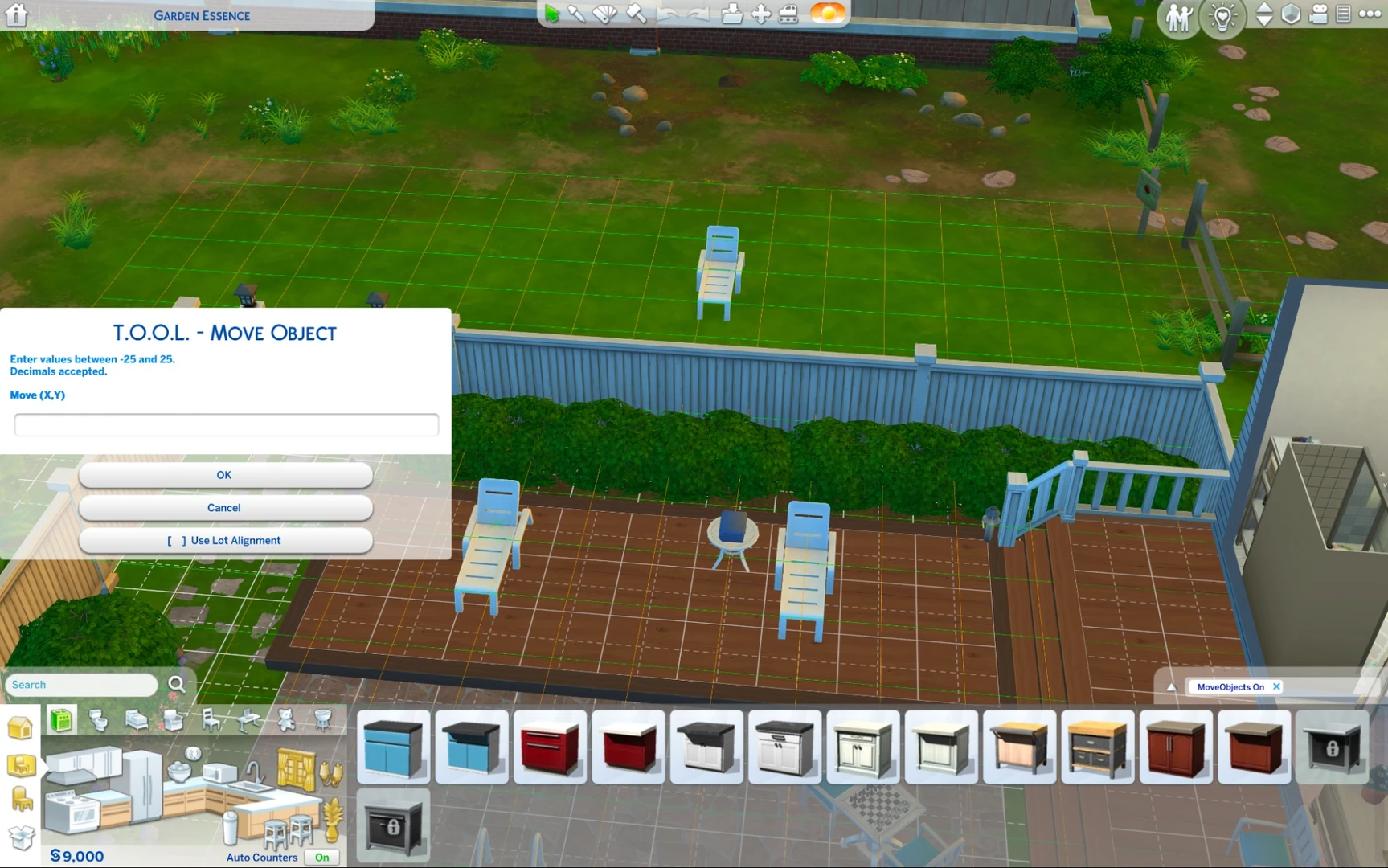
This might feel a little tricky at first since it's not always obvious what values to enter to land the object exactly where you want it. If precision coordinates don't matter, you can simply select the object and click anywhere on the map to move it there.
Elevate: Adjusts the object's height above the ground. Great for fixing floating items or getting shelf heights just right.
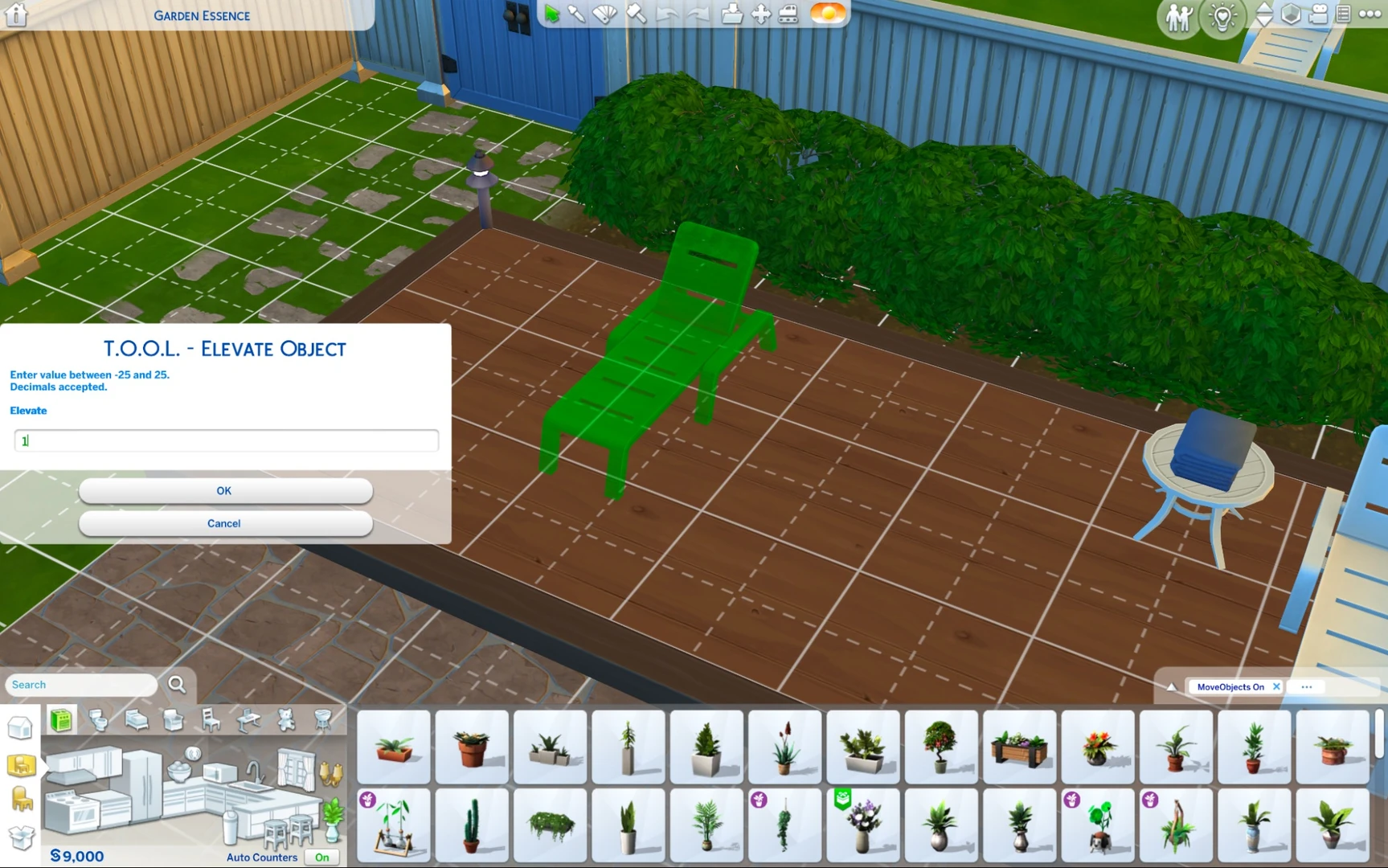
You can also, say, levitate a Cowplant into mid-air.
Rotate: Spins the object around. Once you select an object, a rotation axis appears – you can switch it to whichever plane you need.
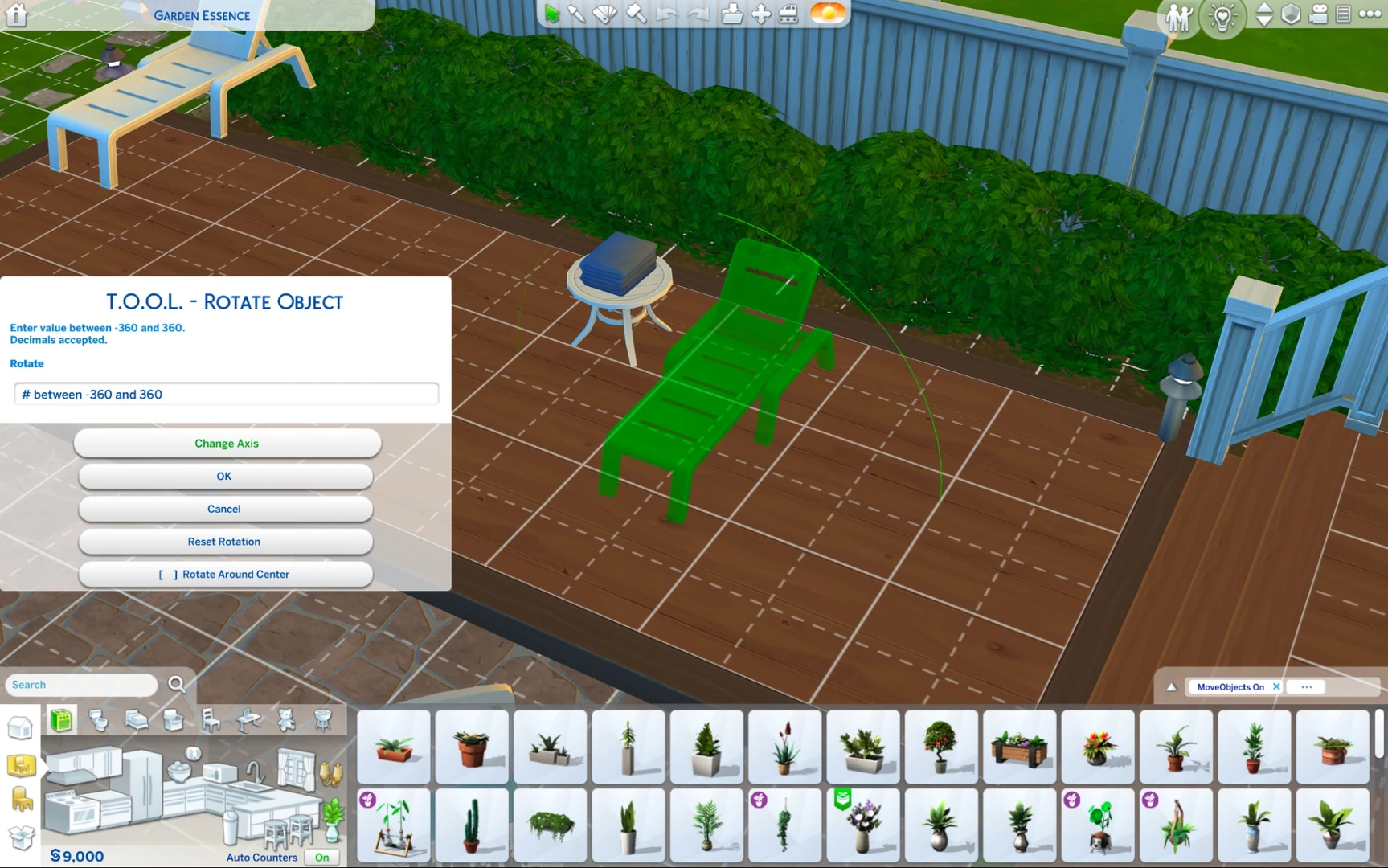
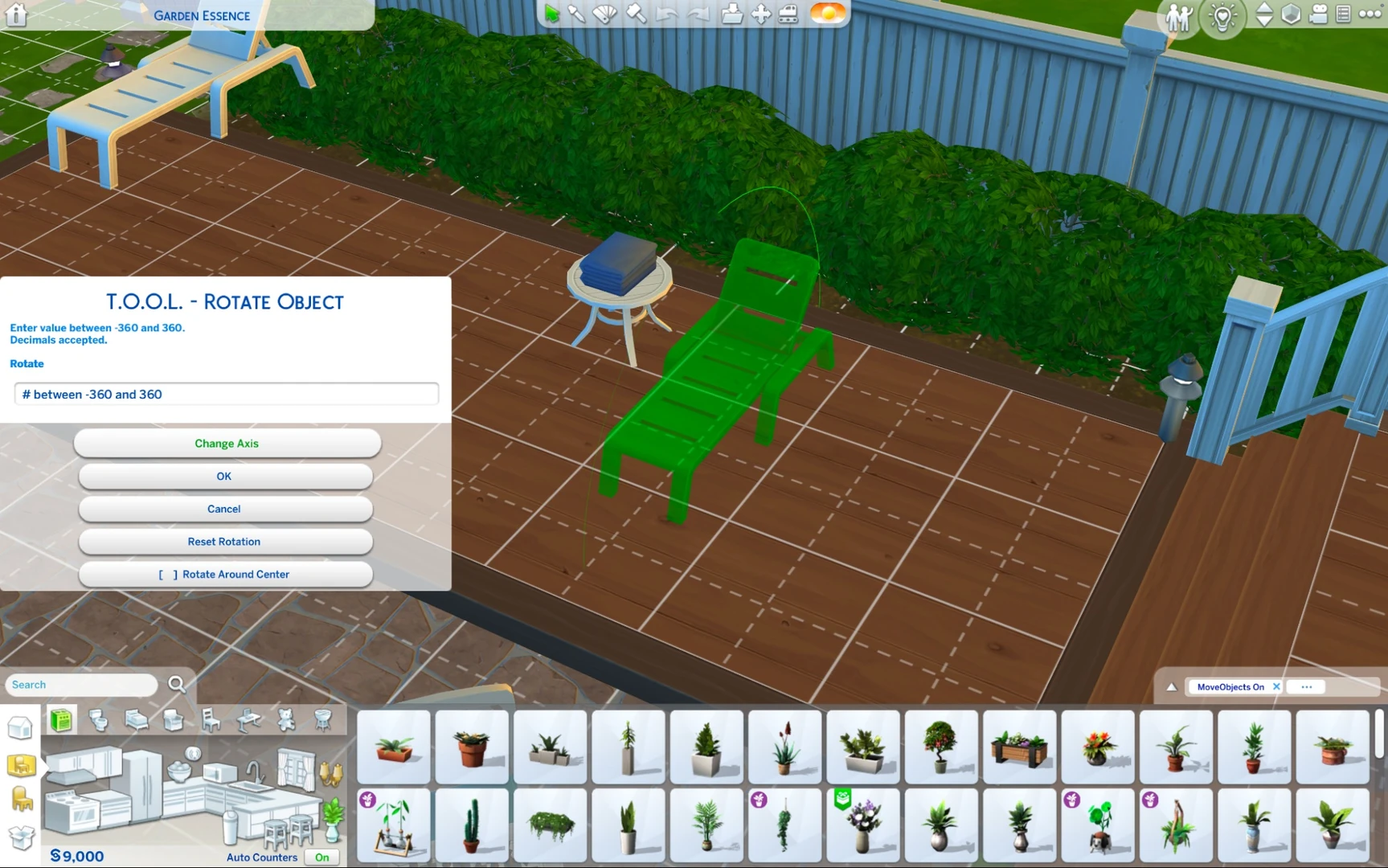
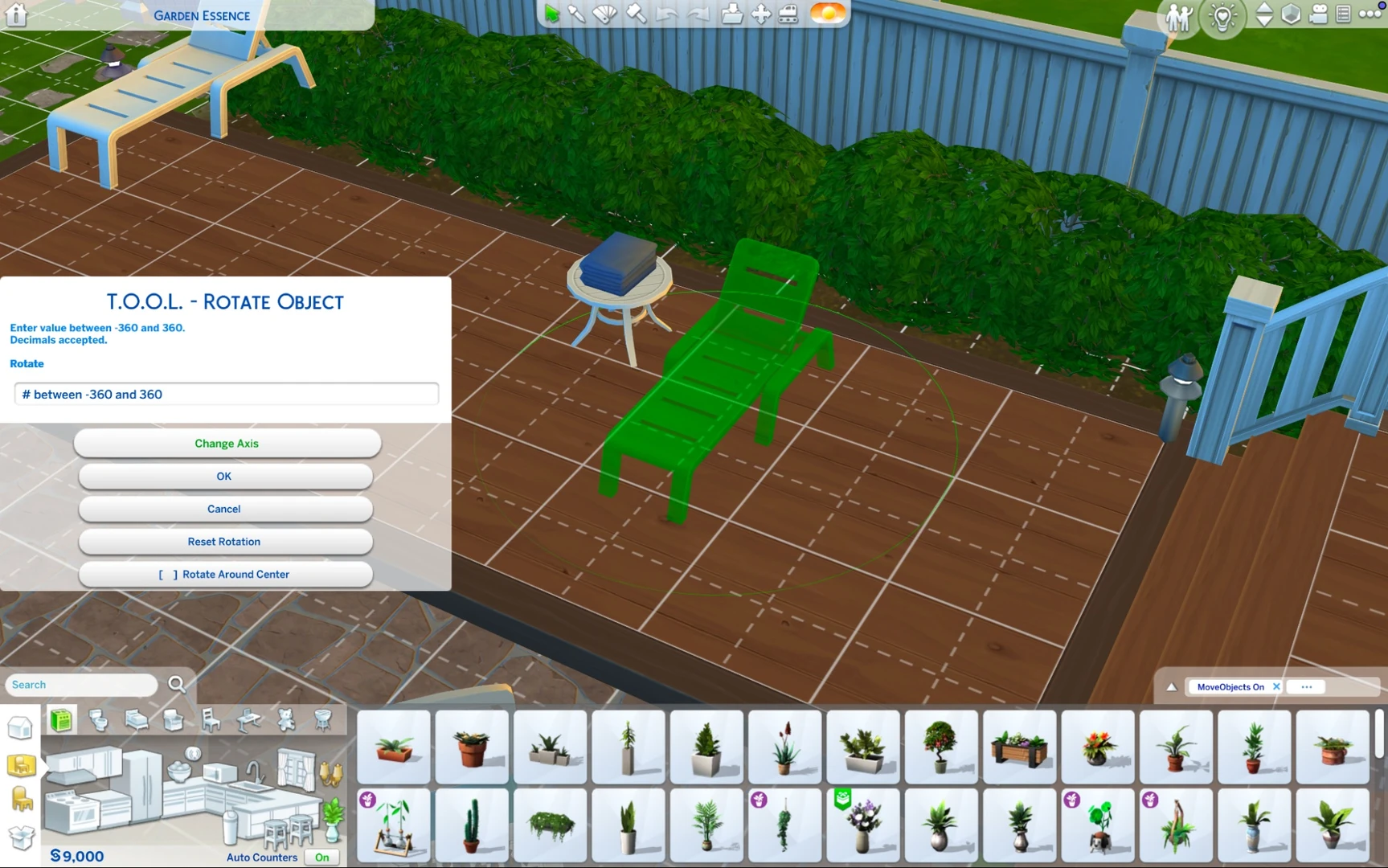
You can enter the rotation angle in degrees, which means you can place objects at literally any angle you want.
Scale: Changes the size of an object. Make it bigger or smaller by entering a scale multiplier.
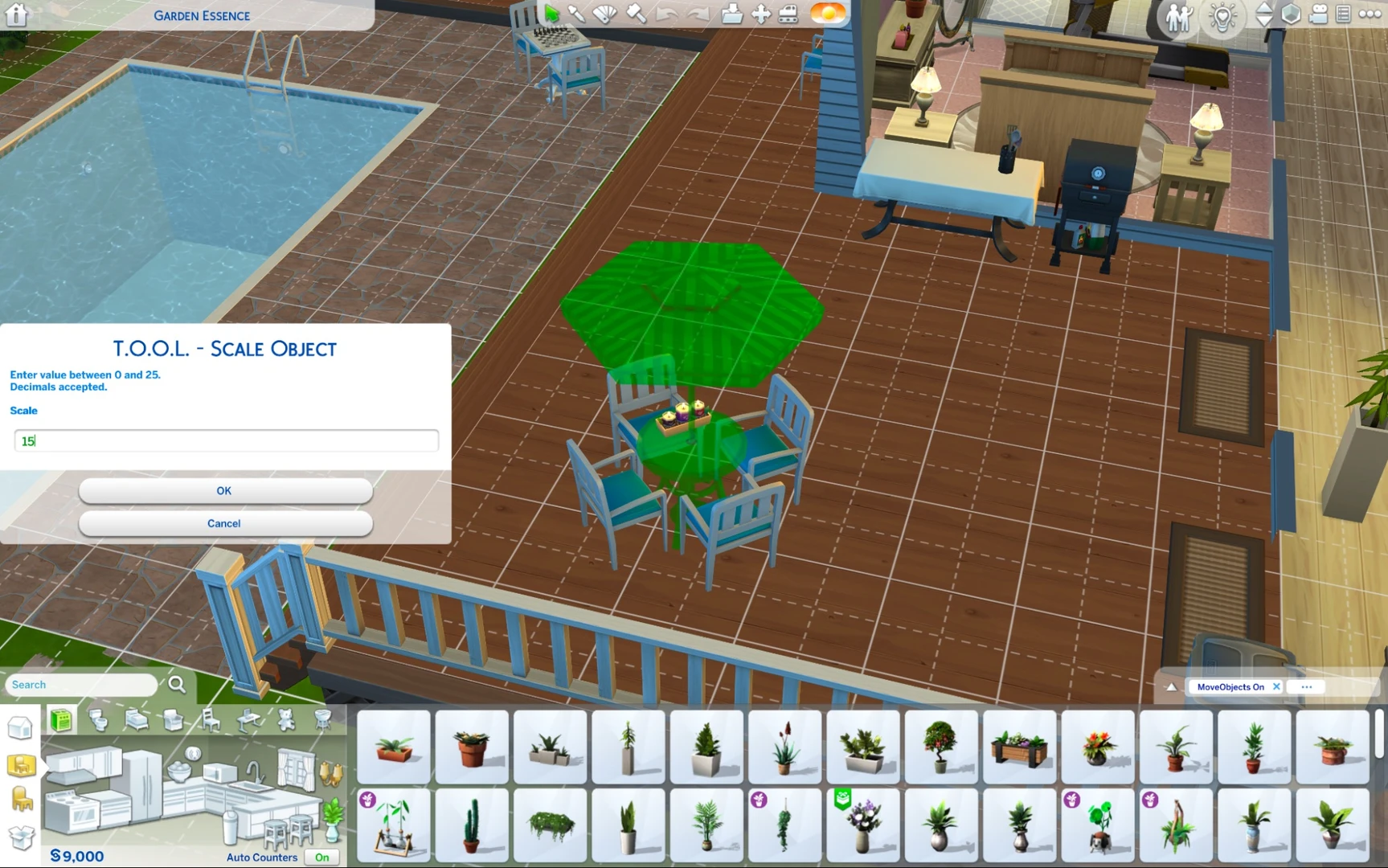
Here, for instance, is a Cowplant that's clearly gunning for world domination – one house at a time.

Tips, Tricks, and Hidden Gems
Moving objects off the lot. The real star of the show with T.O.O.L. is the ability to place objects beyond your lot's boundaries. It's perfect for building parks, dressing up the streets around you, or adding little details to neighboring yards.
For example, Windenburg has a lot where the backyard backs up against an open area that technically isn't part of the playable lot:
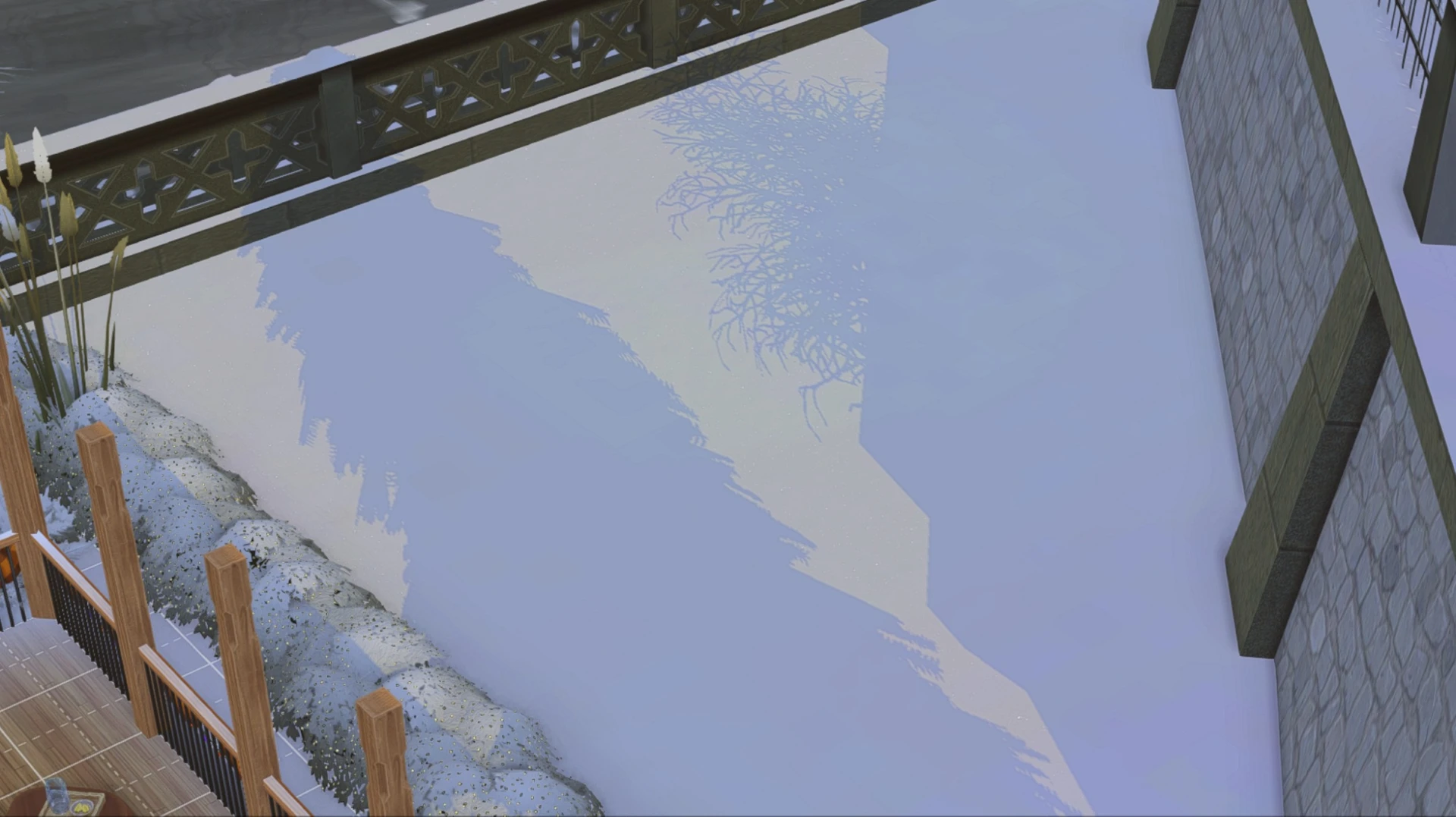
That dead space can be transformed into a playground that simply wouldn't fit on the main lot itself:
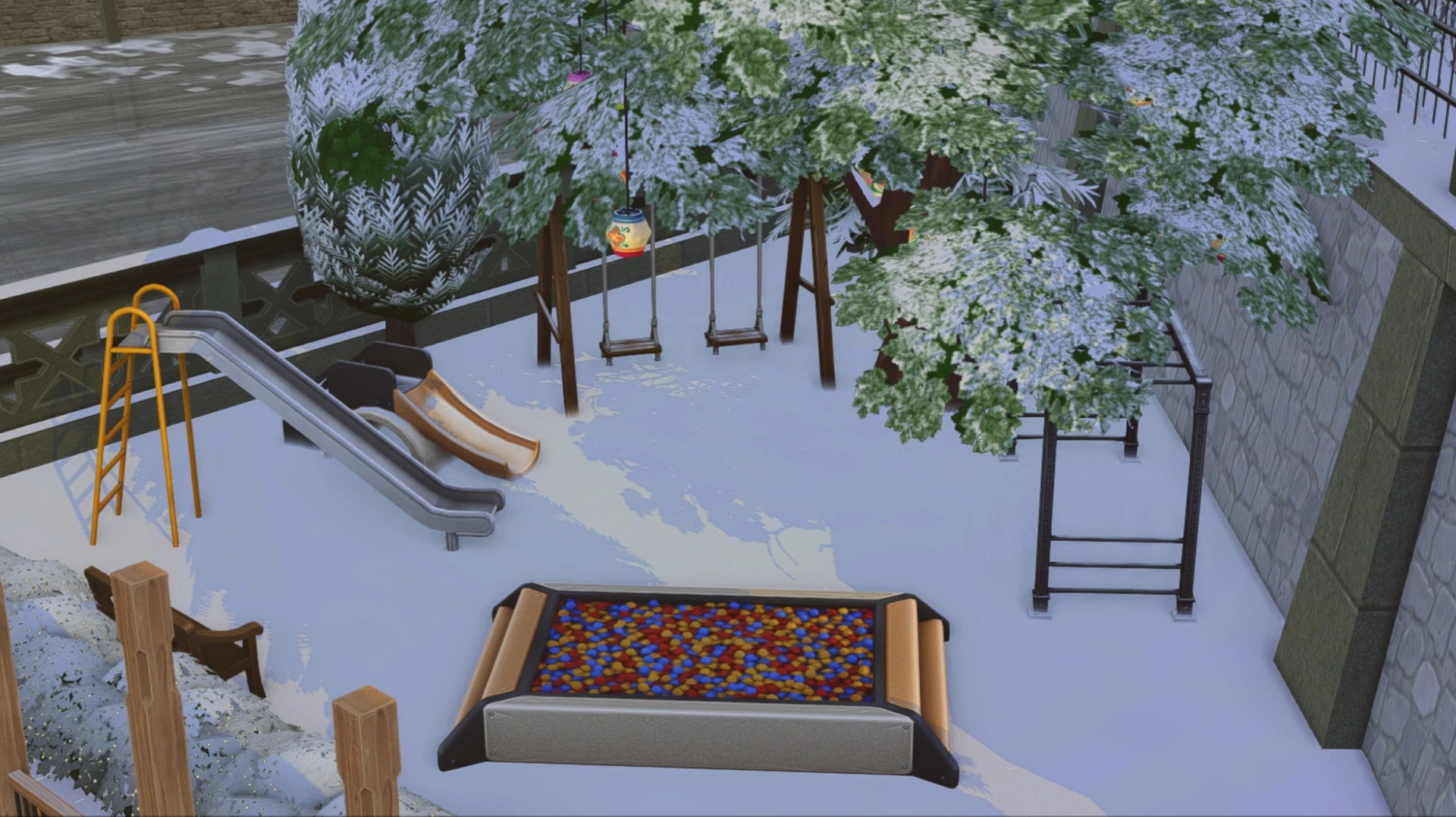
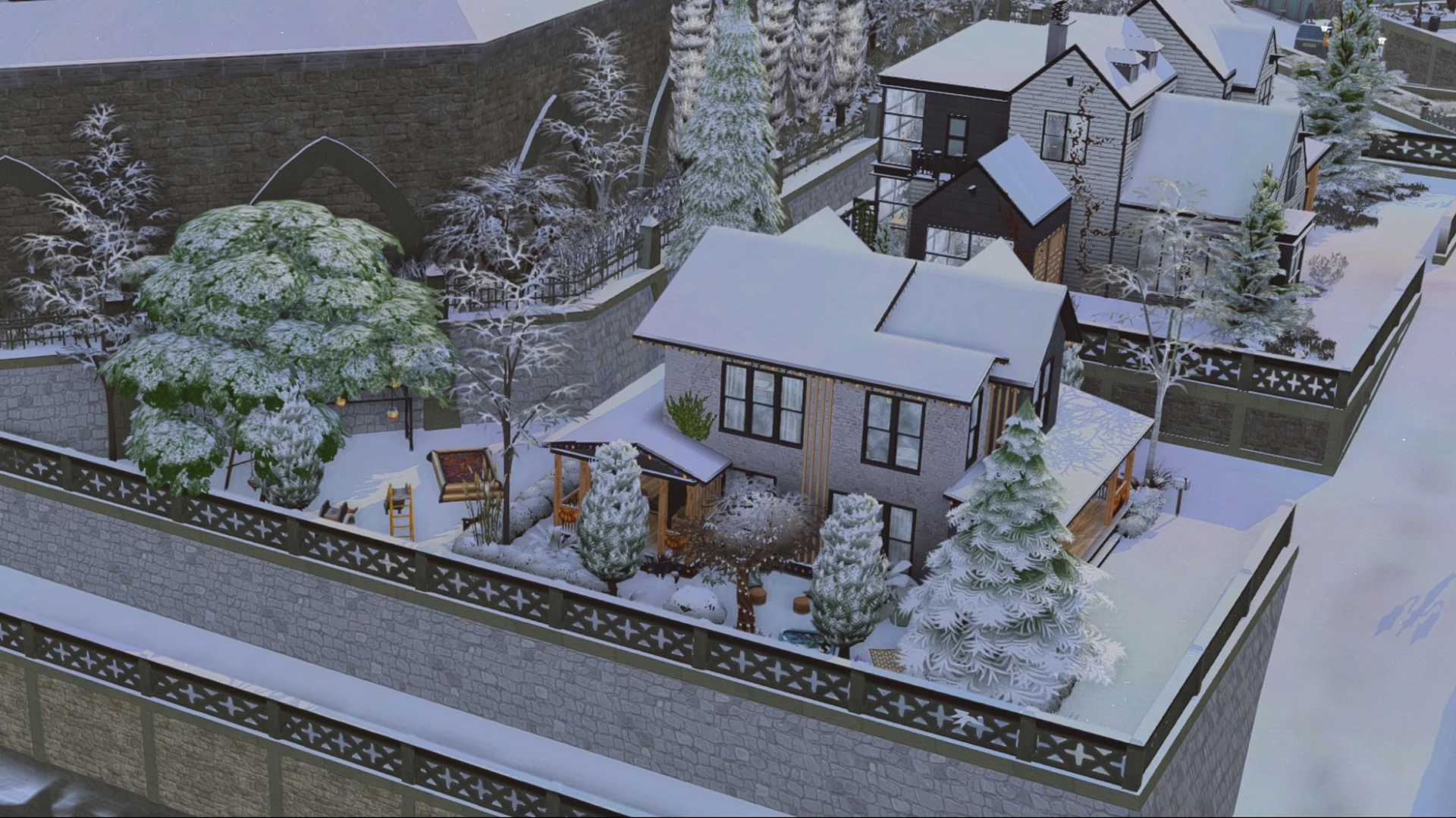
The end result is that your Sims get not just a backyard, but a whole extra area to enjoy – and from a distance, it looks like a seamless extension of the main lot.
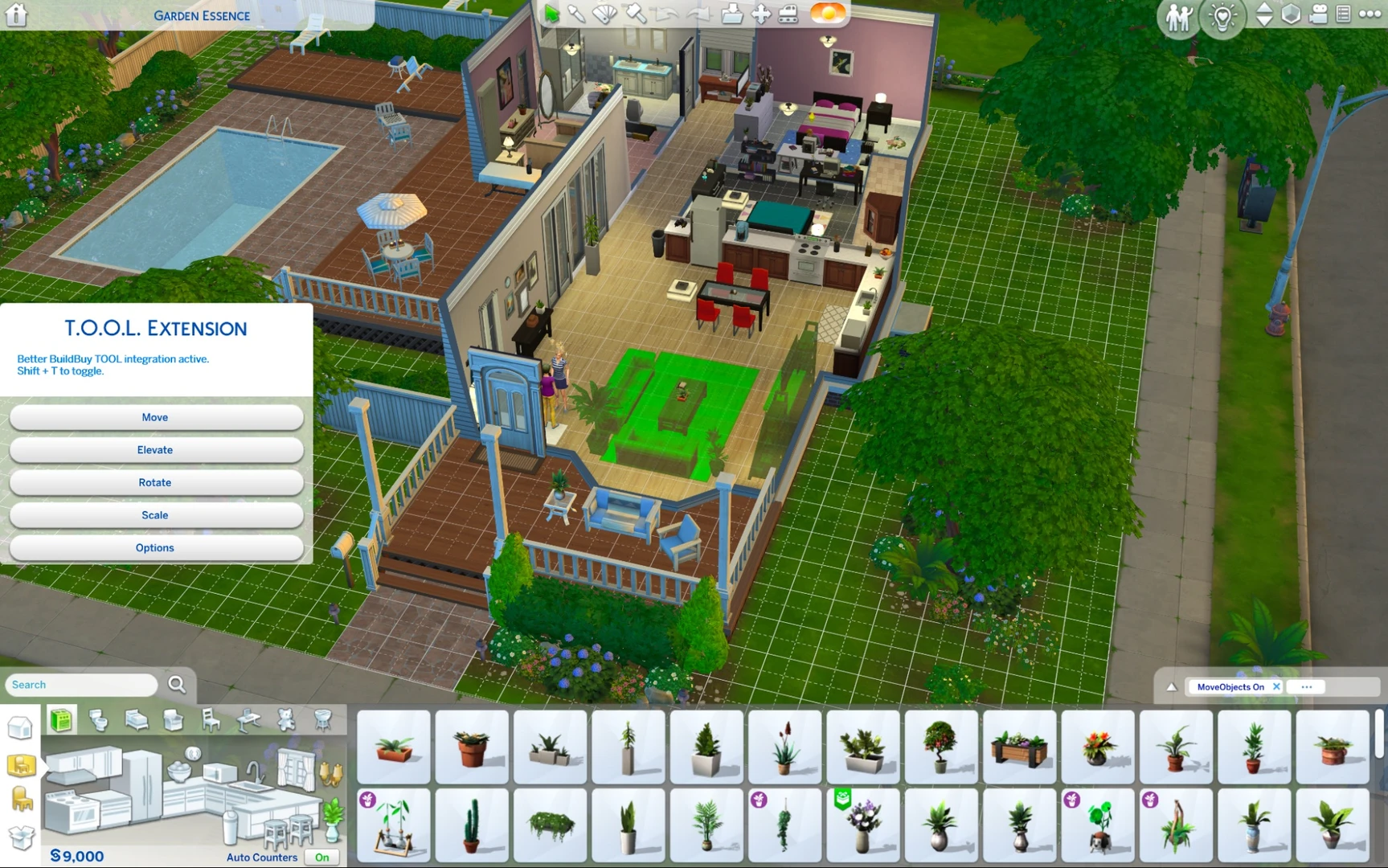
Fine-tuned precision. For easier placement, you can turn on a 10x10 grid that appears while you're moving objects around.
Working with multiple objects. T.O.O.L. can handle a whole group of items at once. Just hold Alt to select multiple objects and apply a command to all of them in one go.
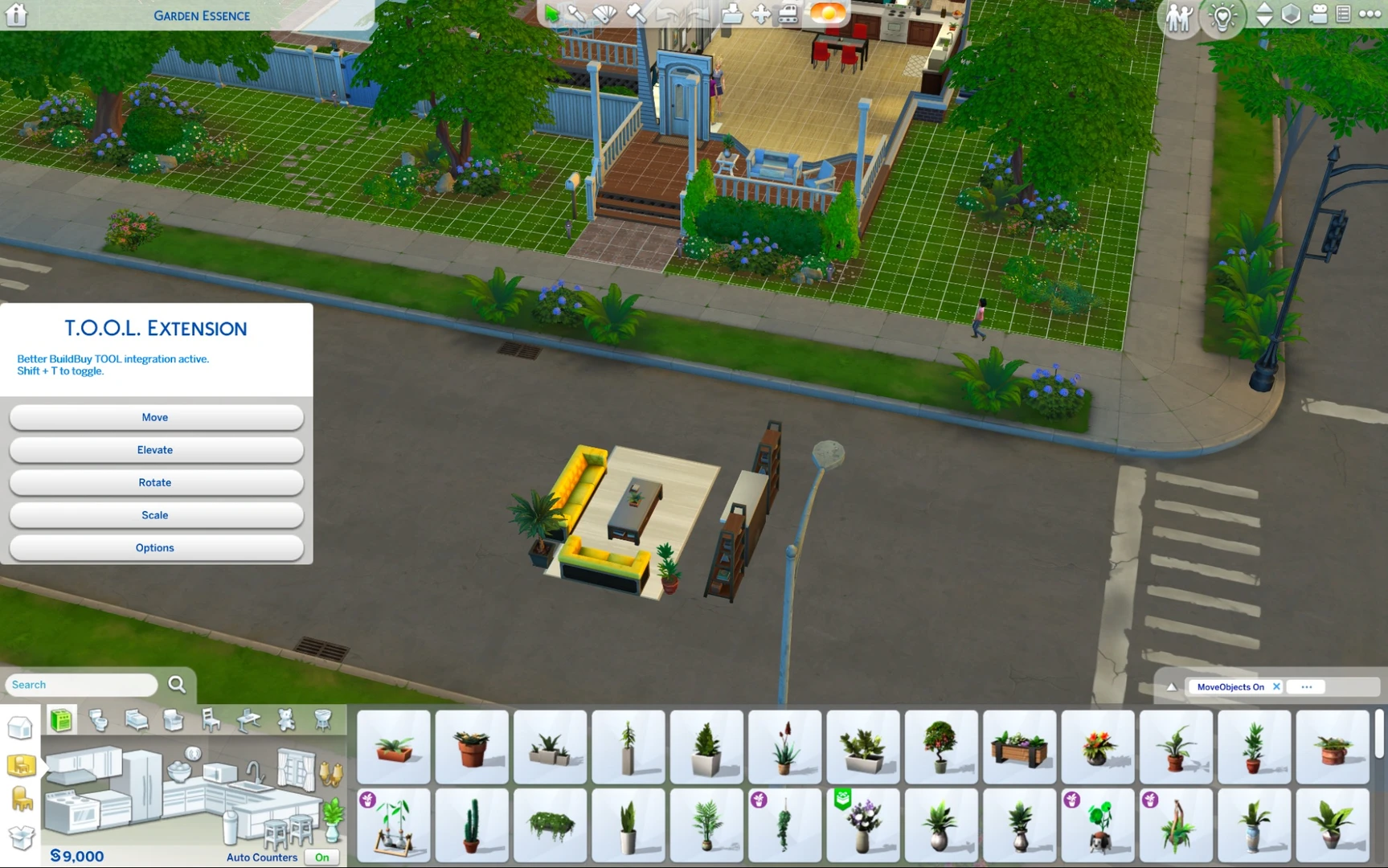
Real-time editing. The mod works on the fly – no game restart needed, and every change shows up instantly.
What You Can Create with T.O.O.L. in Sims 4
The only limit here is your imagination. Here are just a few ideas to get the wheels turning:
Unique landscaping. Place trees, rocks, and flowers beyond your lot boundaries to build a cohesive, natural-looking landscape that flows seamlessly in every direction.
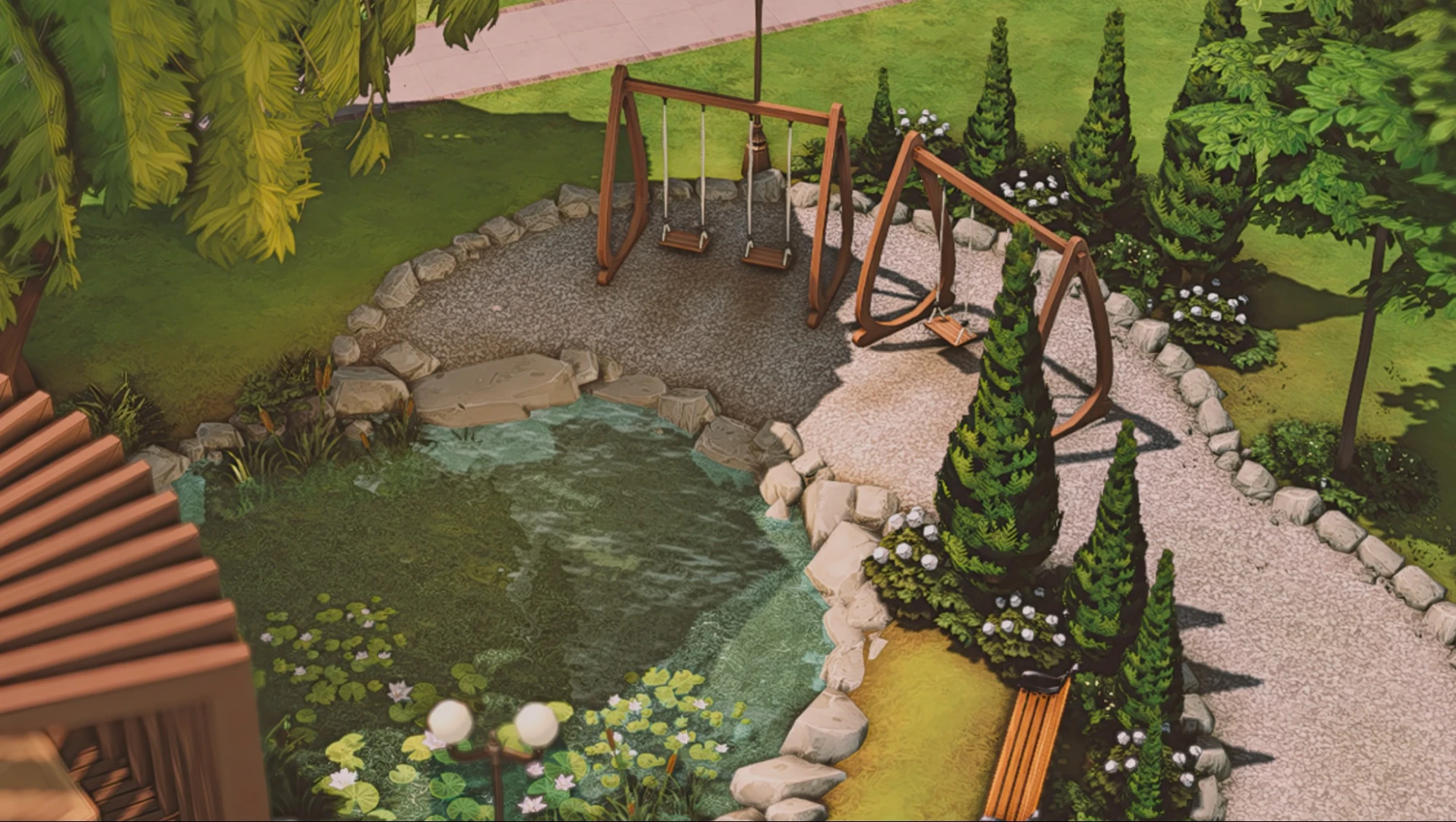
Author: An Simssimi
Interior design. Build intricate, one-of-a-kind arrangements that vanilla tools simply can't pull off – tilt paintings, create floating books, or dial in the exact height of every individual piece.
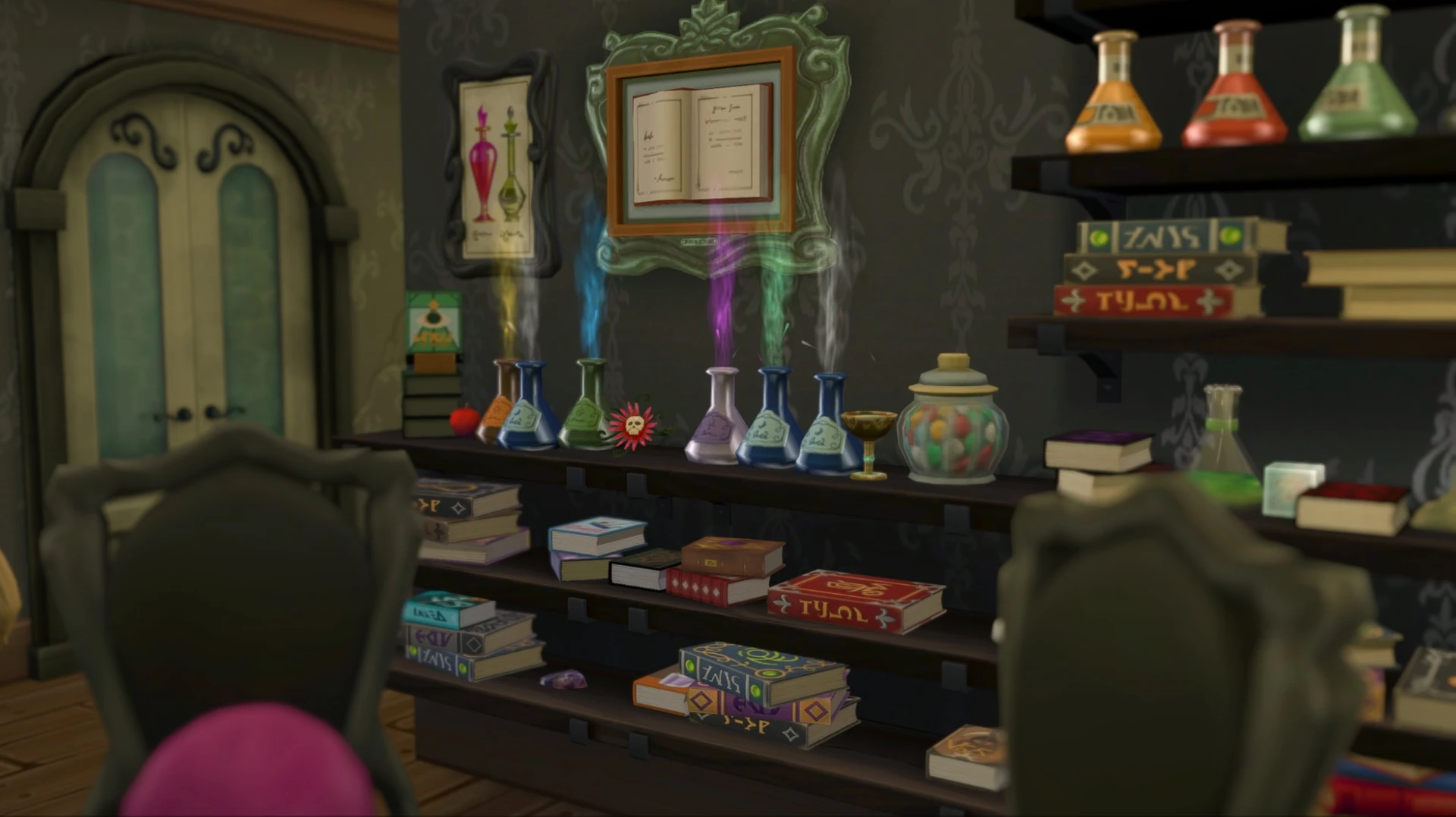
Non-standard builds. Use scaling and rotation to bring objects into the game that don't otherwise exist: scale up toy cars until they're full-sized vehicles, or craft towering sculptures that make a real statement.
Storytelling. Set the scene exactly the way you want it – pop an umbrella on the beach, scatter a character's belongings across a park, and make your story feel genuinely lived-in and real.
Working with Sims. T.O.O.L. doesn't just move objects – it can move Sims too! This comes in handy for nailing the perfect group photo or getting characters posed exactly where you need them.
Pro Tips
Pair it with Better BuildBuy. TwistedMexi also made Better BuildBuy, which works hand in hand with T.O.O.L. and makes hunting down objects a whole lot easier.
Practice makes perfect. Don't be afraid to experiment and get comfortable with the numerical inputs for precise placement.
Use it in Live Mode. You don't have to switch to Build Mode at all – T.O.O.L. works right in the middle of gameplay.
Save your game. Like with any powerful mod, save before making sweeping changes so you can roll things back if something goes sideways. Worth noting: the mod itself also has an undo option tucked away in the settings tab.
Compatibility and Troubleshooting
T.O.O.L. can occasionally clash with other mods that touch the UI or menus. If you run into issues – like the menu crashing – try adjusting your mod load order.
The mod is updated regularly by its creator. Always check for a new version on CurseForge or Patreon after a game update drops.
If the mod isn't showing up in-game at all and you can't even see the menu button, double-check that the mod files (.ts4script and .package) aren't buried more than one folder deep inside your Mods folder.