Sims 4 MC Command Center: Full Installation & Update Guide
MC Command Center (MCCC) is not just a mod for The Sims 4 – it’s a powerful ecosystem of modules, settings, and features designed to revolutionize your Sims 4 gameplay experience. To take full advantage of everything MC Command Center offers, you need to install it properly. In this step-by-step installation guide, we’ll help you avoid common mistakes and get your Sims 4 modded with ease.

Interested in exploring all the features and modules the mod offers? Check out our in-depth MC Command Center review, where we cover every module, explain their functions, and provide valuable tips for optimizing your Sims 4 gameplay with this essential script mod.
Where to Download MC Command Center
You should always download MC Command Center from official, trusted sources to ensure mod safety and compatibility with your Sims 4 version. The most reliable places include:
- The official Deaderpool MC Command Center website
- The author’s Patreon page
- The dedicated Discord server
In this tutorial, we’ll focus on how to download MC Command Center from the official website to ensure you’re getting the latest and safest version.
Step-by-Step MC Command Center Installation Instructions
Step 1: Download the MC Command Center Mod Files
Make sure you download the correct MC Command Center version for your current Sims 4 game version. Here are some important tips:
- MC Command Center must match your Sims 4 version to prevent crashes or missing features
- Wait for mod updates after major Sims 4 game patches before reinstalling
- Check compatibility notes on the official MCCC website
Visit the official MC Command Center website link and choose the latest compatible files. Remember: the MC Woohoo add-on module is a separate download and not bundled with the core mod.
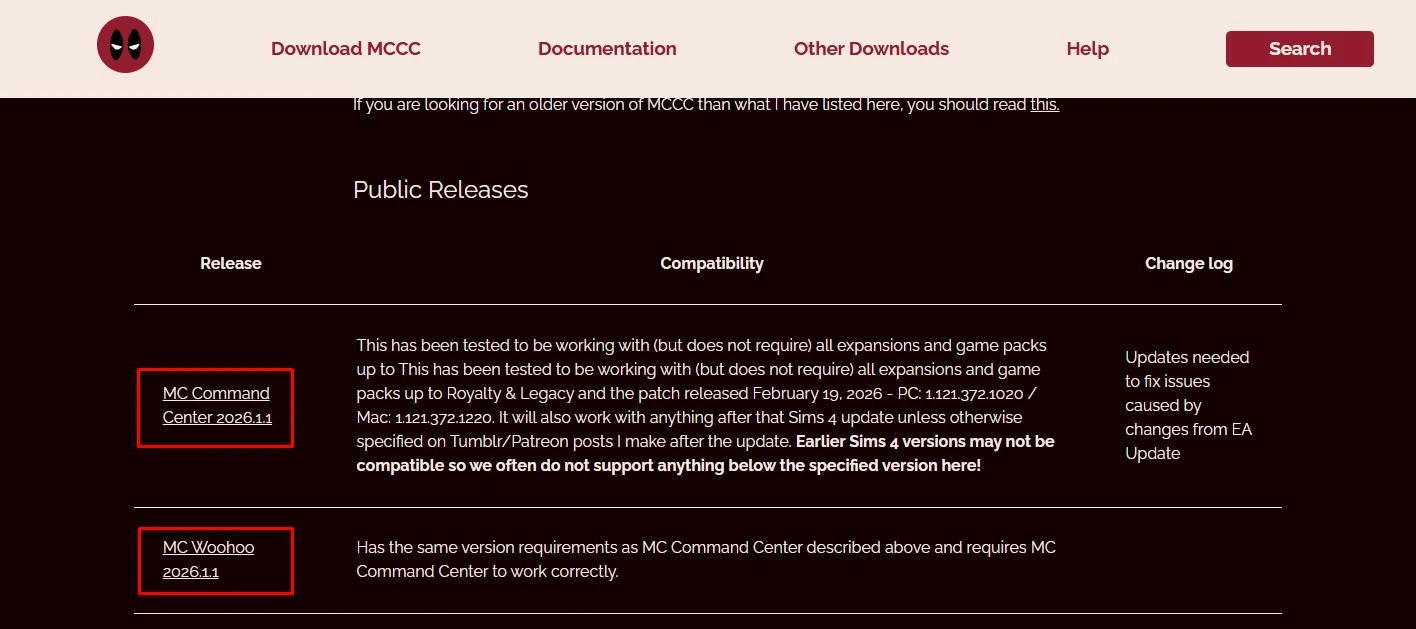
After downloading, you should have two zipped archives: the main MC Command Center and the optional MC Woohoo module.

Step 2: Install the Mod into Your Mods Folder
Unpack both archives and place all the extracted files into a single folder.
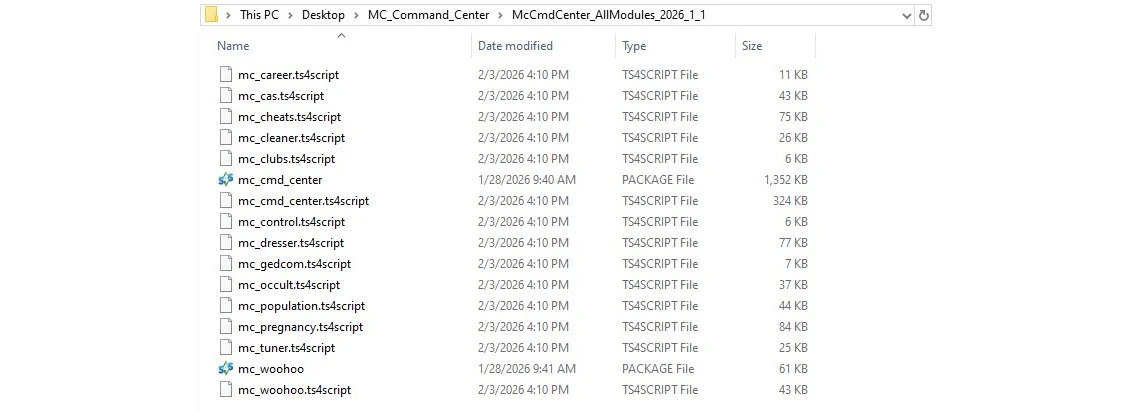
Then, move this folder to:
Documents/Electronic Arts/The Sims 4/Mods
MC Command Center script files must not be placed deeper than one subfolder within the Mods directory, or the mod will not work. Your file path should look like this:
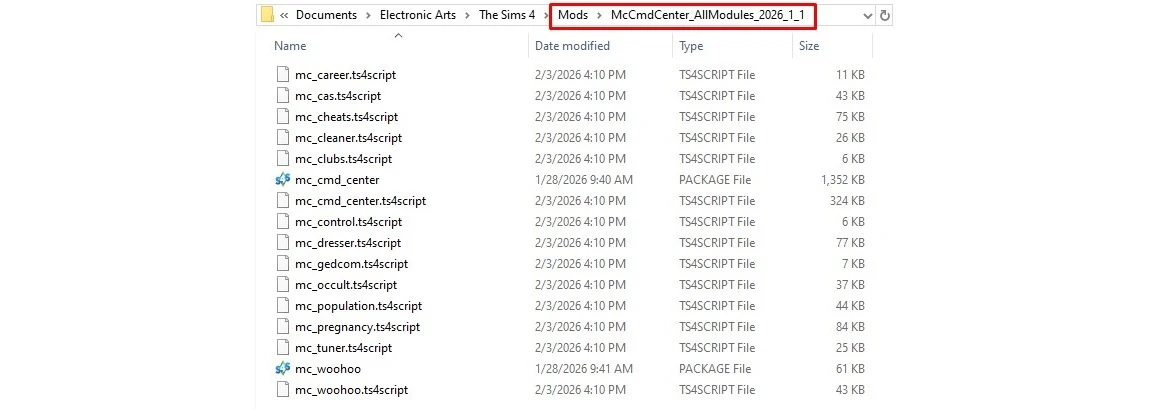
You don’t have to install all the MCCC modules. The only required file is the core “mc_cmd_center” module; you can delete any optional modules you don’t want.
Step 3 (Optional): Enable Mods and Script Mods in Sims 4
If this is your first time using Sims 4 mods:
1. Start The Sims 4
2. Go to Game Options
3. Open the “Other” settings tab
4. Check both “Enable Custom Content and Mods” and “Script Mods Allowed”
5. Click “Apply Changes”, then restart your game
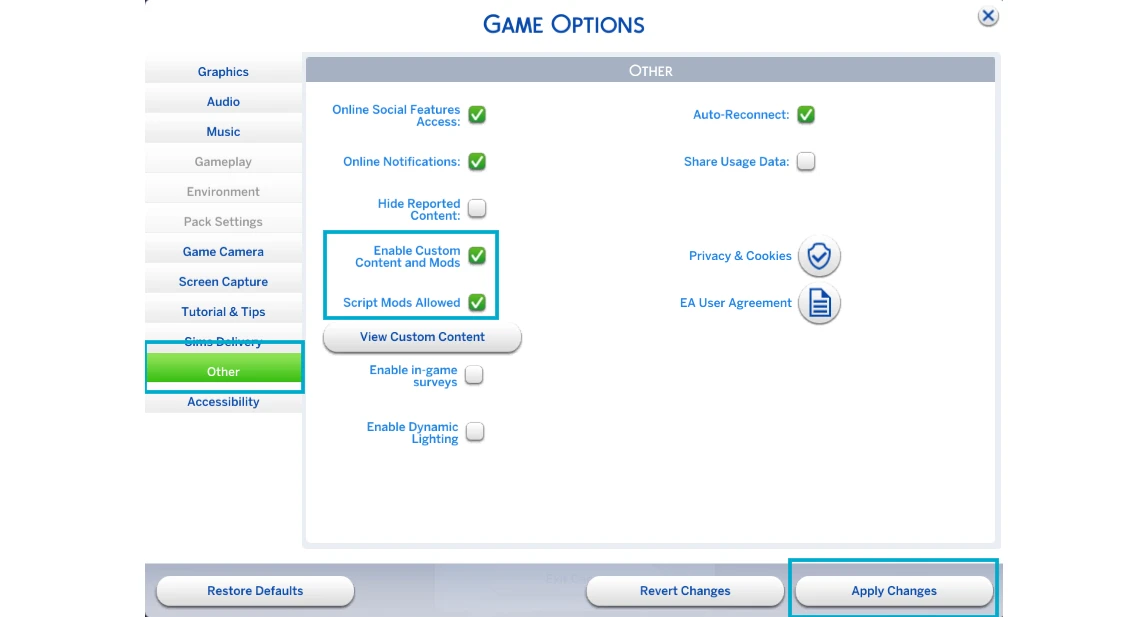
If everything is installed correctly, you’ll receive a notification from MC Command Center when you launch Sims 4.

How to Update MC Command Center Safely
When using MC Command Center, the mod will generate .CFG configuration files to store your settings. Always back up these files before updating the mod. To update MC Command Center:
1. Download the new version and unpack the files
2. Temporarily move your .CFG files out of the folder
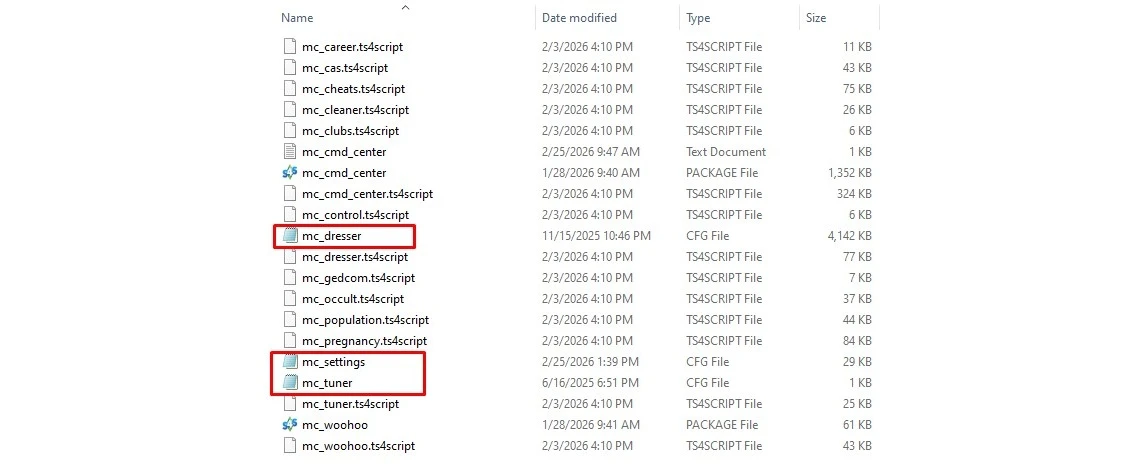
3. Delete the old MCCC files from Mods, then add the new ones
4. Move your saved .CFG files back into the MC Command Center folder
This will ensure all your custom MCCC settings transfer seamlessly to the updated version of the mod, preserving your personalized Sims 4 gameplay experience.