Sims 4: Customizing NPC Generation with Townie Demographics Mod
If you've ever noticed the game generating completely inappropriate characters in your The Sims 4 worlds, you're not alone. You've built an atmospheric Scandinavian Nordhaven, and the game populates it with sims who are clearly lost? Classic.
The Townie Demographics mod solves this problem by controlling NPC generation through special templates for each neighborhood and world. Thanks to this, appropriate characters will appear in your Nordhaven, not a random mix.
But there's a catch: the mod is static – the author has already configured everything, and you can't change the templates through the game. This works for many people, but what if you have your own vision? Let's say you're creating a Japanese setting and would like to see more Asians?
Good news: you can customize the templates yourself, and you don't need to rewrite the mod's code to do it. Thanks to this article, you'll learn how to assign the right sim archetypes for any locations and create demographics according to your own gameplay vision.
Preparation
What will you need to configure the templates? Obviously, the mod itself and Sims4Studio. Just in case, make a backup copy of the mod so you can roll back all changes if something goes wrong.
After setting up the studio, where you need to specify the path to the game and to Documents, we need to open the original mod file. This is done through the "My Projects" button:
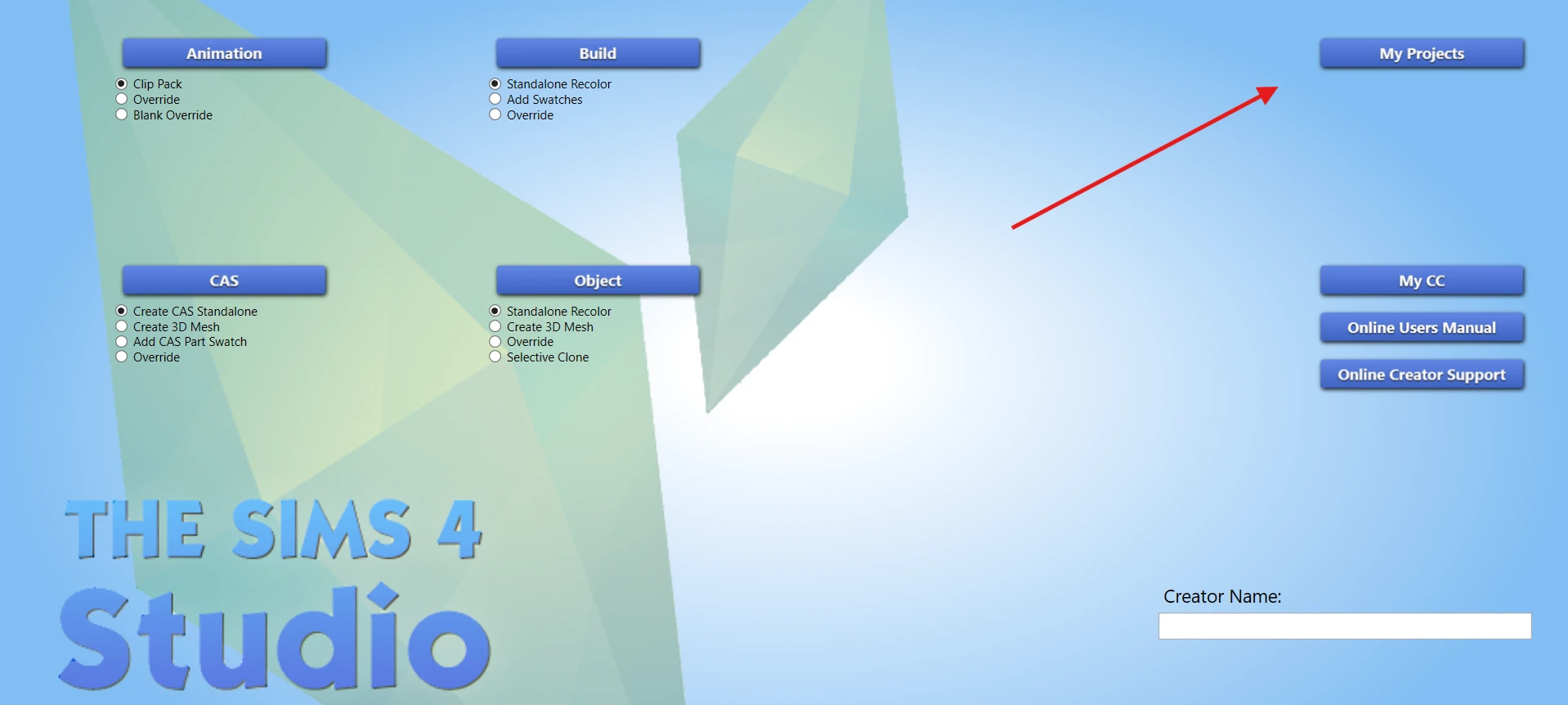
In the mod folder, select [Kuttoe] TownieDemographics.package:

Now we can view the mod's contents. Besides the Sim Template and Tuning file strings (they're service files for the interface), there are two types of files here: Snippet Tuning and Tag Set Tuning. Let's start with snippets.
Snippet Tuning Structure
All files have the world name in their title, so they're easy to navigate. For example, let's take the snippet for Henford:
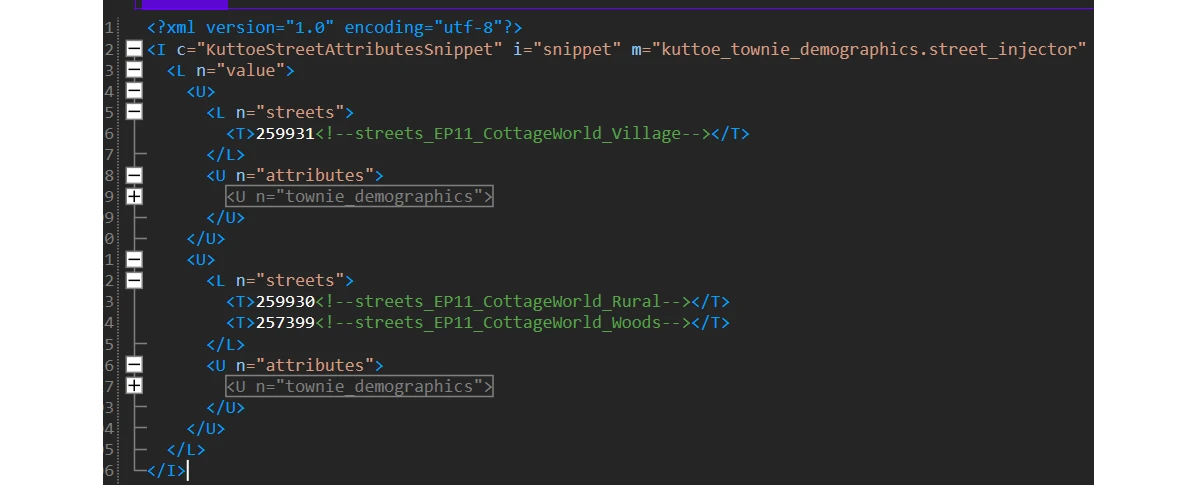
The Streets list shows the world's neighborhoods: Village – Finchwick, Rural – Old New Henford, Woods – The Bramblewood. Neighborhood names aren't always obvious, so I've prepared a table for you.
Let's expand the Village neighborhood attributes. You can collapse the filter_terms sheet, there's nothing useful there for our task. The main thing here is the references to TagSet files. That's where the NPC templates are defined. Several templates are specified here, and sims will be generated more often using the Caucasian Basics and Caucasian Country templates (they have a weight of 3, while the default is 1).
I'll tell you about configuring names for neighborhoods a bit later.
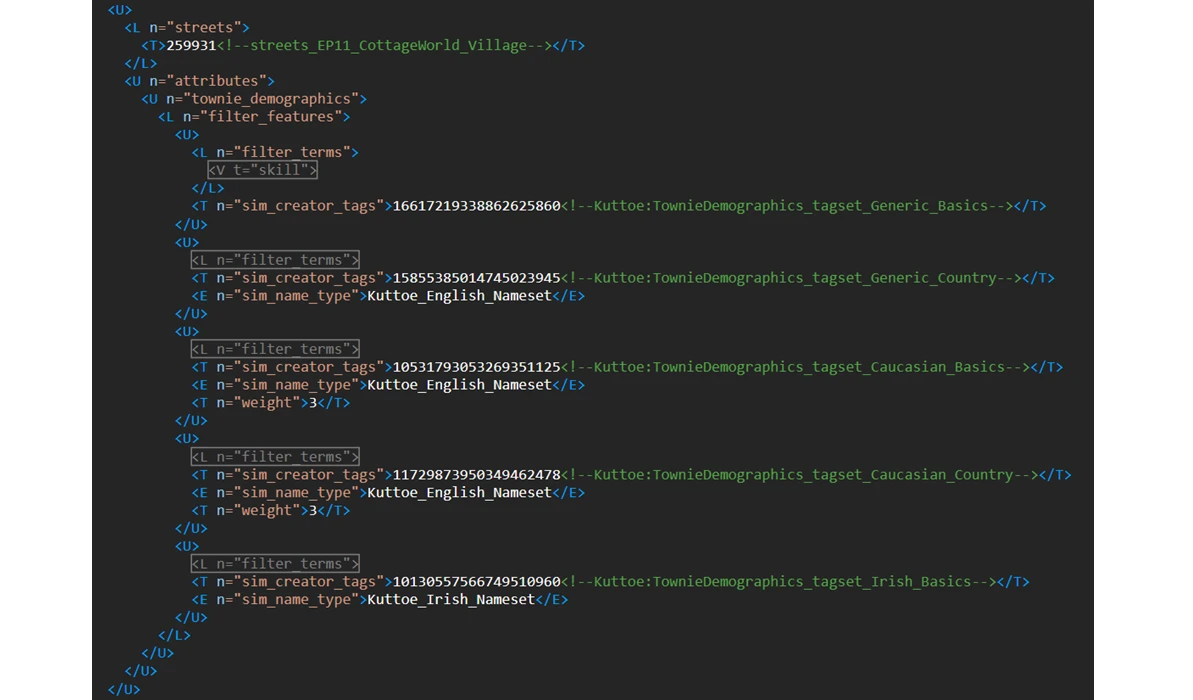
So, what do we need to do? There are two options: insert a reference to a different tag set by copying its identifier, for pinpoint customization, or edit the tag set itself if you want to spread this template across other worlds as well (this is enough for me). Let's start with editing the tag set.
Tag Set Tuning Structure
Let's open the very first tag set from the screenshot above. Just copy its name and paste it into the filter above the file table. It's called Generic Basics, which means it's the default template for all basic NPCs in your game.
This small file specifies the tags used to create sims. As you can see, Generic Basics only specifies clothing style – basic modern.

But what if you want, for example, to see only white Europeans with blue eyes? We need to add new tags to the file that define the desired parameters. For Europeans, the tag is Archetype_Caucasian, and for blue eye shades – EyeColor_Blue, EyeColor_HazelBlue, EyeColor_LightBlue. We simply insert these tags below the existing one, formatting them similarly in the <E>Tag name</E> structure:

And that's it! Now in all neighborhoods where the Generic Basics template is specified, white Europeans in modern clothing with blue-tinted eyes will be created. Of course, this is far from the only thing you can customize. There are tags for hair color and texture, skin shade and tone. You can even configure what clothing subtypes the sim should wear. For example, this is what the tag set for the gardener NPC looks like:

They should be wearing jeans, a t-shirt, and a brimmed hat.
The mentioned table has a special sheet: it lists all available values for each of these parameters. Use it!
Replacing Tag Sets in World Snippets
Let's say you've edited the Generic Basics template and you're happy with it. But what if you want a different template used in Henford? Nothing complicated here either.
Find in the tag sets list the one that suits the neighborhood you're customizing. Let's say we want to see Middle Eastern Sims in rural clothing more often in Finchwick, rather than Europeans. This tag set works for us:

You can modify it too, of course
Just copy the identifier (9283200869465141127) along with the name (Kuttoe:TownieDemographics_tagset_MiddleEastern_Country). And then simply paste them in place of the template you want to replace:
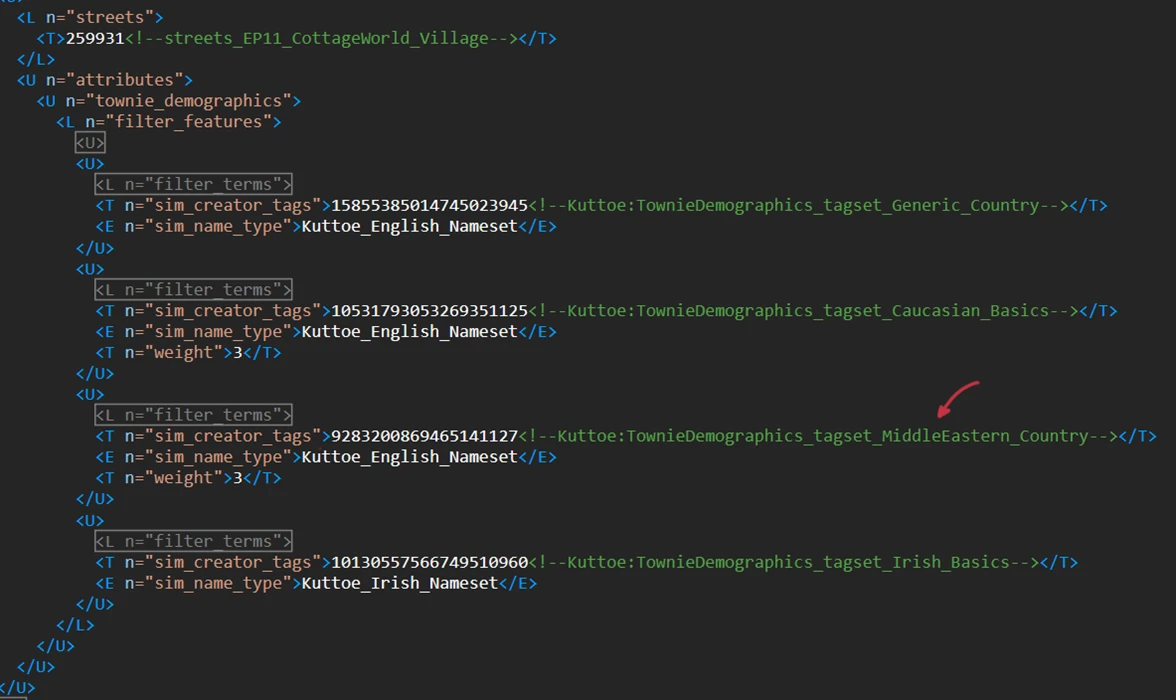
Besides this, you can change the weight of templates and their quantity (in case one is enough for you).
And now a bit about names.
Sim Name Type Field
The game has name groups for many nationalities, they're also defined by tags. Kuttoe has added her own name groups as well, but they don't load into the game in all gendered languages.
If you want Latin names, for example, to be used instead of English names with a given template, then you simply replace the tag in the right place (or insert the entire line <E n="sim_name_type">Language name</E> if the name tag isn't specified):
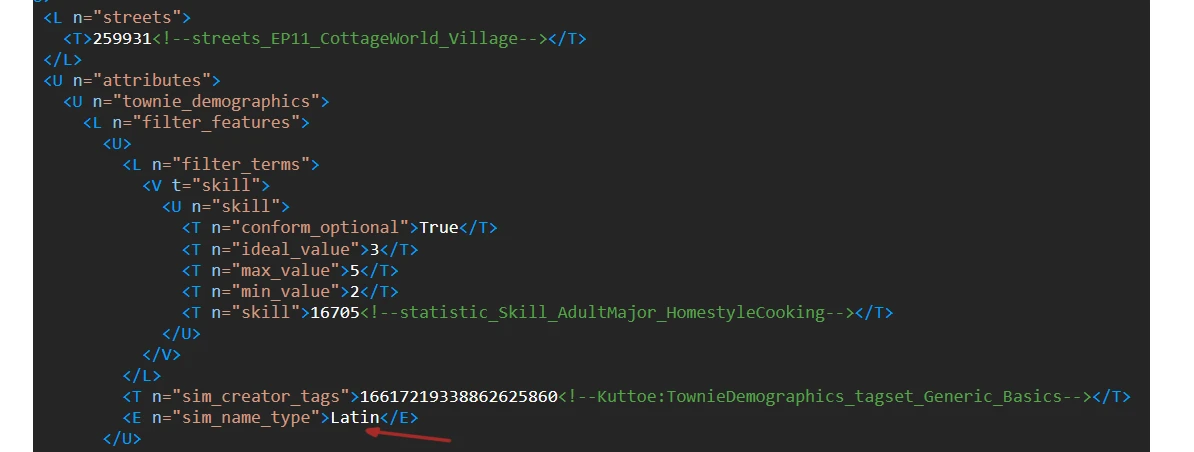
All name tags can be viewed here.
Saving Settings
When you finish configuring the files, save (you can label the edited package) and use the Batch Export button, selecting all files of type Snippet Tuning and Tag Set Tuning. I recommend sorting by type so you don't miss anything.
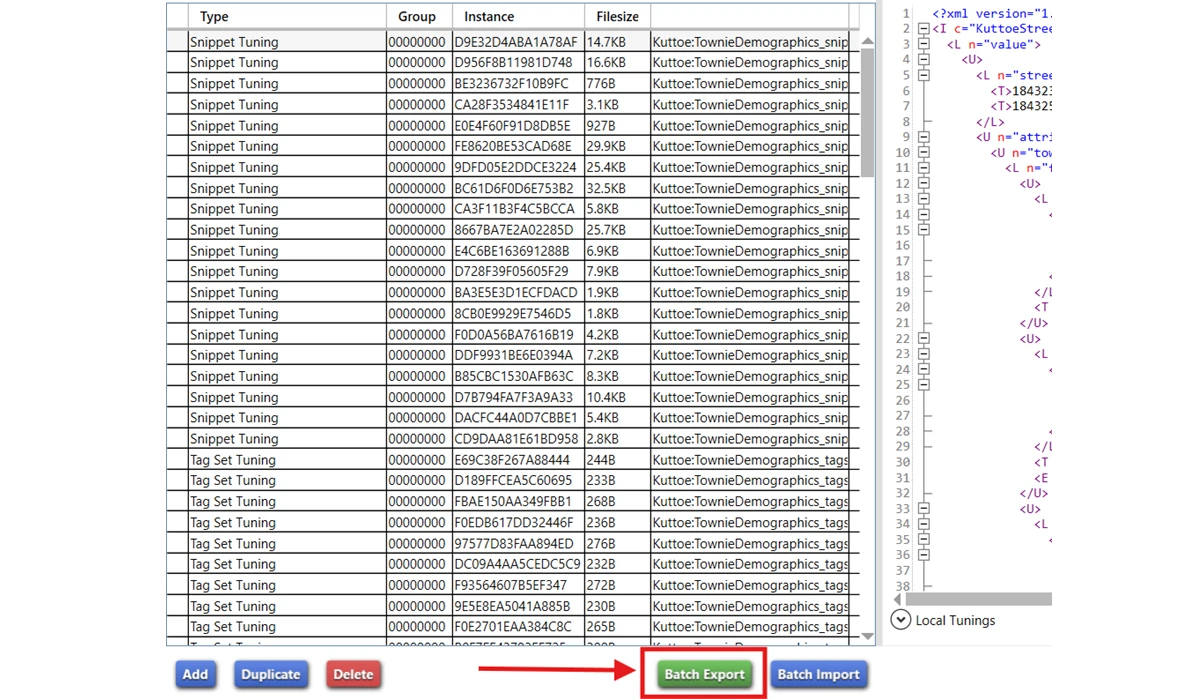
Save them to some folder and don't delete them. With each mod update, the files will be replaced with the original ones. To avoid configuring everything each time, you'll be able to load back your edited files using the "Batch Import" button.
Important clarification: I'm sharing this knowledge for personal use. Let's show respect to the mod author and not reupload edited packages (and let's not ask her to configure the mod for us). Besides, you might simply have an outdated version of the mod. Share the exported XML files if you want to pass the settings to someone.
That's all, thanks for reading!
SonozakiSisters:
The Mt. Komorebi Fushigi Monogatari Family Tree