How to Add Mods to The Sims 3 and Clear Cache: .package and .sims3pack Tutorial
Mods greatly enhance the gameplay in The Sims 3 by introducing new features, custom content, and endless customization options. In this comprehensive guide to Sims 3 modding, you’ll learn exactly how to install mods in The Sims 3 – from finding safe download sources to ensuring your game remains stable and problem-free.

Before You Install Sims 3 Mods
Keep these crucial tips in mind before adding any custom content or mods to your game:
— Mods can affect game stability and performance.
— Always back up your save files before installing Sims 3 mods or custom content.
— Download mods only from trusted, legitimate sources to avoid corrupt files or malware.
— Check mod compatibility with your current Sims 3 game version (especially after updates or patches).
Recommended Trusted Sites for Sims 3 Mods Download
For safe custom content and script mods, use established, community-trusted sites like:
These host thousands of Sims 3 mods, CC (custom content), and updates verified by the sims modding community.
Types of Sims 3 Mods and File Formats
There are two primary Sims 3 mod formats, each with unique installation methods and content types:
1. .sims3pack Format
— Official EA-supported file type
— Commonly used for: furniture, clothing, hairstyles, patterns, new worlds, Sims, and lots
— Installs automatically via the Sims 3 Launcher
— Best for beginners
2. .package Format
— Custom file type, popular for advanced modding
— Used for: script mods, custom objects, clothing, hairstyles, and fixes
— Requires manual installation in a special folder
— Essential for gameplay-changing mods and script overrides
Note: Visual content (hairstyles, furniture, CAS items) might appear in either format, but all script mods are always in .package format.
Clearing Sims 3 Game Cache – Essential Step for All Modding
Clearing cache files in The Sims 3 is mandatory to prevent errors, outdated content, or mod conflicts.
Why clear the cache?
— Ensures the game reads new and updated content
— Prevents the game from loading deleted or outdated mods
— Fixes many common Sims 3 game errors and performance issues
Which Sims 3 cache files to delete?
Navigate to:
Documents > Electronic Arts > The Sims 3
Delete these files:
- CASPartCache.package (CAS items)
- compositorCache.package (Buy/Build items)
- scriptCache.package (script and gameplay mods)
- simCompositorCache.package (sims, textures)
- socialCache.package (Simport/social features)
In the Thumbnails folder:
- CASThumbnails.package
- DownloadsThumbnails.package
- ObjectThumbnails.package
Inside DCBackup, you may delete all files except ccmerged.package.
Inside WorldCaches, you may remove all for a clean reset (will be regenerated).
Don’t worry! All these files are safely recreated every time The Sims 3 starts.
How to Install .package Mods in The Sims 3
Step 1: Create required folders
Go to Documents > Electronic Arts > The Sims 3
If “Mods” does not exist, create it manually. Inside “Mods,” create a “Packages” folder.
Folder structure should be:
The Sims 3\Mods\Packages
Step 2: Add Resource.cfg File (critical!)
1. Open Notepad and paste the following:
Priority 500
PackedFile *.package
PackedFile */*.package
PackedFile */*/*.package
PackedFile */*/*/*.package
PackedFile */*/*/*/*.package
PackedFile */*/*/*/*/*.package
Priority 501
PackedFile Default/*.package
Priority 1000
PackedFile Overrides/*.package
PackedFile Overrides/*/*.package
PackedFile Overrides/*/*/*.package
PackedFile Overrides/*/*/*/*.package
PackedFile Overrides/*/*/*/*/*.package
2. Save as Resource.cfg (not .txt!) and place it directly in the “Mods” folder.
Step 3: Install Sims 3 package mods
1. Clear cache as described above
2. Copy/paste your .package mod files into the Mods\Packages directory
3. You may use subfolders (e.g., Hairstyles, Objects, Clothing, ScriptMods) for easy sorting
For default replacements: create a folder called Overrides inside Mods. Place only one replacement mod per object inside Overrides to avoid conflicts.
Documents\Electronic Arts\The Sims 3\Mods\Overrides
How to Install .sims3pack Mods in The Sims 3
Easiest method, but less flexible for advanced modding.
Step 1: Place files
Put downloaded .sims3pack files into Documents\Electronic Arts\The Sims 3\Downloads
Don’t use subfolders! All must be directly in “Downloads.”
Step 2: Install with Sims 3 Launcher
1. Clear cache
2. Open Sims3Launcher: ...The Sims 3\Game\Bin\Sims3Launcher.exe
3. Go to the Downloads tab
4. Tick mods you want to add and click “Install”
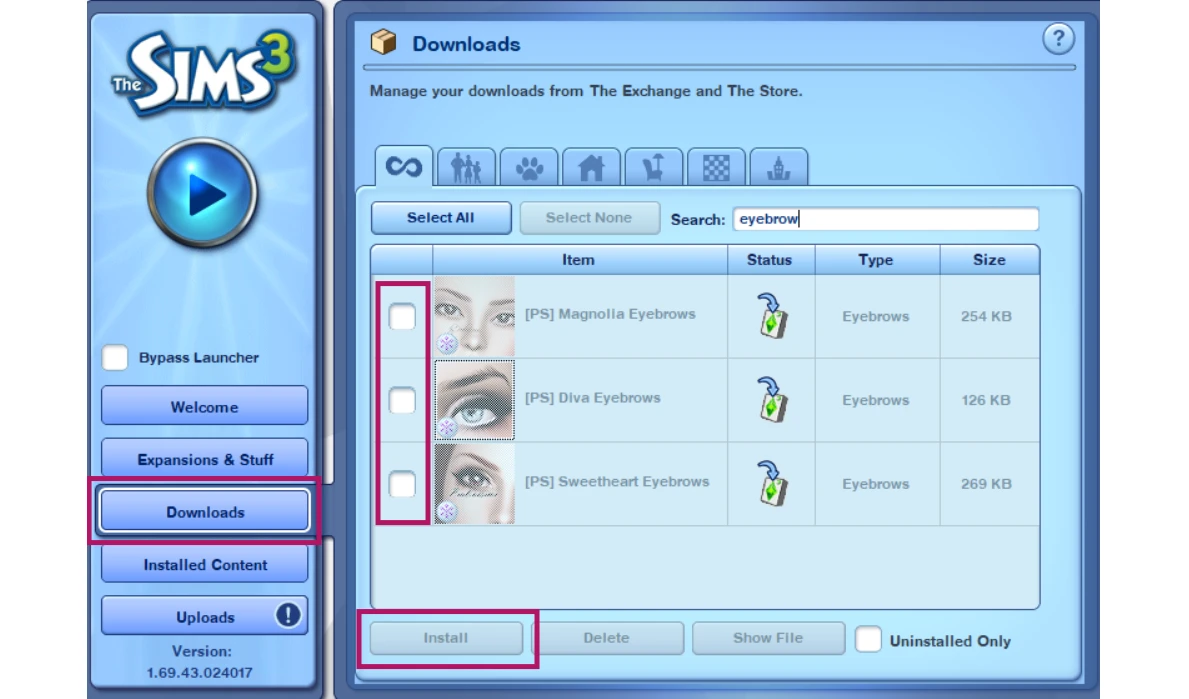
5. Click “OK” when finished
Step 3: Check Installed Content
Find your mods in the Installed Content tab.
Verifying Your Sims 3 Mods In-Game
1. Restart The Sims 3
2. Load a save or start a new game
3. To view new mods and custom content:
— For CAS items (clothes, hair): open Create-A-Sim
— For objects/furniture: enter Build or Buy mode
— For script mods: look for new features/options in gameplay