Change Work Outfit Sims 4: Cheat Codes & MC Command Center Tutorial
In The Sims 4, a sim's work outfit is automatically assigned by the game, and often it doesn’t reflect your vision or the character’s unique style. Luckily, there are two popular ways to change a career uniform in The Sims 4: using a cheat code or the MC Command Center (MCCC) mod. Both methods allow you to customize your sims' work clothes and enhance your Sims 4 gameplay experience.

Method 1: How to Change Work Outfit in Sims 4 With a Cheat Code
This method to change career attire in Sims 4 is quick and easy. However, it comes with a limitation: every time your Sim is promoted to a new career level, you’ll need to re-apply the outfit customization.
Step-by-Step Guide:
1. Open the cheat console
Press Ctrl + Shift + C to open the Sims 4 cheat command box.
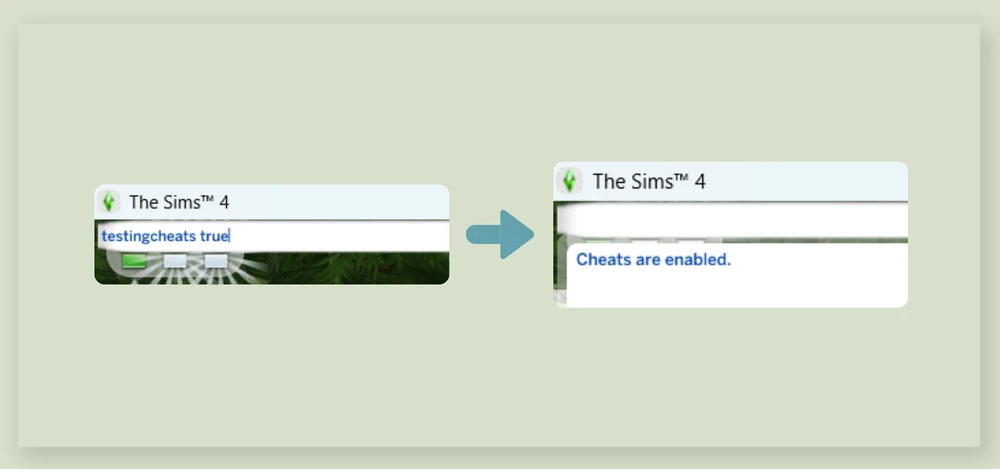
2. Enable cheats in Sims 4
Type the command testingcheats true and press Enter.
3. Wait until your Sim is wearing their work outfit
Make sure your Sim is dressed in their default career uniform before proceeding.
4. Enter the Sims 4 change work outfit cheat
Type in the cheat modify_career_outfit_in_cas and press Enter.
5. Modify the work outfit in Create a Sim (CAS)
You’ll be taken to the CAS editor, where you can fully customize your sim’s work clothes and style them as you wish. Save the changes when you’re done.
Note: Your new work outfit is saved only for your current career level. After your Sim gets promoted, you’ll need to repeat these steps to update their new uniform.
Method 2: Change Sims 4 Work Outfit Using MC Command Center (MCCC Mod)
The MC Command Center, also known as MCCC, is a powerful mod for The Sims 4 that gives players much more control over their sims’ lives including the ability to modify career outfits quickly and easily.
With MCCC, you can create multiple work outfits, save them, and apply them to any sim at any time. When your sim gets promoted, just select a previously saved outfit instead of designing a new one from scratch.
What You’ll Need:
— MC Command Center mod installed in your Sims 4 game
Detailed Steps to Change and Save a Work Outfit With MCCC:
Creating a custom career outfit
1. Wait until the Sim is in their work attire
Make sure they are wearing the career outfit you wish to modify.
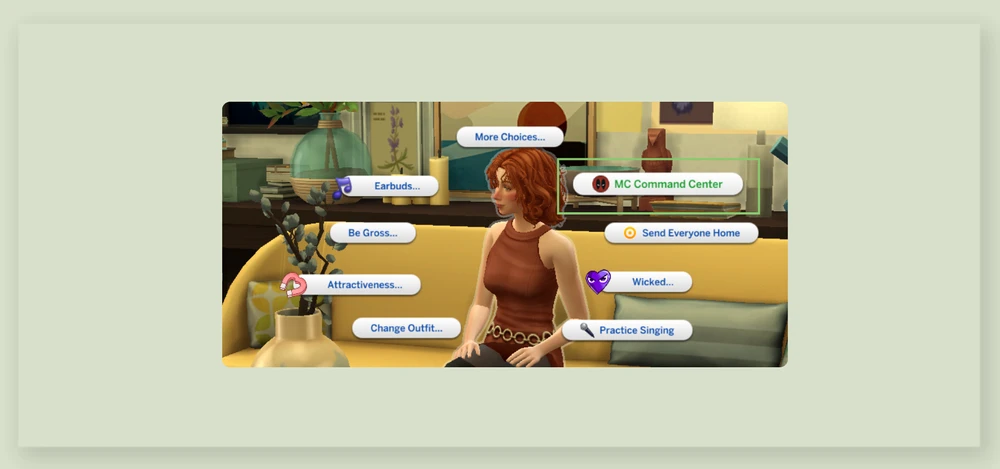
2. Open MC Command Center options
Click on the Sim and choose “MC Command Center” from the interactions menu.
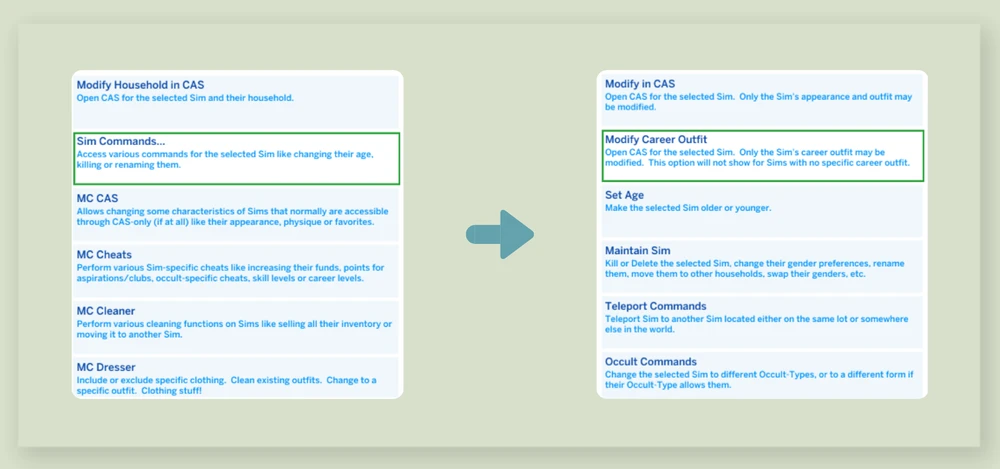
3. Navigate to career outfit editor
Go to: Sim Commands → Modify Career Outfit
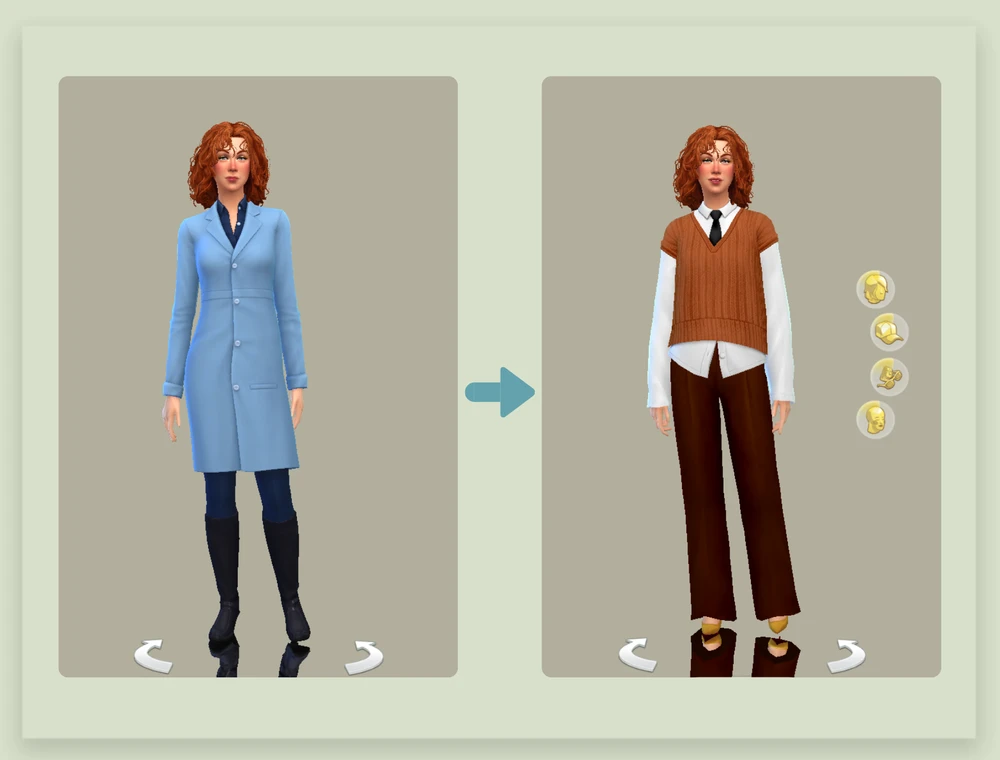
4. Customize the uniform in CAS
You’ll be taken to the CAS screen. Style your sim’s work attire however you want. Save the outfit when done.
Saving a work outfit for future use
If you want to reuse the outfit for other sims or restore it after a promotion:
1. Make sure your sim is in the outfit you want to save
Click on them to open the MC Command Center menu.
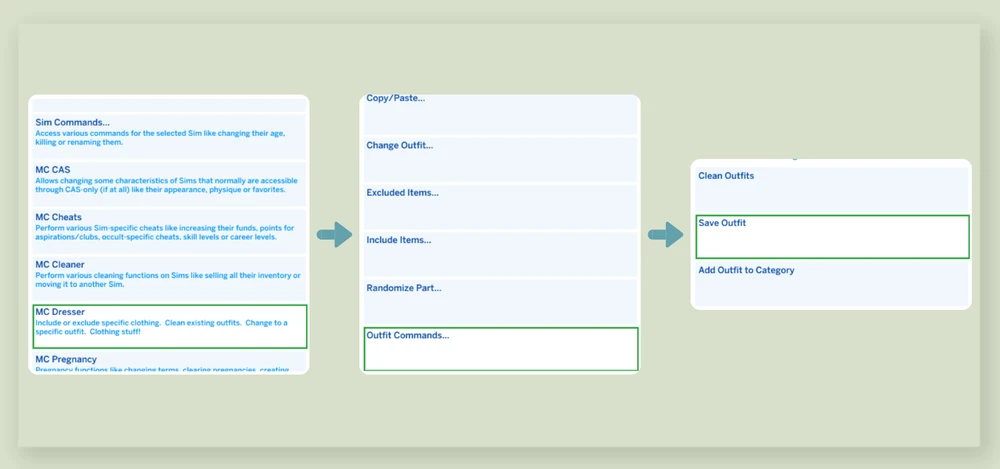
2. Go to the save outfit menu
Select: MC Command Center → MC Dresser → Outfit Commands → Save Outfit
3. Record the outfit index number
After saving, you’ll see a unique outfit index at the top of the screen. Write this number down: you’ll need it to load this outfit later.

Loading a saved career outfit onto a sim
To dress a Sim in a saved work outfit:
1. Open MC Command Center with the Sim in any outfit
Click on the Sim → MC Command Center
2. Load the saved outfit by index
Select: MC Dresser → Outfit Commands → Load Outfit → Load Outfit by Index
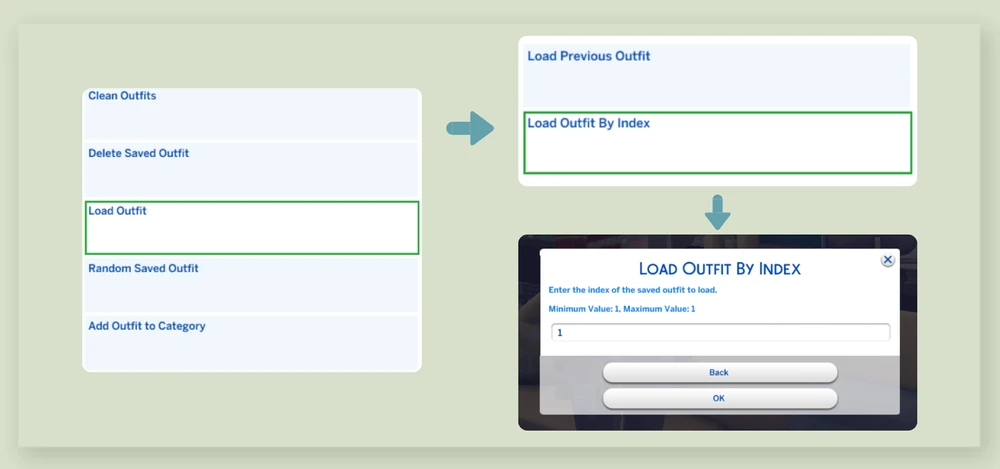
Enter the outfit index you noted earlier and click OK.