TheSimsTree October UPDATE 2026
What's New
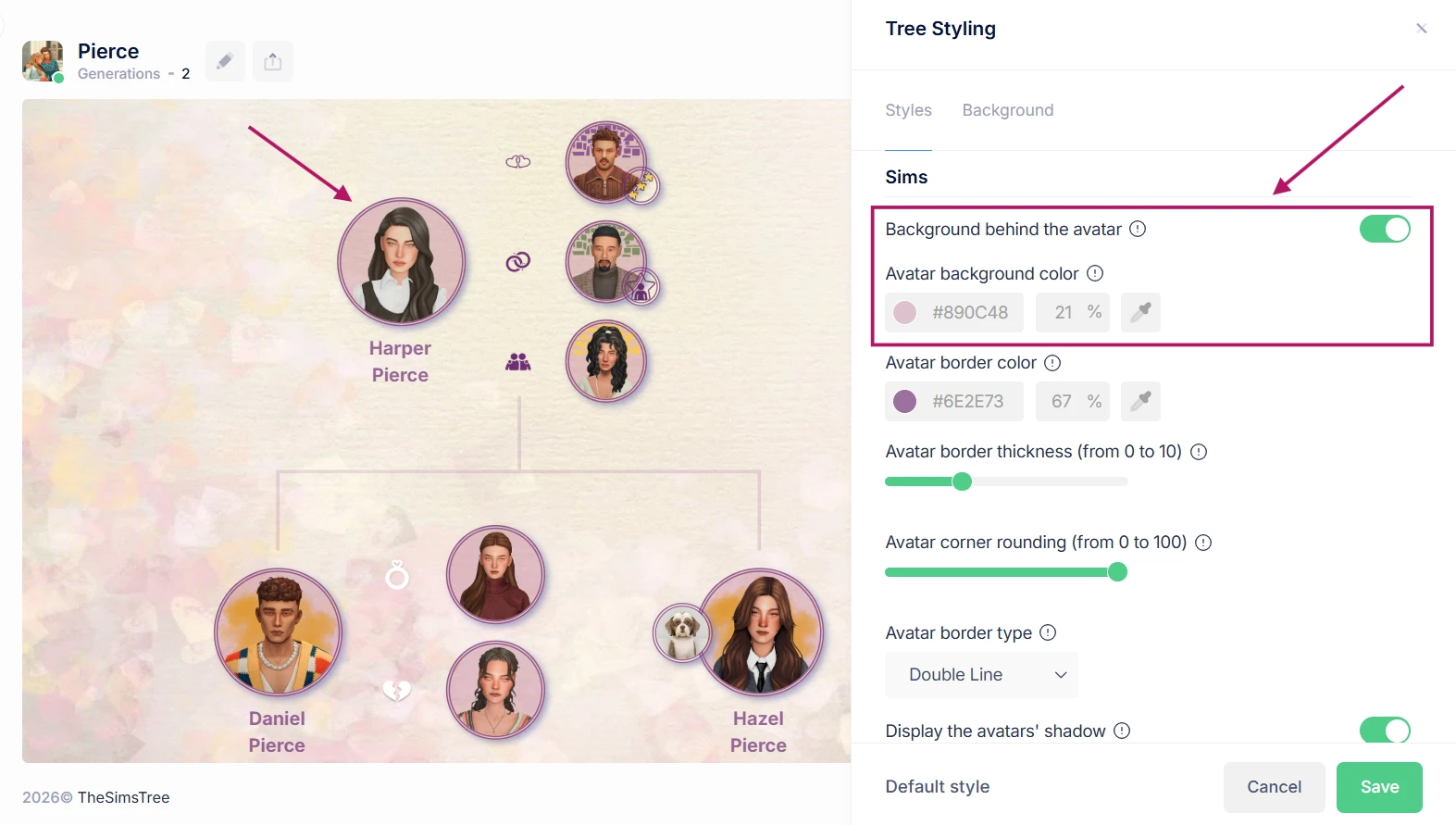
— Avatars with transparent backgrounds now support custom background colors.
Turn on the background behind the avatar in the styling settings under Sims, then pick your color.
— A better photo gallery for your characters.
You can now organize gallery photos into albums. You can also upload in bulk (up to 10 photos at a time) and rearrange photos with drag and drop.
— You can now delete sims in bulk in My Sims.
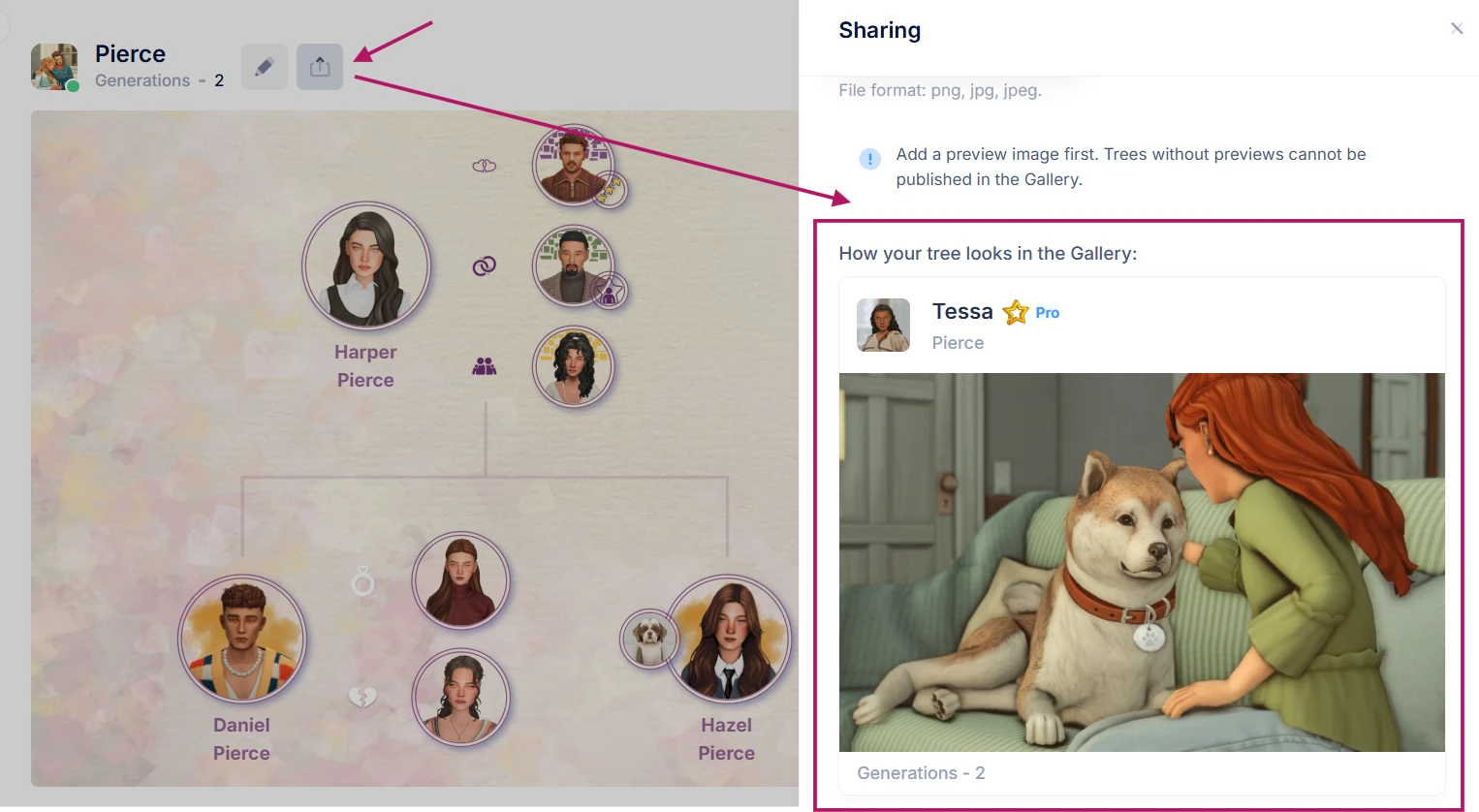
— In your tree's publication settings, you can preview how your tree will look in the public Gallery.
— Tree status indicators.
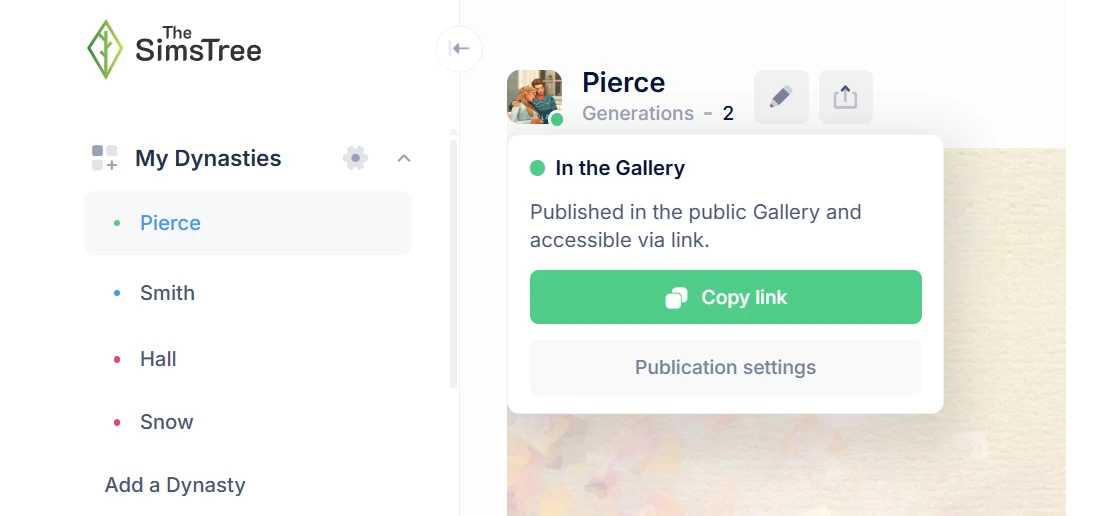
The tree list on the left now shows who can see each tree: red means private, blue means anyone with the link can view it, and green means it's published in the Gallery.
Hover over a dynasty's avatar to open a pop-up with the tree's status, a copy-link button and a shortcut to your publication settings.
— Status indicators for diary entries.
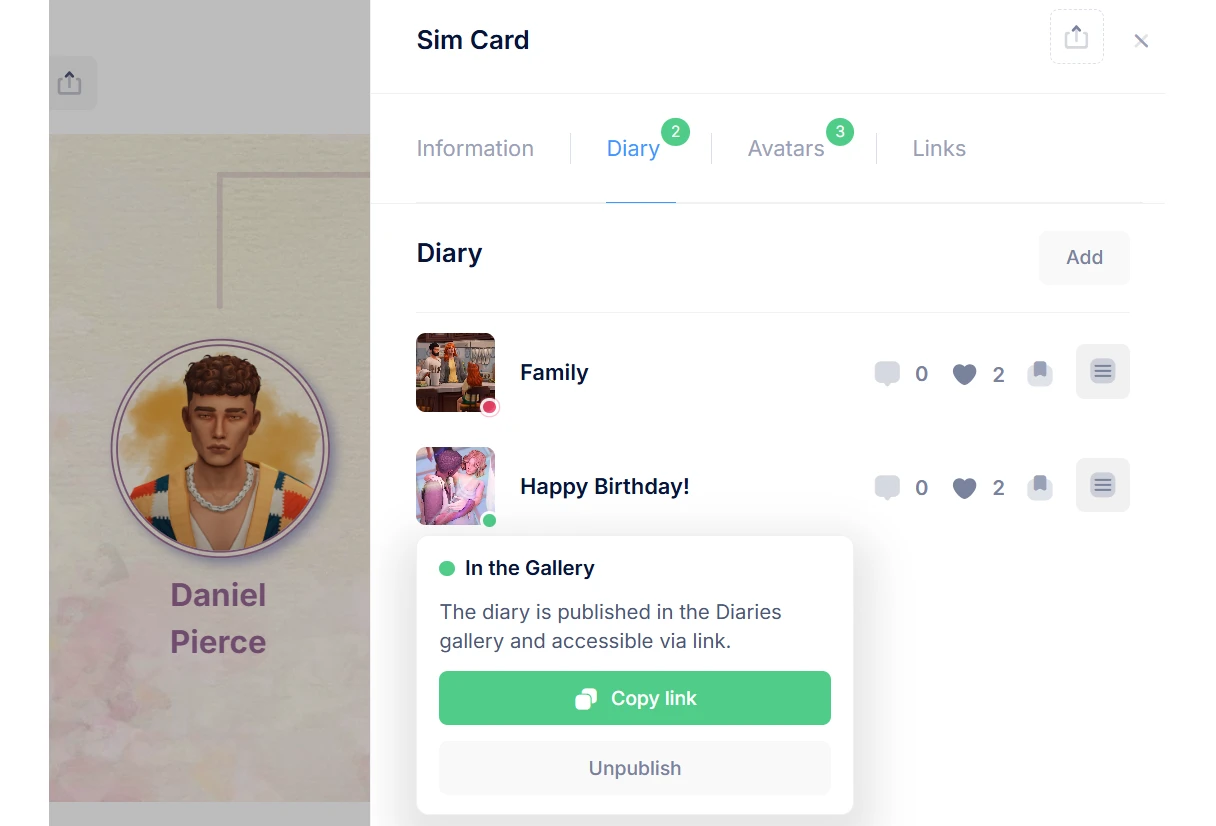
— Copying a tree link just got easier.
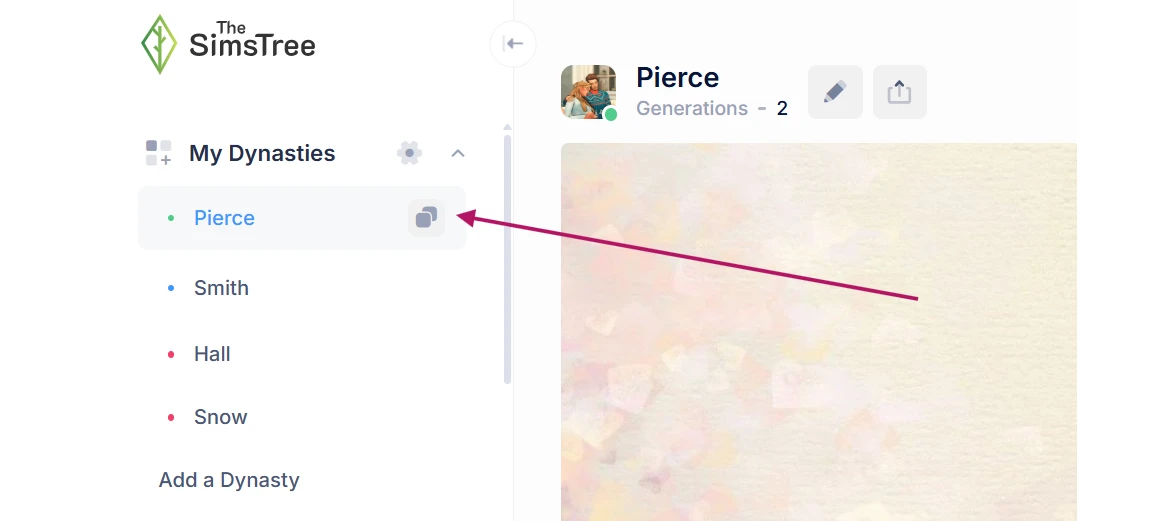
Copy the link right from the tree list on the left by clicking the copy icon, or grab it from your browser's address bar.
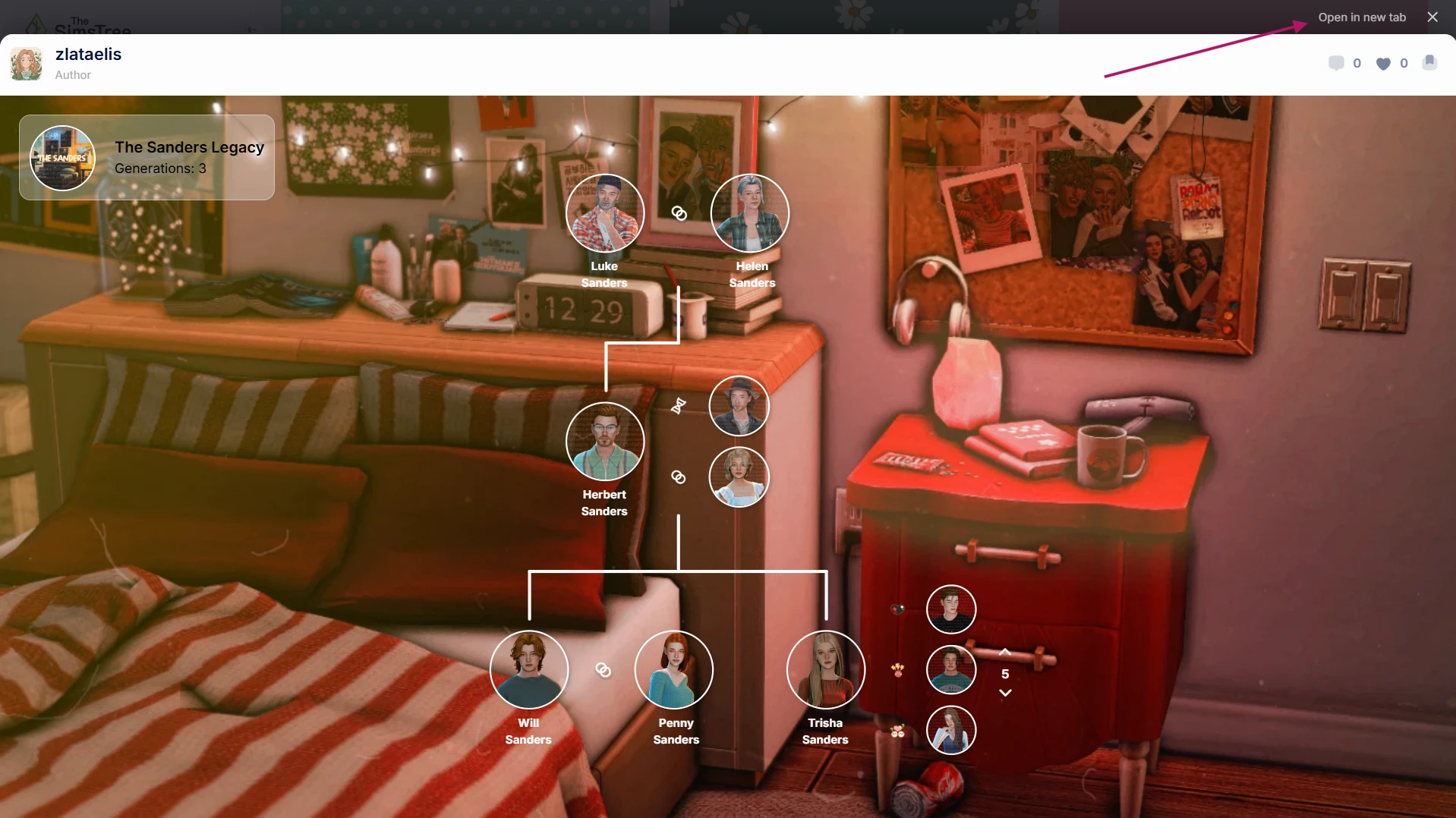
— Better tree viewing in the Gallery.
Clicking a tree now opens it in a pop-up window instead of a new tab. If you'd rather open a tree in its own tab, right-click it in the Gallery or use the button in the top-right corner of the pop-up.
Bug Fixes
— Tree positioning.
Trees are now centered properly in edit mode and in the Gallery.
— We've finally gotten rid of the white strip below images in the journal editor.
— The Liked and Favorites tabs in the Diary gallery now work properly.
Accounts with lots of liked and saved entries had trouble displaying them.
— Fixed the tree jumping when you collapse a subtree.
— Fixed page scrolling when you create a new character card.
We've also made a number of small behind-the-scenes fixes. You won't notice them, but they help keep the service stable.
Bulk Delete Sims
To delete several sims at once:
1. Click the checkmark icon in the top-right corner of the page, to the left of the "Add" button.
2. Click each character you want to delete. They'll show up in your deletion list.
3. Click the "Delete" button below the list and confirm.
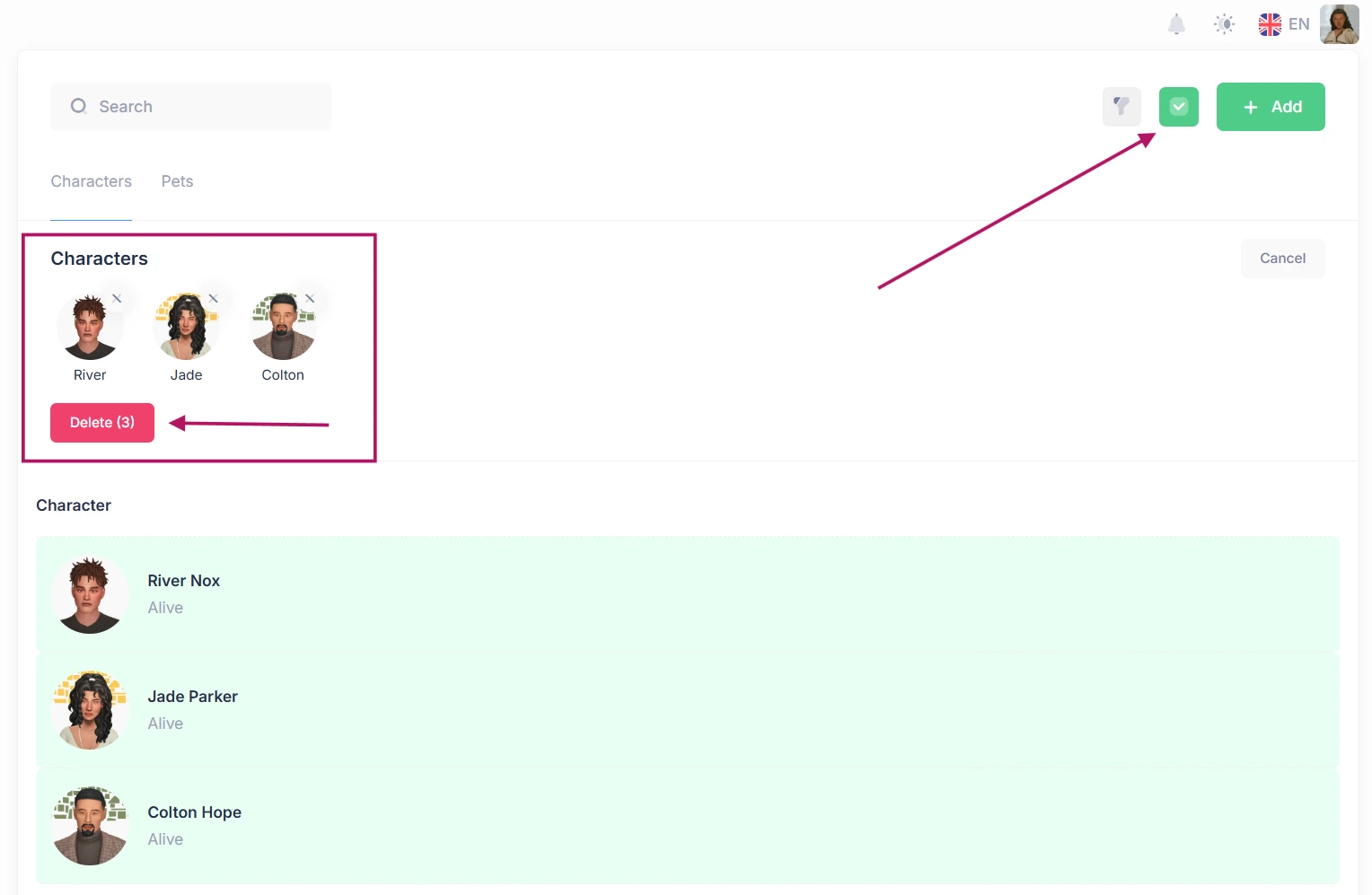
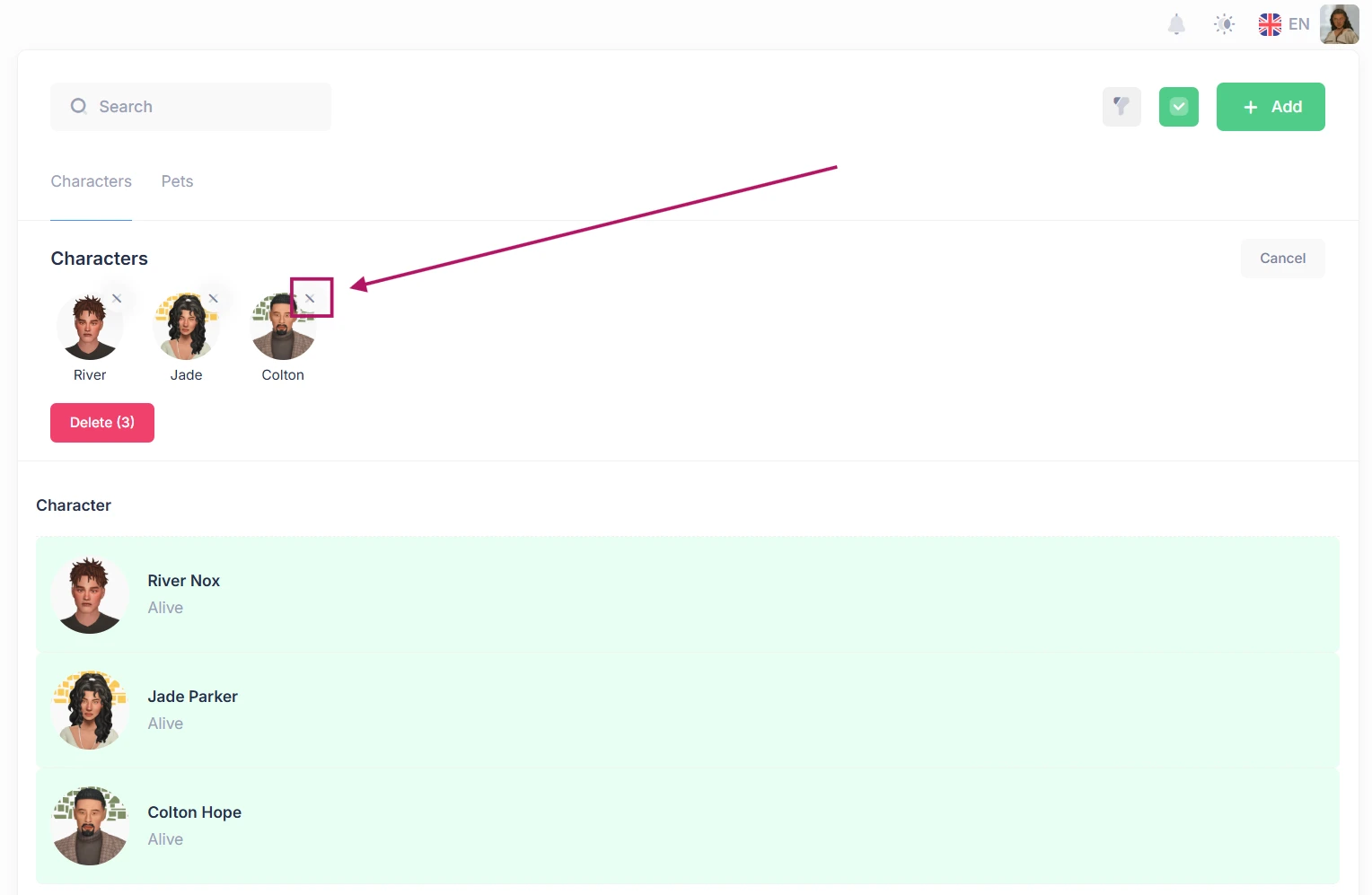
If you change your mind about a sim, you can take them off the deletion list by clicking their name again, or by clicking the X in the top-right corner of their avatar in the list.
If you don't want to delete anyone after all, click the checkmark next to the "Add" button or the "Cancel" button just below it.
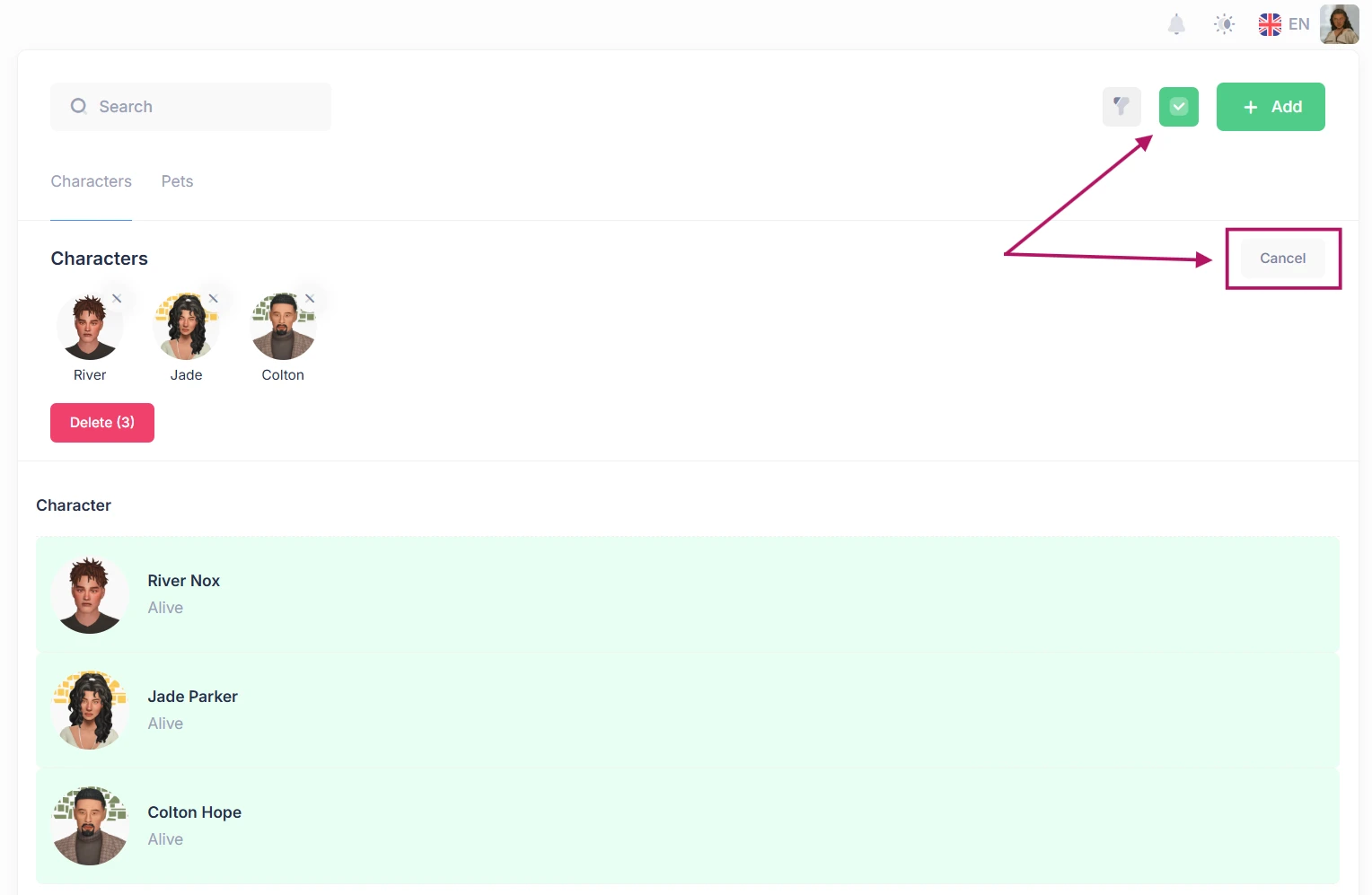
Photo Gallery
You can add as many photos as you like to each character. They're stored in albums.
To add your first photo, you'll need to create an album:
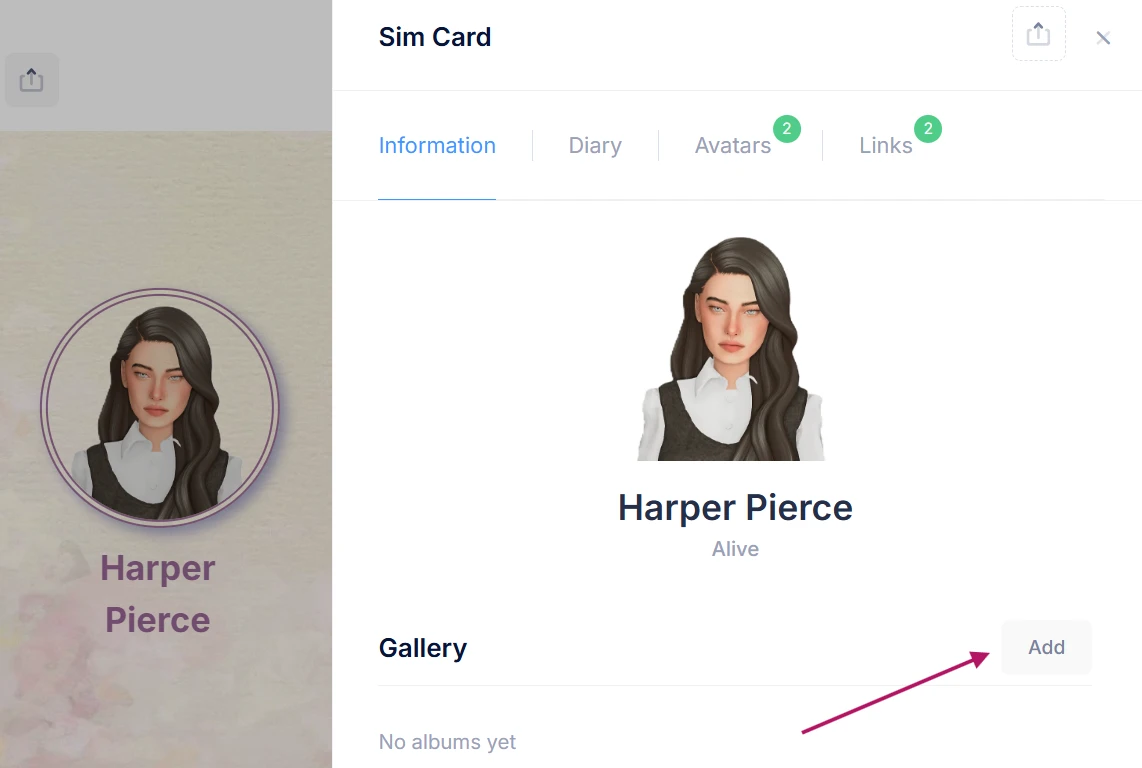
1. Open the character's card, find the "Gallery" section below the avatar and click the "Add" button on the right.
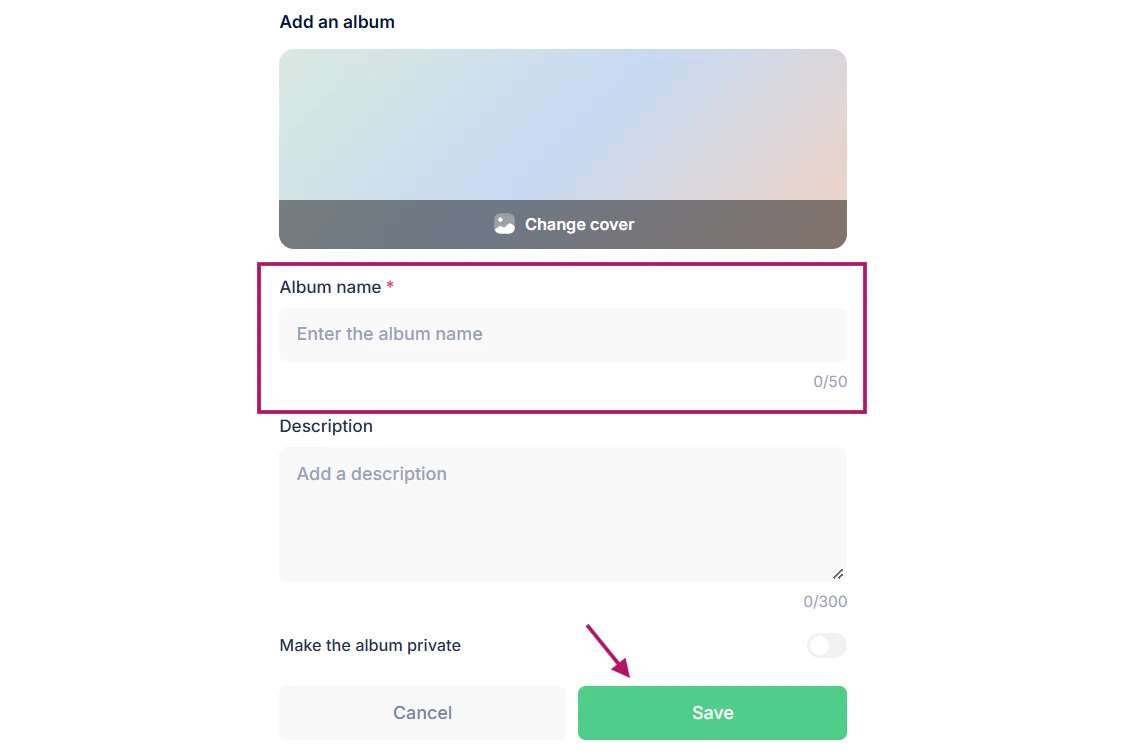
2. Enter a name for the album (this is required). You can also add a cover right away (if you don't pick one, the first photo in the album becomes the cover), add a description and make the album private. A private album is visible only to you: other users can still see the character's card, but the album stays hidden. Click "Save" in the bottom-right corner.
On the sim's card, hover over an album to edit or delete it.
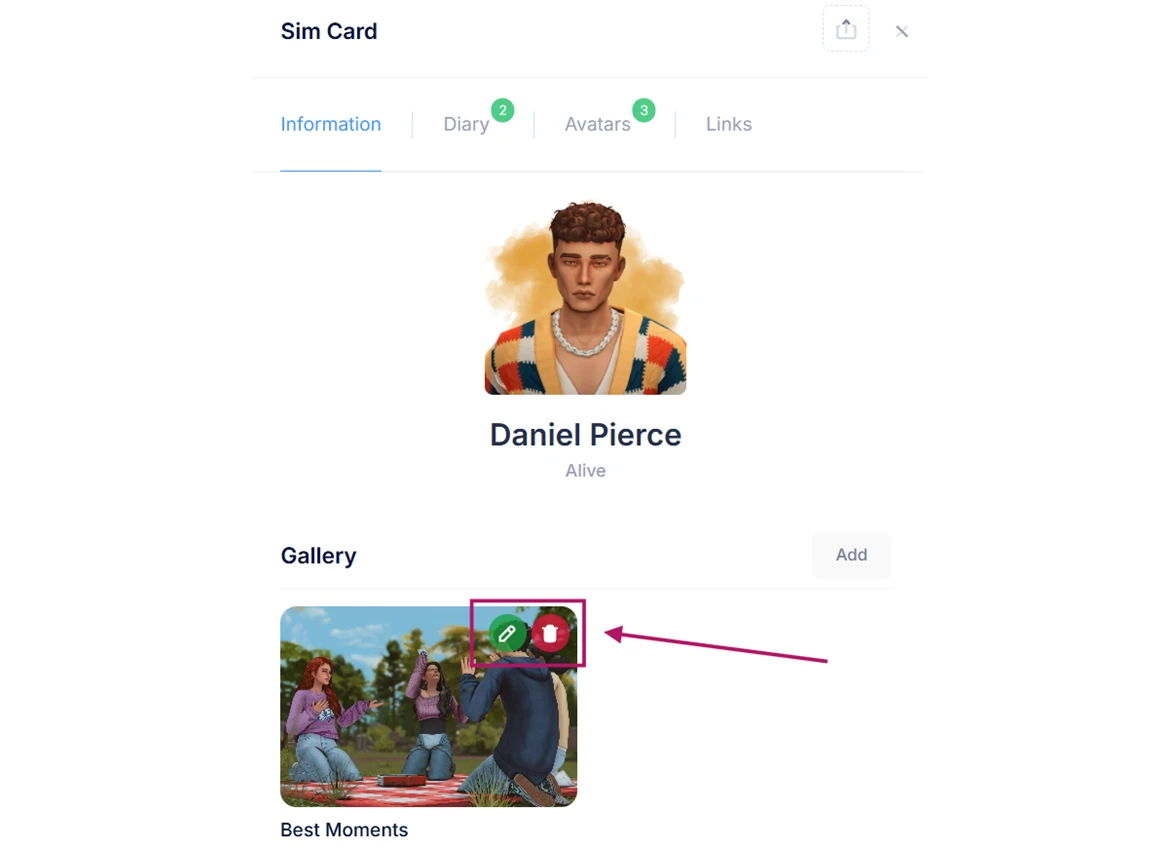
Next, open the album and click the "Add" button in the top-right corner. A window will pop up so you can choose photos from your device. You can upload up to 10 at a time.
Once your photos are uploaded, you can delete them by clicking the trash can icon in a photo's top-right corner, or add a description with the pencil icon in the bottom-right corner.
To rearrange them, just drag a photo to where you want it.
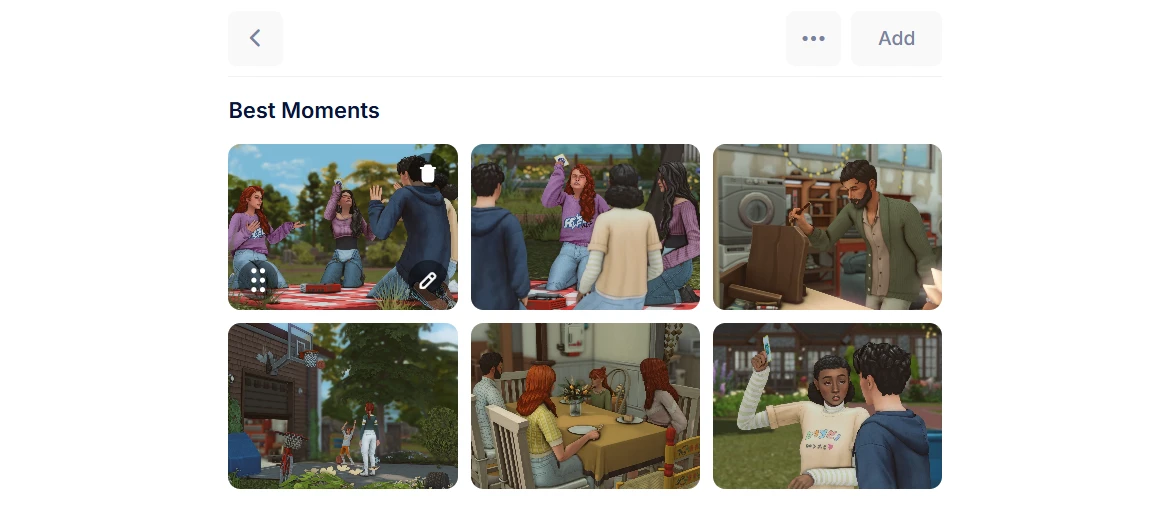
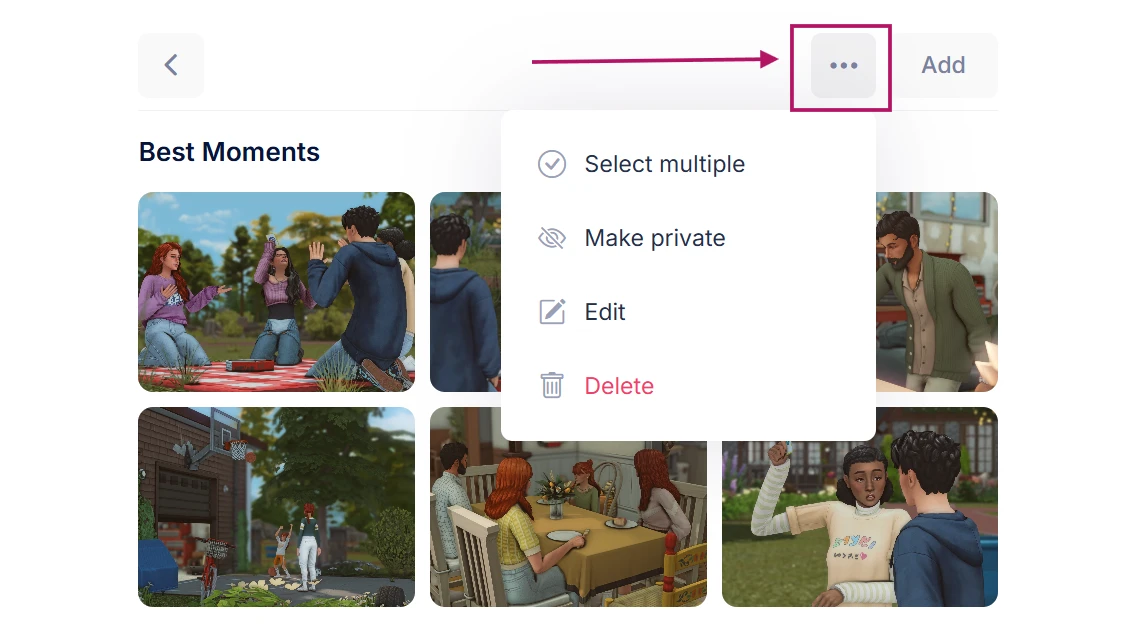
When you're viewing an album, you also have a few more options:
— Select multiple: pick several photos at once to delete them.
— Make the album private.
— Edit album (name, description and cover).
— Delete album.